10.5.4 Talk on a speaker group
You can talk to multiple speaker channels simultaneously when the channels are assigned to a speaker
group.
For information on setting the latch behavior for a speaker group, refer to Set the latch type for speaker
groups on page 149.
For information on assigning speaker channels to speaker groups, refer to Assign speaker channels to a
speaker group on page 147.
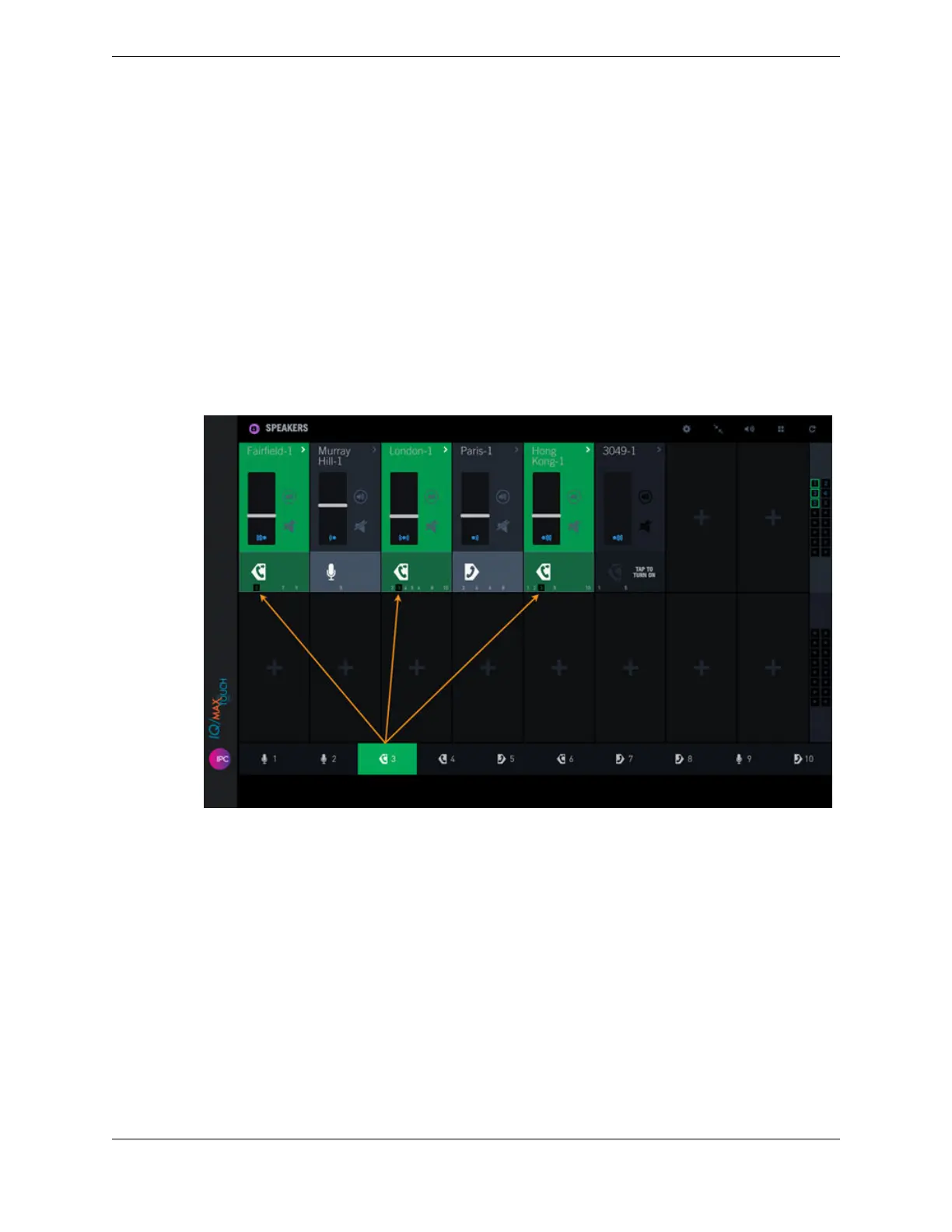
1. Tap or tap and hold the appropriate speaker group button to talk to all channels in that speaker group.
When you tap a speaker group to call the speaker channels in the group, the speaker group and
speaker channels associated with the group have a green background and the speaker group number
within the speaker channels has a black background.
Figure 68: Speakers within a group in a call
To temporarily remove a speaker channel from the group call, tap the Push-to-Talk button for the
channel you are removing. This removes the channel from the current call, but the channel remains a
member of the speaker group for future calls. You can tap the speaker channel's Push-to-Talk button
again to individually latch the channel.
2. Release or tap the speaker group button to stop transmitting to that speaker group.
10.6 Set up speaker channels
10.6.1 Speakers directory
The Speakers directory displays a button-style list of private lines (internal hoot, MRD, ARD, TV
audio), Open Connexion, and dial tone lines that you can assign to speaker channels.
For directory entries to be displayed in the Speakers directory, your administrator must create speaker
directory groups, then assign lines and members to each group. The Speakers directory shows all the
150 10.6: Set up speaker channels
August 26, 2019 IPC Proprietary



 To Next Page