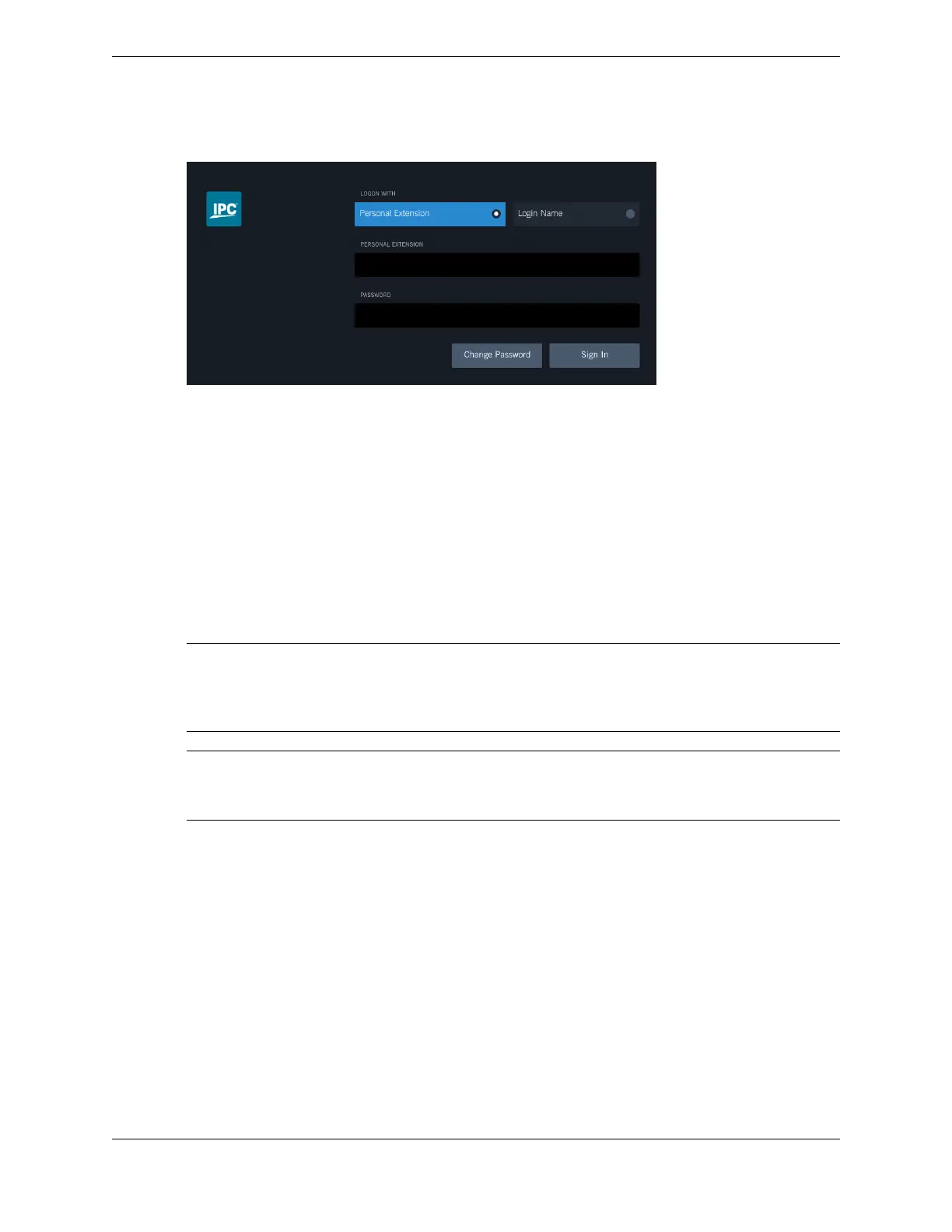
Figure 2: Login screen
1. To log in to the turret as an end user, do one of the following:
•
Tap Personal Extension and enter your personal extension.
•
Tap Login Name and enter your login name.
2. Tap Password and enter your password.
3. Tap Sign In.
The login credentials are validated. If they are correct, the system initializes and brings up the main
application area. For more information, see Application area on page 23.
If unsuccessful, verify your login credentials and re-enter them.
The password is dependent on the password policy for the system.
Note
Login credentials persist at the turret if this feature has been enabled and configured in the UMS by your
administrator. The next time you attempt to log in, the login screen displays the login name and personal
extension of the last logged in user. The user's password does not persist and must be entered manually.
Note
Do not attempt to log in to a second turret with the same user ID if the first turret has not completed
logging in. The first turret will become non-functional.
1.3.3 Log off
Log off from a turret.
For an illustration of the User badge and User menu popover, see User menu popover and User badge
on page 33.
1. Tap User badge in the Footer.
The User menu popover is displayed.
2. Tap Logout.
You are asked to confirm the log out.
3. At the prompt, tap Logout to proceed with the log out operation.
The login screen is displayed.
1.3: IQ/MAX TOUCH basics 17
IPC Proprietary Unigy 4.3
IQ/MAX TOUCH Turret User Guide



 To Next Page