1. Locate the contact in the Directory. Scroll as necessary.
You can browse contacts, navigate directories, or filter contacts to narrow the search.
2. To initiate a call from a contact entry, tap the contact entry.
A call is initiated using the default point of contact (preferred point of contact). No further action is
necessary.
3. To initiate a call from a point of contact for a contact, tap the point of contact icon.
A call is initiated using the point of contact selected.
Note
If a call is initiated on a private wire point of contact, and there is no button on the button sheet with the
same Resource Address of Record (AOR), the call is not placed.
7.5 View contact details
View more information about a contact in the Directory.
1. Tap the Directory icon in the Navbar.
The Directory application is displayed. For an illustration, see Directory on page 83.
2. Locate the contact whose details you want to view.
3. Tap the Contact details button (>) for the selected contact.
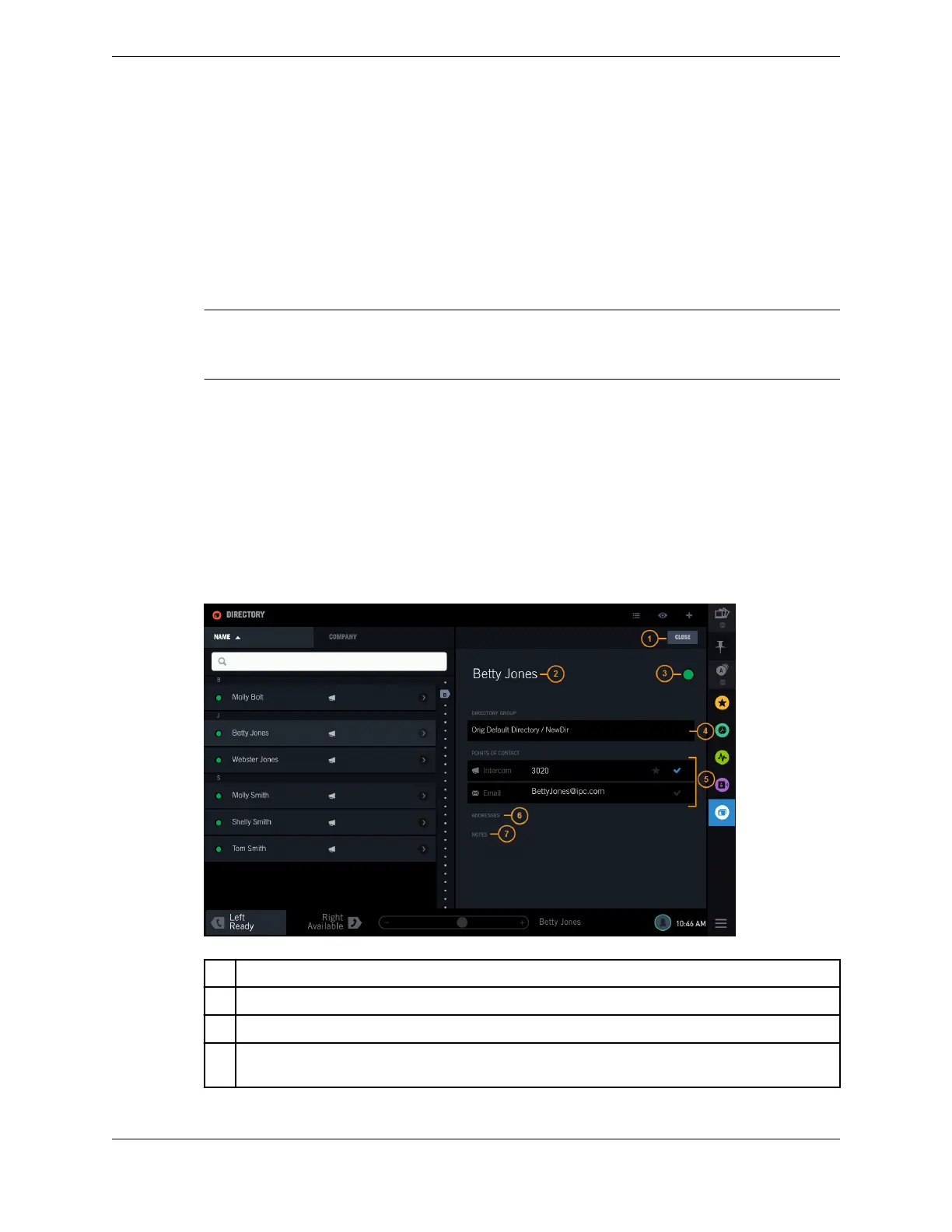
The Contact details view is displayed, overlaying part of the main application page.
Figure 50: Directory – View Contact Details
1 Close button
2 Contact name
3 Contact's presence
4 Directory Group – shows the directory category path you navigated to find this contact, if
applicable. Otherwise, it is blank.
86 7.5: View contact details
August 26, 2019 IPC Proprietary



 To Next Page