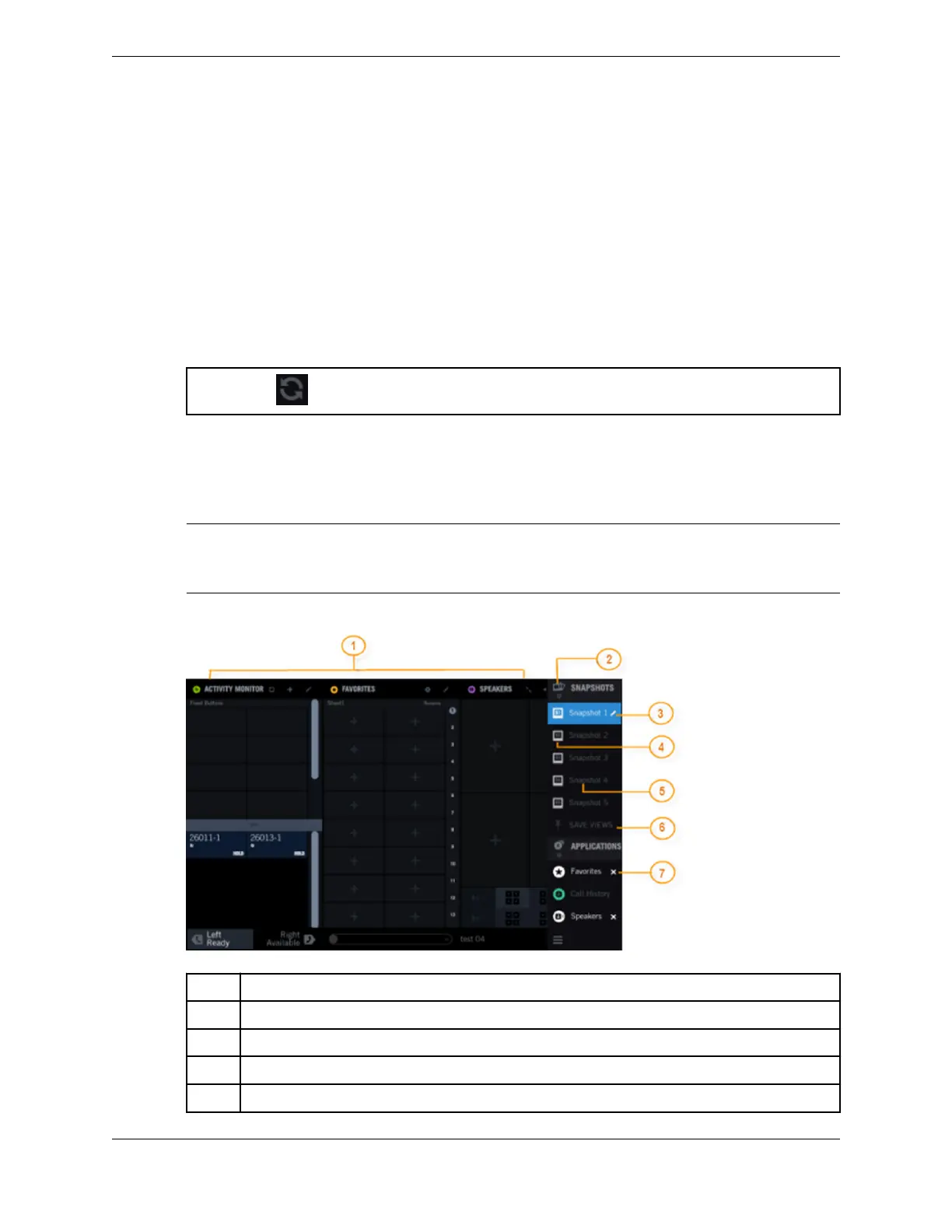
3.10 Snapshots
Use the snapshots feature to save an arrangement of applications for future recall.
Select applications to be included in a snapshot from the Navigation bar (Navbar). The Primary Module
and the Expansion Module can consist of up to three applications each, for a maximum of six
applications in a snapshot. You can create up to five snapshots, after which the SAVE VIEWS option is
disabled.
The snapshots retain the last saved settings for each application in the snapshot. For example, for
Favorites, the last sheet that was displayed is preserved; in Speakers, the page and state (compact or
normal view) are preserved. To save the latest snapshot changes and application states, tap the snapshot
Refresh icon to the right of the snapshot name.
Refresh icon:
The default name for all the saved snapshots is "Snapshot N", where N is an automatically chosen
number in ascending order. When you log on, the first snapshot in the Navbar is displayed by default. If
you change the order of the snapshots in the Navbar, whichever is first will be the one displayed upon
the next login.
Note
An administrator can create snapshots for you in the UMS. If an administrator is making configuration
changes at the same time as you are, the changes of whoever saved last take effect.
Figure 26: Snapshot
1 Snapshot displaying three applications
2 Snapshot group icon
3 Edit option or Refresh option (displayed when changes were made to the snapshot)
4 Snapshot icon
5 Snapshot name
42 3.10: Snapshots
August 26, 2019 IPC Proprietary



 To Next Page