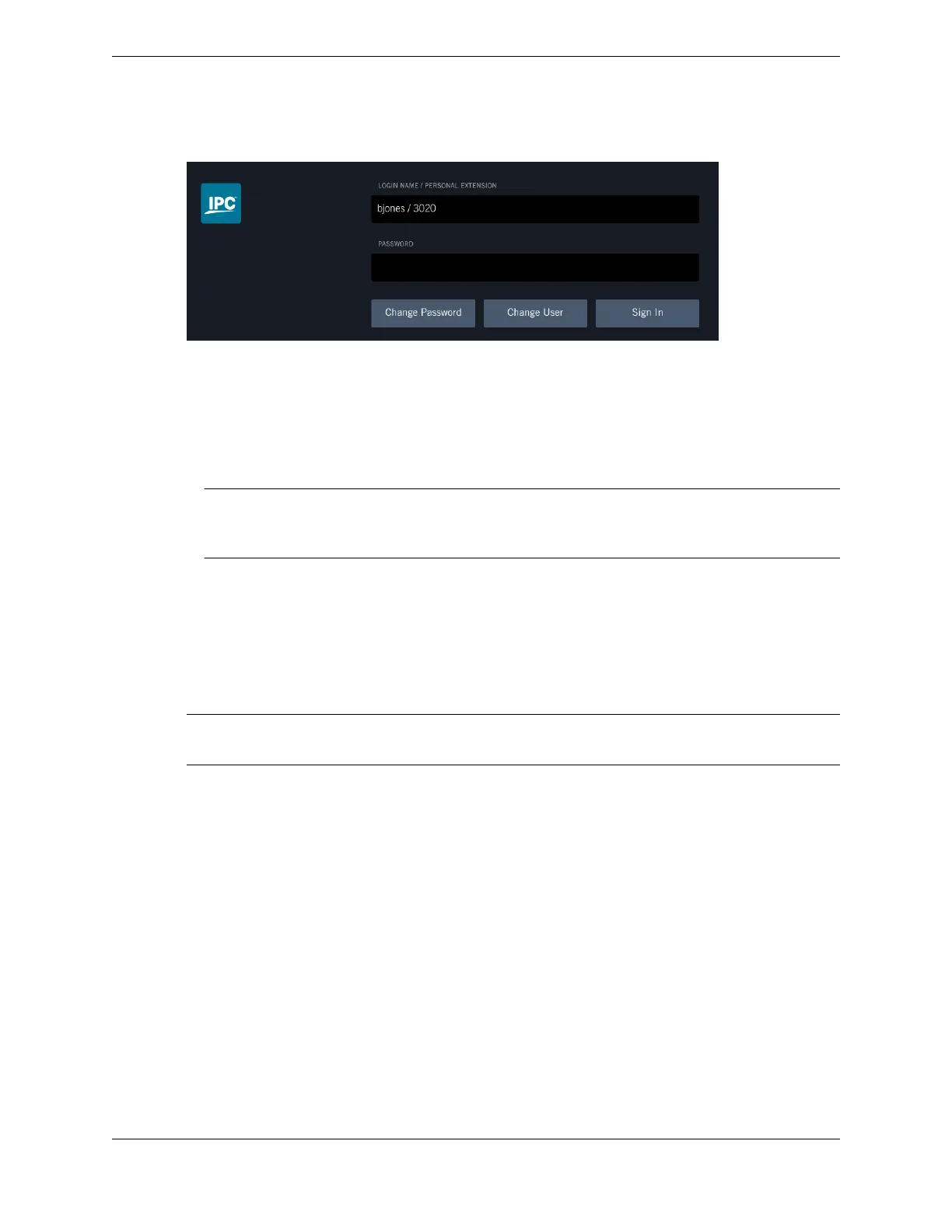
Figure 3: Login screen with Change User
1. At the login screen, tap Change User.
2. Tap Personal Extension and type your personal extension at the prompt, or tap Login Name and
type your login name at the prompt.
3. Tap Password and type your password.
4. Tap Sign In.
Note
If you are already logged on to another device, you are asked to confirm the force login operation.
Once confirmed, you are logged off the old device and on to the new device.
1.3.6 Lock and unlock the screen
After you are logged in, you can lock the screen of your device to prevent unauthorized use, and unlock
the screen to resume trading.
For an illustration of the User badge and User menu popover, see User menu popover and User badge
on page 33.
Note
If an administrator logs you on through the UMS, the system prevents you from locking the turret.
1. Tap User badge in the Footer.
The User menu popover is displayed.
2. Tap Lock Device.
A confirmation dialog is displayed.
3. Tap Lock to confirm the lock device operation.
The device is locked and must be unlocked before use.
4. To unlock the device, type your password in the Password field then tap Unlock.
The device is unlocked.
1.4 Free seating
Free seating is the ability for an end user to log in to any turret within a Unigy enterprise and get the
same user profile as on the user's own turret. User preferences, controls, directories, and communication
history are available to an end user from any turret.
1.4: Free seating 19
IPC Proprietary Unigy 4.3
IQ/MAX TOUCH Turret User Guide



 To Next Page