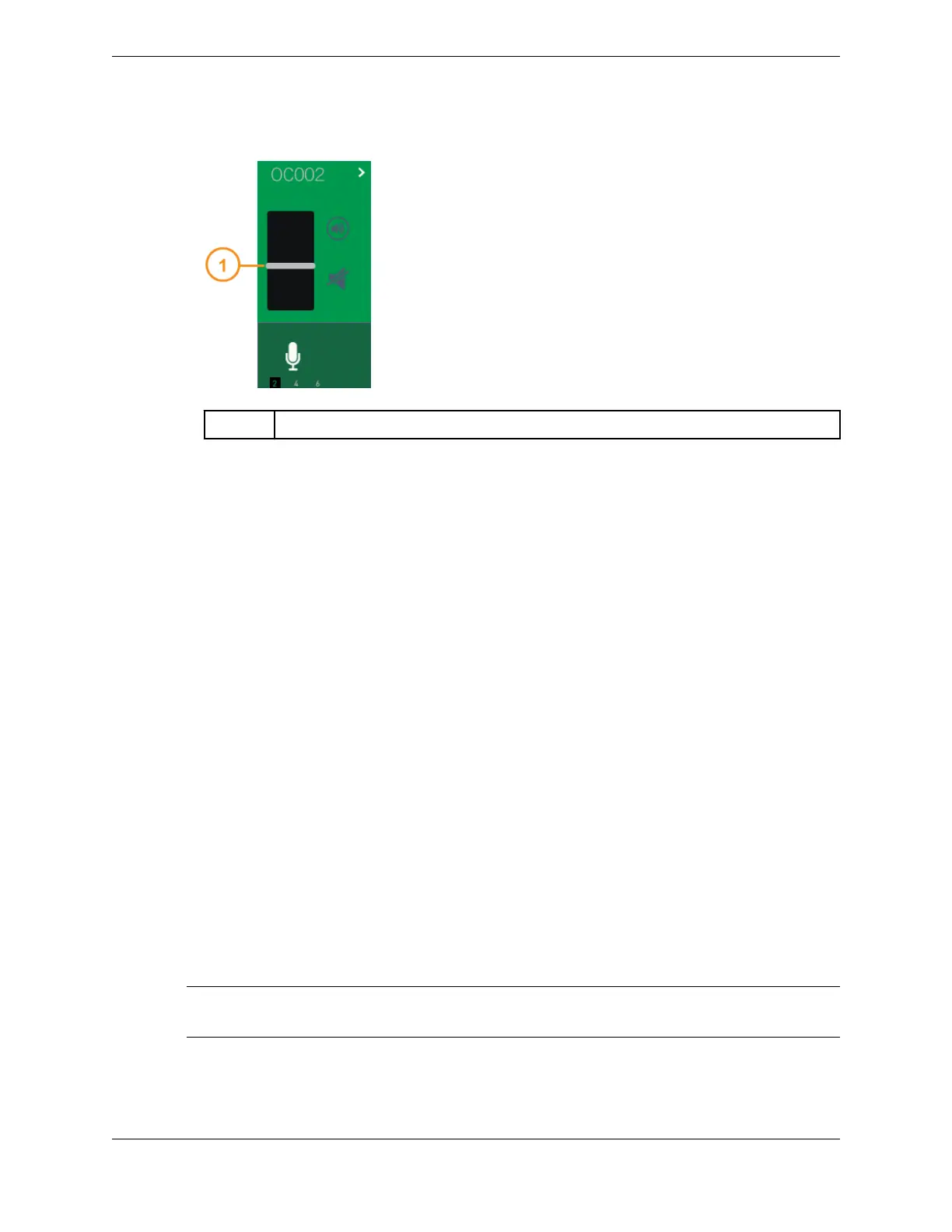
Figure 58: Volume slider
1 Speaker channel volume slider
10.4.5 Mute or unmute a speaker channel
The Mute icon on a speaker channel acts as a toggle to mute and unmute the speaker volume on the
speaker channel.
Tap the Mute icon on a speaker channel to mute the speaker volume on the speaker channel. Tap the
Mute icon again to unmute the speaker volume on the speaker channel. See Speakers on a hard turret on
page 128 for an illustration.
10.4.6 Send a speaker call to the handset
While you are on a speaker call, you can move the speaker call to a handset.
1. Optionally, select a handset side on which to send the speaker call.
2. Tap the > icon in the speaker label of the speaker channel.
The contextual menu is displayed.
3. Tap Send to Handset from the contextual menu.
The call is moved to the selected handset.
If no handset was selected, the speaker call is sent to the default handset if available. If not available,
what happens to the call depends on the Auto Select/Hold setting in your user profile.
10.4.7 Replay speaker audio
The Replay feature in the Speakers application replays up to the last 20 seconds of audio for all active
speaker channels, while live audio continues on the speaker channels. Blue replay indicators flicker on
the channels as the turret replays the stored audio.
The range used in the Replay feature is configurable from the Settings application.
Note
There is only one audio stream for all speaker channels.
10.4: Use the Speakers application 135
IPC Proprietary Unigy 4.3
IQ/MAX TOUCH Turret User Guide



 To Next Page