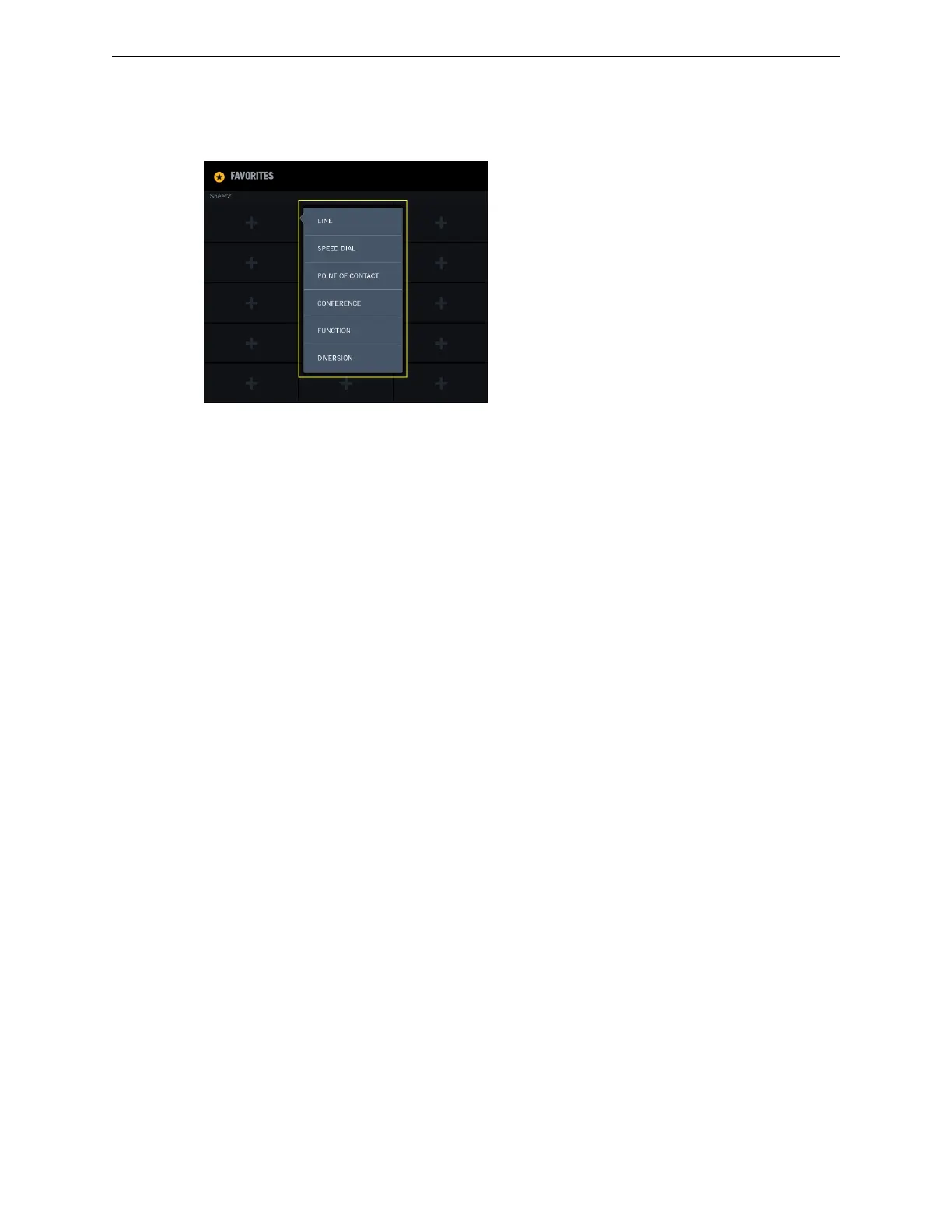
Figure 31: Favorites contextual menu
3. Select the button type to be assigned.
A Modal dialog is displayed with options that vary depending on the button type.
4. Enter information about the button type.
•
Tap a text field to enter text. Tap Done on the soft keyboard to dismiss the keyboard.
•
For non-text fields, select an option from the dialog or from the drop-down menu.
The dialog is updated with your entries and selections.
5. Review all responses and selections in the dialog, then tap Save to save your changes.
The button is created on the button sheet accordingly.
4.4.1 Add a line button
Add a line button in Favorites.
Prerequisite: Review the general procedure for all buttons in Add a button in Favorites on page 50.
1. Tap an empty button.
A contextual menu is displayed with the button types.
2. Select LINE.
A Modal dialog is displayed.
3. Enter the identifier for the line in the Resource AOR field, and tap Validate to verify that the line
identifier is valid.
If the identifier is invalid, an error message is displayed.
4. Enter a button label in the Descriptor field.
5. Optionally, update the number of appearances in the Appearance field.
6. Optionally, tap Advanced Features to update line preferences.
•
Priority: Low or High. Priority for calls originating on this line.
•
CLI Preference: Show or Hide. Display or suppress CLI information for the line. If you choose
Hide, CLI information is still stored in history events.
•
Ringtone Preference: No Override or Ringtone 1 - Ringtone 18. Set a ringtone to override the
default ringer, or No Override to use the default ringtone.
•
Ring Preference: Ring, One Ring, or No Ring. Settings for incoming calls on the line.
•
Float Preference: Float or None. Display calls from this line on a floating button if the line button
is not currently displayed.
4.4: Add a button in Favorites 51
IPC Proprietary Unigy 4.3
IQ/MAX TOUCH Turret User Guide



 To Next Page