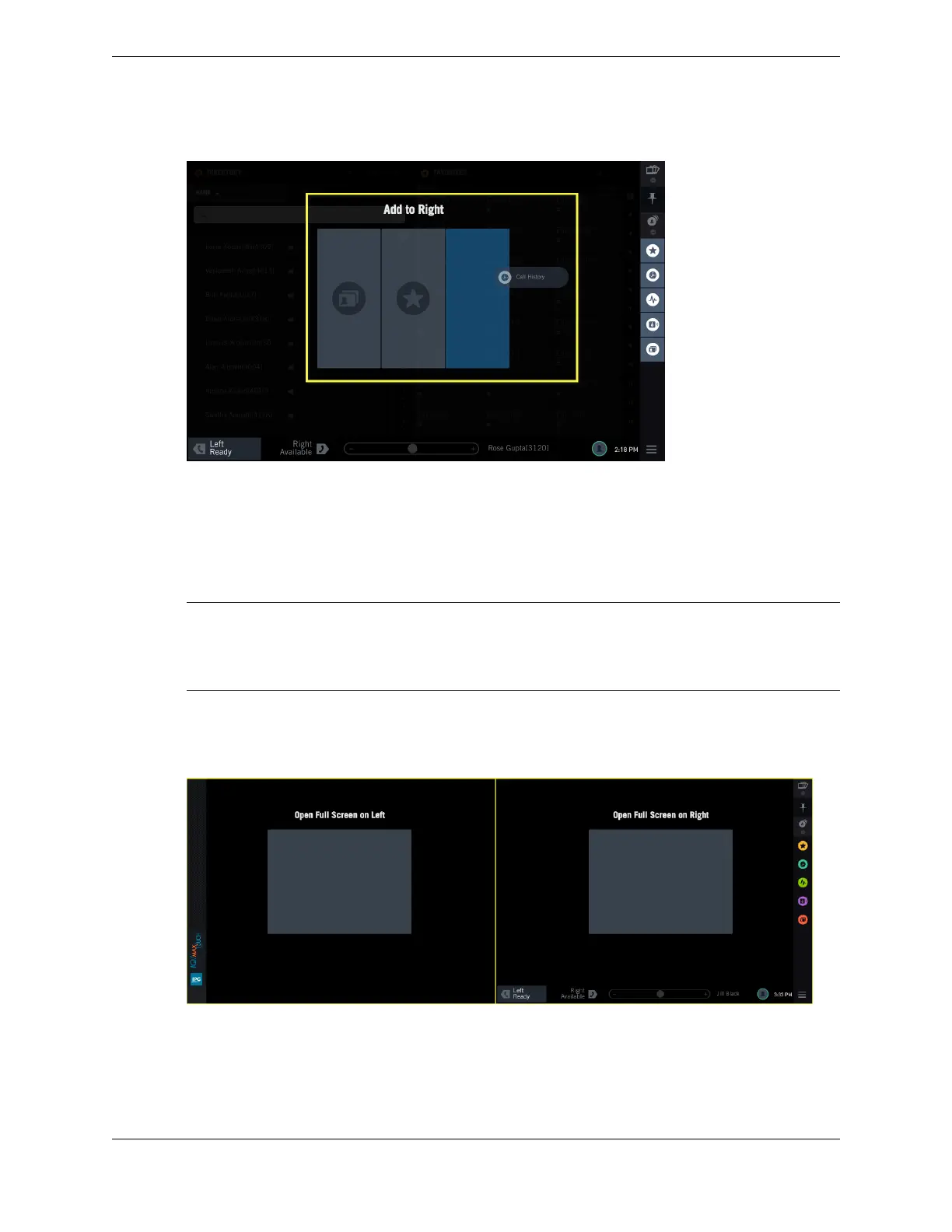
Figure 9: Positioning guide on a Primary Module
Positioning guide and Expansion Module
If an Expansion Module is present, the positioning guide presents two boxes and you use the one on the
left to place one, two, or three applications on the Expansion Module screen. You can also replace an
open application on the Expansion Module screen or move applications around within the Expansion
Module screen or to or from the Primary Module screen.
Note
The Expansion Module is designed and recommended to be positioned to the left when facing the
Primary Module. This is notable because when you tap or drag applications to create your views, the
positioning guide displays the Expansion Module on the left of the primary drop area.
The following figure illustrates the positioning guide on the Expansion Module (left screen) and the
Primary Module (right screen) when you tap an app in the Navbar. The app will open in full screen view.
Figure 10: Positioning guide when tapping app
The following figure illustrates the positioning guide when you drag and drop an app from the Navbar.
You can choose where to position the app depending on what apps are currently open. For more
information on opening applications, see Open an application in full screen view on page 37 and Open
an application using the positioning guide on page 37.
26 2.3: Application area
August 26, 2019 IPC Proprietary



 To Next Page