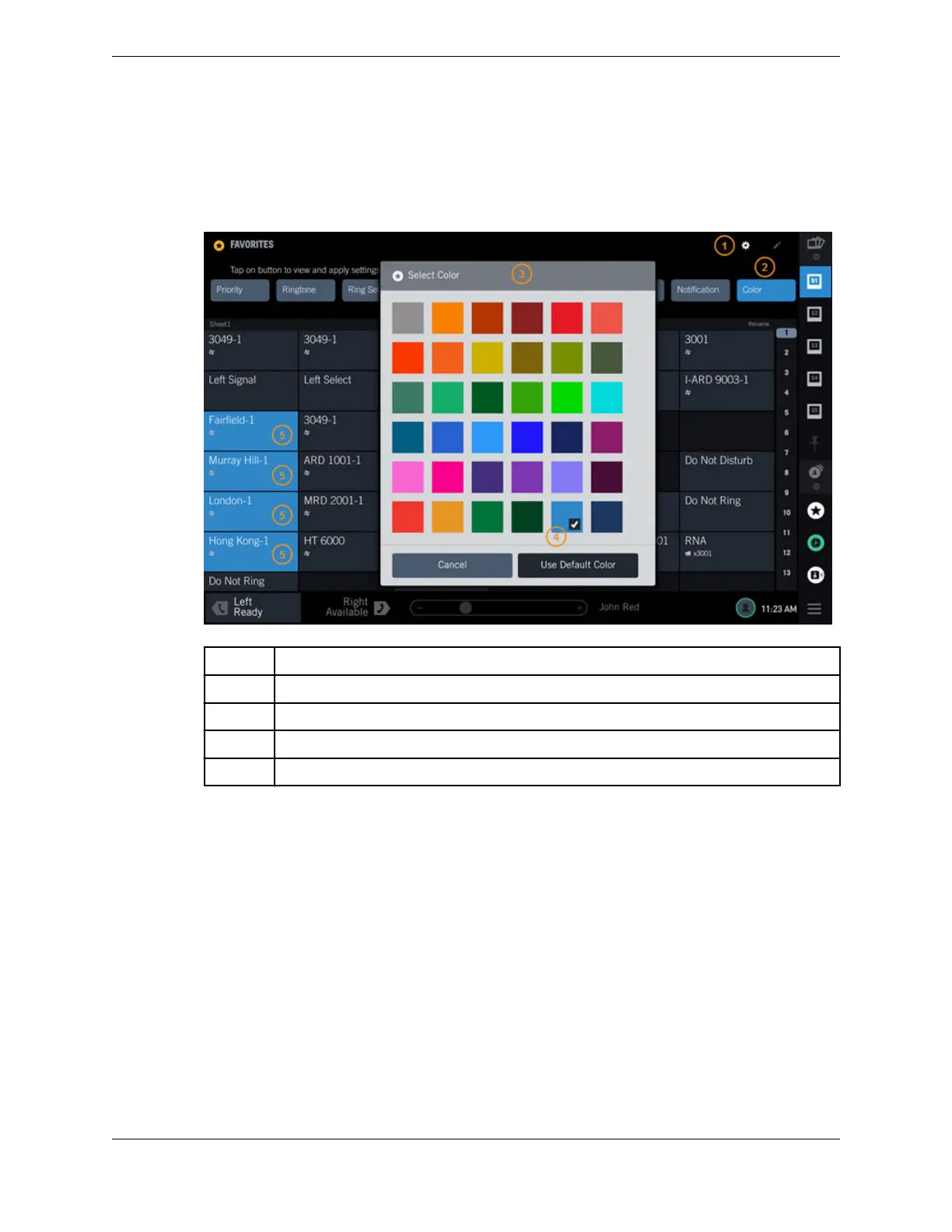
1. Within the Favorites application, tap the Batch Settings Mode icon.
2. Tap the Color button.
The Select Color dialog box is displayed.
Figure 32: Favorites: Color feature
1 Batch Settings Mode icon
2 Color button
3 Select Color dialog box
4 Selected color
5 Buttons assigned the selected color
3. Tap the color you are assigning to the buttons.
A check mark is displayed in the color patch and the Color button changes to the selected color. To
return a colored button to the default color (gray), tap Use Default Color then tap the button.
4. Tap the buttons to which you are assigning the color.
The button color changes.
5. To assign a different color to other buttons, repeat steps 3 and 4.
6. Tap the Batch Settings Mode icon.
4.10.2.1 Button color scenarios
This topic describes how the button background color and the priority and line status colors are
displayed in different call scenarios.
For information on changing button, priority, and line status colors, refer to the following topics:
•
Assign button background colors on page 58
•
Call Handling on page 164
4.10: Batch settings mode 59
IPC Proprietary Unigy 4.3
IQ/MAX TOUCH Turret User Guide



 To Next Page