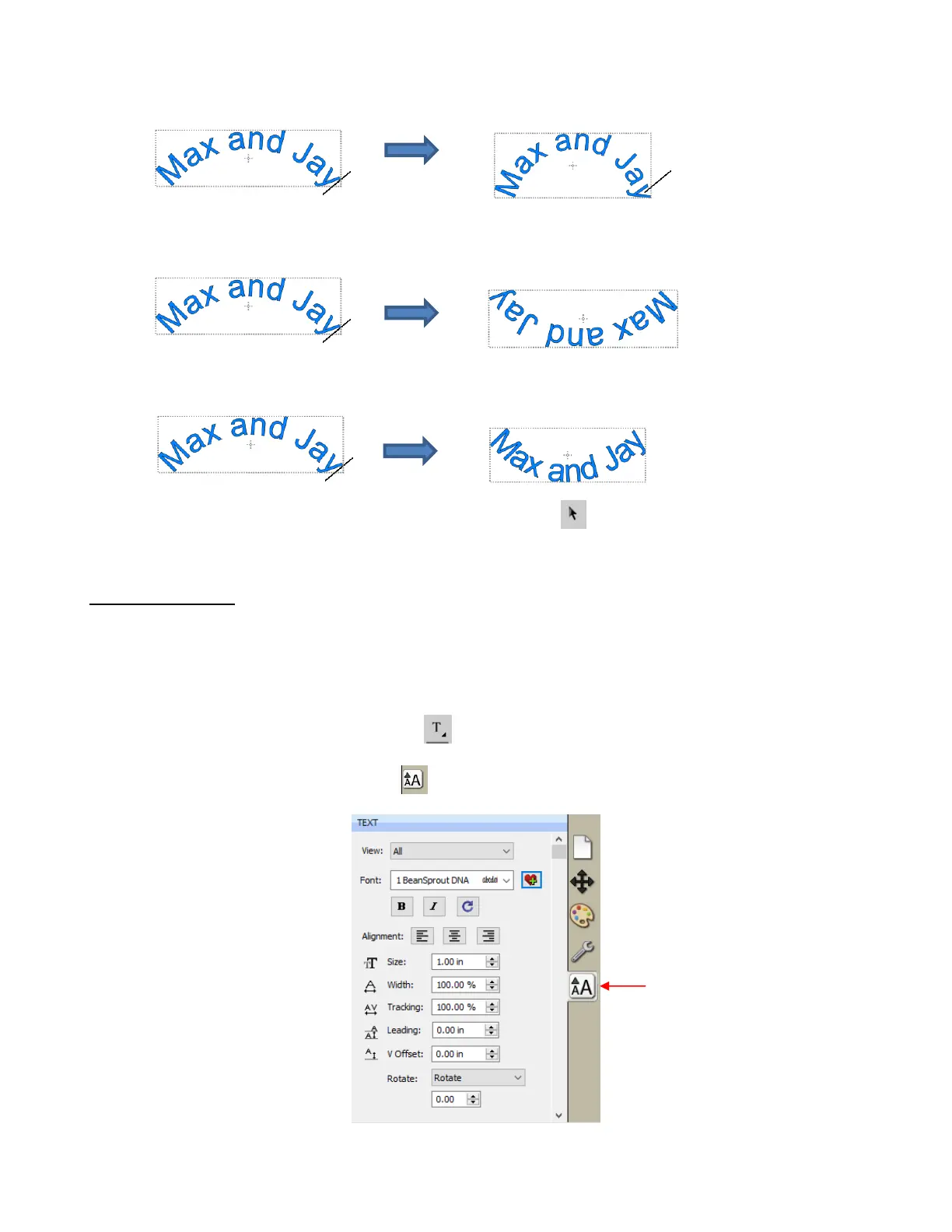
When done, either press the Esc key or click on the Select icon on the Tools Panel.
6.05 Text Settings
The Text Settings window offers an array of settings related to the creation and editing of text:
Before typing text, make changes in this window so that they will be in place when text is then typed.
For existing text, drag your mouse to highlight the letters and then change settings to be applied. For
example, a different font, different size, wider spacing, etc. (Note that in order to highlight text, you
need to first click on the Type Tool icon on the Tools Panel.)
To open, click on the Text Settings icon on the Properties Panel to open the Text Panel:



 To Next Page