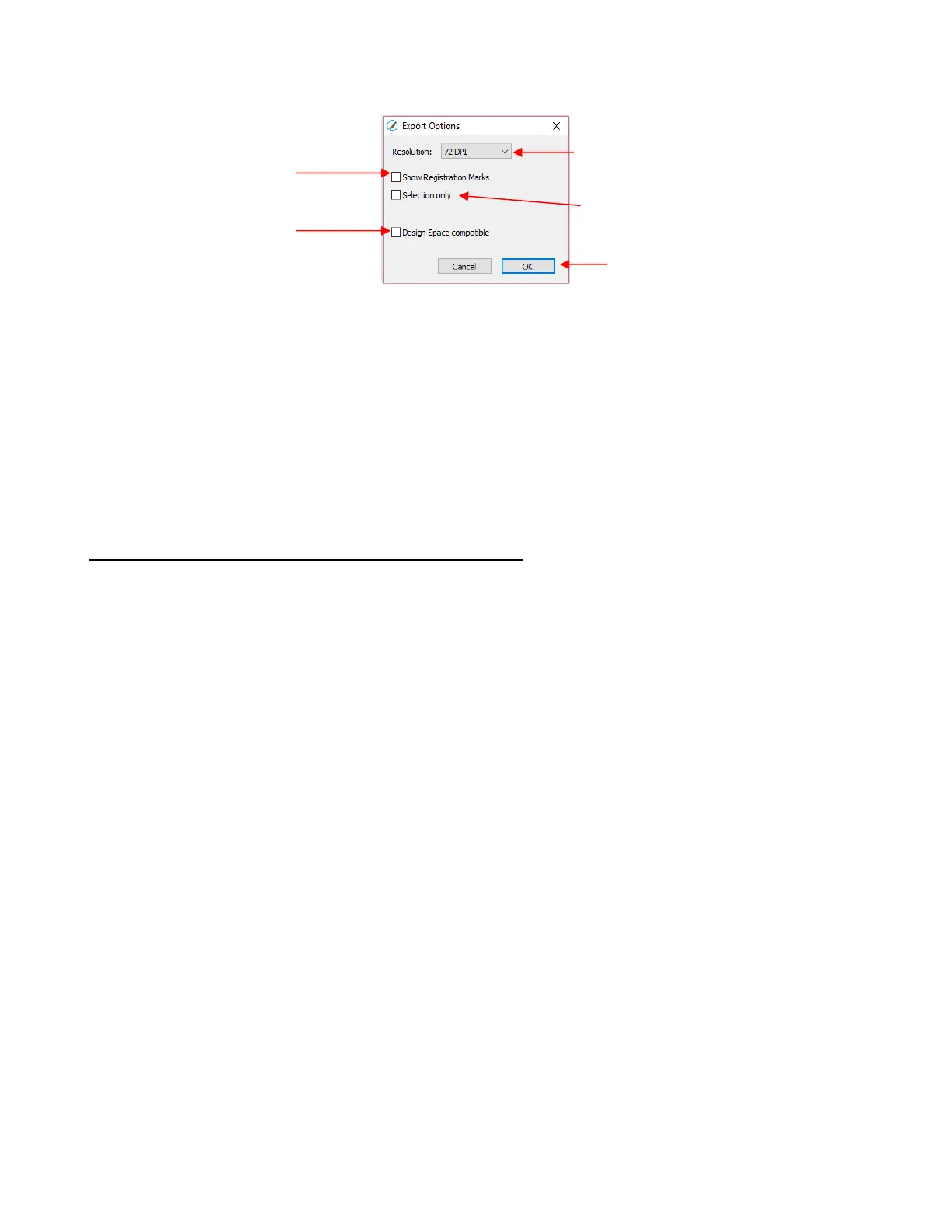
The Resolution setting affects the dimensions of the shapes upon importing into another program:
For example, Adobe Illustrator uses 72, Inkscape uses 90, and Corel Draw uses 96. Unless you know
the intended program’s DPI, leave it at 72.
If the project is designed with specific dimensions affecting the final result, such as an envelope for a
card, include a separate Read Me text file noting the dimensions of the project in SCAL so that the
imported SVG can be resized accordingly.
The Selection Only setting was mentioned earlier as the option to mark when specific shapes have been
selected for export versus exporting all of the shapes in the file.
4.07.2 Exporting in JPG, PNG, BMP and TIFF Formats
There are various reasons why you might want to export your file as a raster. For example:
The image is going to be posted on a web site or blog
The image will be shared with a friend or a customer
You wish to use the image in a digital scrapbooking program
You want to print a PNC project from a printer without SCAL installed
If you choose any of the raster export formats, the same window will open offering options for:
Resolution: if the image will be printed, you usually choose 200 or 300
Background: choose a color or, with PNG export, you can also choose transparent
Show Registration Marks: option to print with the registration marks that will be used for a PNC
application
Selection only: when specific shapes have been selected for export versus exporting all of the shapes
in the file
Crop: increase or decrease the background border around the exported image
Drop Shadow: add a shadow effect to the image
The following screenshot shows an example of an export in a raster format:



 To Next Page