10.08 Path Details and Reverse Path
Sometimes a cutting issue can be resolved by reversing the direction of a cut. In SCAL, the cut direction
(clockwise versus counterclockwise) can be checked using the following steps:
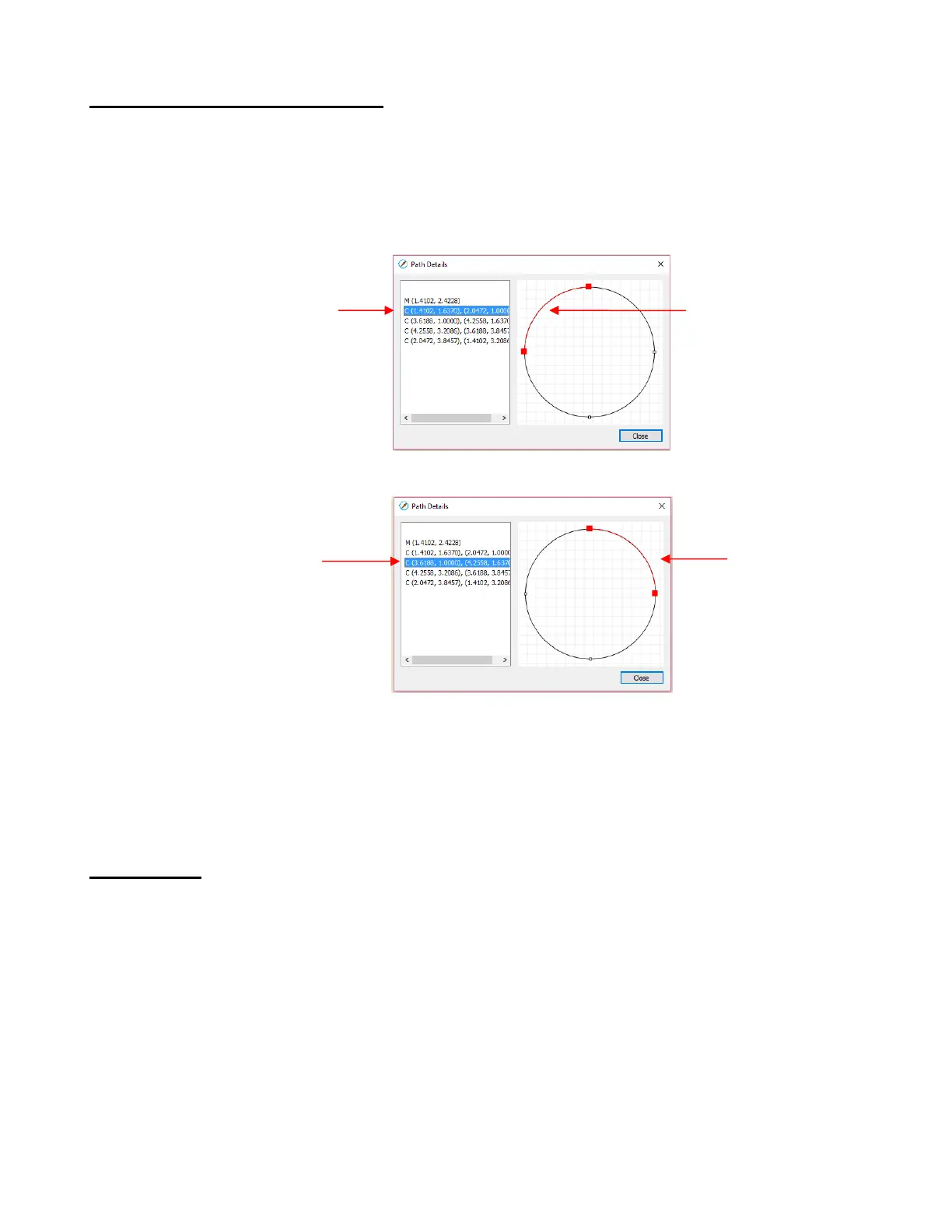
Select the shape, right-click and select Path>Path Details.
A window will open. On the left side is a list of the paths in the order they will cut. Click on any path in
the list and that path will turn red:
Select the next path in the list and you will then be able to determine the direction of the cut:
To reverse the direction of a path, use either of the following after selecting the shape:
Right-click and select Path>Reverse Path
Go to Path>Reverse Path
10.09 Line Fill
The Line Fill function creates a line or hatch fill pattern, typically used for engraving with an engraving tool.
It can also be used for coloring in shapes with a pen or embossing some materials with an embosser.
To access this function, select a shape and go to Effects>Line Fill:



 To Next Page