Allow to thoroughly cool before removing clear transfer tape.
If using a heat press to press the stones to a shirt:
Set the temperature to ~ 330—350 degrees F (165 – 175 degrees C) and set the pressure to medium.
Press garment first for a flat dry surface.
Arrange pattern on shirt, carefully centering. Press for 10-12 seconds.
Peel cold, cover with Teflon sheet, and re-press another 10-12 seconds. Alternatively, flip the shirt
inside out and press from the back for 10-12 seconds.
Use a lower temperature if pressing on 50/50 cotton poly fabric. Use a higher temperature on denim or
tote bags.
12.06.4 Extra tips on Rhinestone Applications
If you are combining iron-on transfer with rhinestones, do not press the rhinestones onto the iron-on vinyl.
While it will appear to have worked well, the stones will fall off once the garment is laundered. When using
both, create a contour line around your iron-on pattern for the stones.
Pressing rhinestones to cardstock also works very well. If pressing onto the front of a greeting card, unfold
the card first.
After pressing and allowing to cool, use your fingernail or an old credit card/gift card to scrape the pattern to
see if any stones come loose. If so, replace those stones with new ones and press again.
12.07 Drawing with a Pen or Glue Pen
With the Zing Air, you can draw with any pen, pencil, marker, or glue pen, that can be securely gripped by
the blade holder seat and not be dragging across the material. The optional Pen Tool can also be used to
hold thinner pens. The advantage of this holder is that the center of the pen will be positioned the same as
the blade on the Zing Blade Holder, thus allowing you to draw with the pen and then cut out a shape. The
pen will draw in the correct relative positions to the cut:
If you do not own the Pen Tool or you wish to use a pen which does not fit into the holder, then refer to the
Section 12.07.2 for instructions on how to draw and cut with perfect alignment. But first, continue reading
the remainder of this section for tips on drawing.
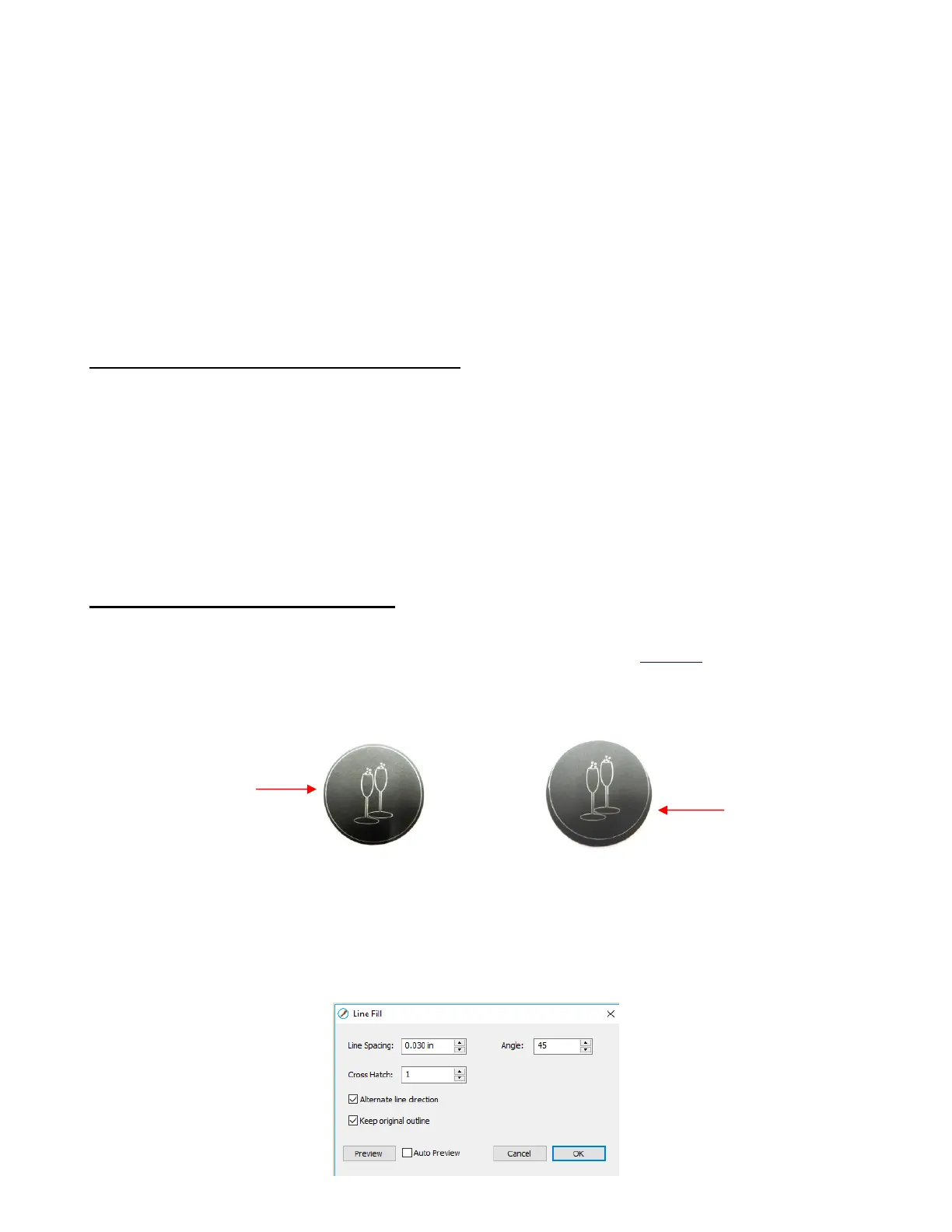
If you wish to fill in a drawn shape, refer back to Section 10.09 which covers how to add a Line Fill pattern
to a shape. Here are some suggestions on settings to use in the Line Fill window:



 To Next Page