4. SCAL: Handling Files and Organizing Layers
4.01 Opening Files
4.01.1 Opening a New File/Project
When you launch SCAL, a new blank Cutting Mat will appear with a new blank project opened.
To open a new file (start a new project), any of the following can be used:
Click on the New Project icon on the upper Toolbar
Press Ctrl+N
Go to File>New Project
Note that if any changes have been made to the existing project, a popup window will ask if you wish to
save the changes that have been made. Refer to Section 4.02.
If you wish to have more than one file open, you will need to open additional instances of SCAL.
4.01.2 Opening an Existing .SCUT File
An existing .SCUTx file (where x is blank, 2, 3, or 4 indicating which SCAL version created it) can be opened
in SCAL4 using any of the following:
Click on the Open Project icon on the upper Toolbar
Press Ctrl+O
Go to File>Open Project
Go to File>Recent Projects, if the file is one of the last five you had open in SCAL
Double-click a .SCUTx file in Windows Explorer or attached to an email
Drag and drop a .SCUTx file onto the main screen of SCAL
Import from the Library (refer to Section 4.03.3)
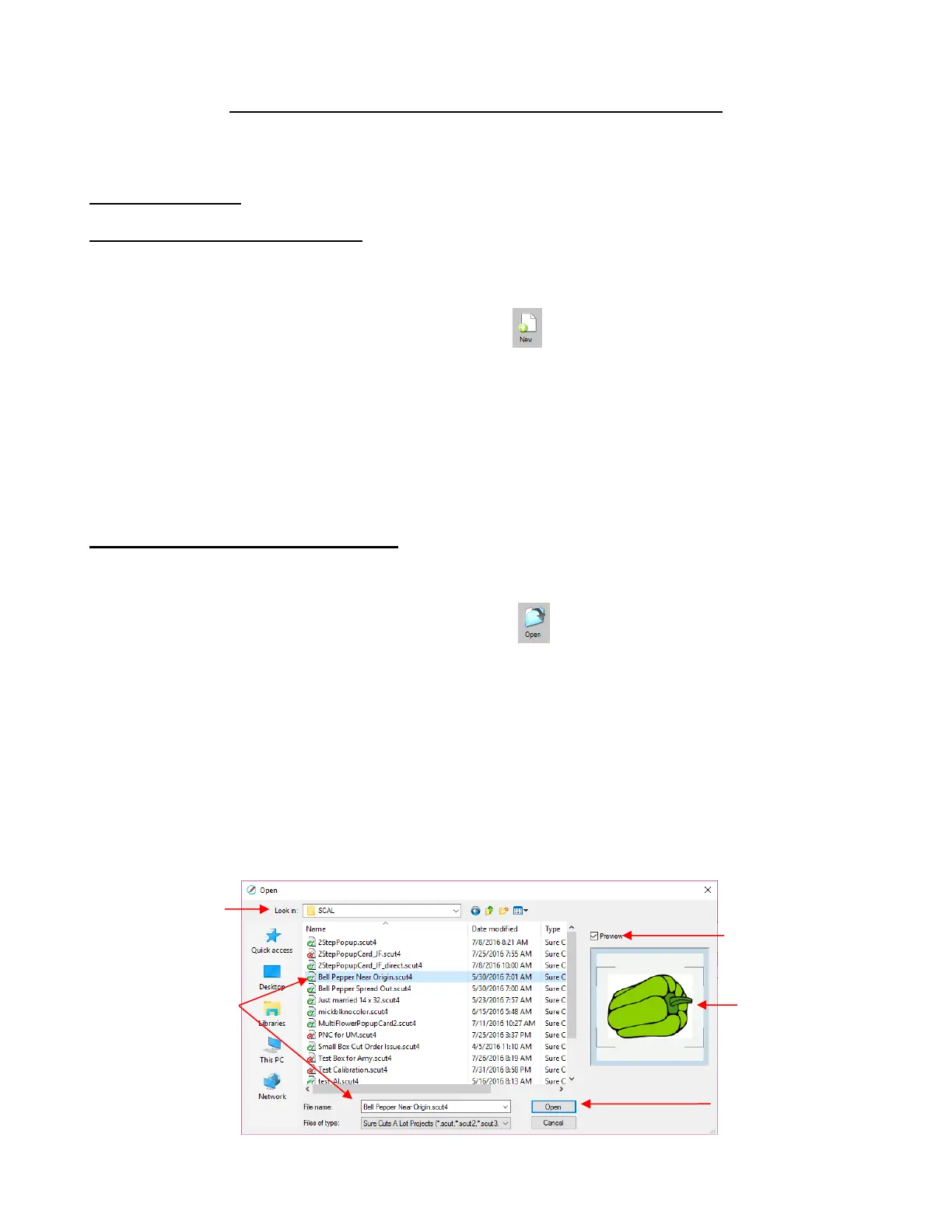
In the first three options above, a window will open where you can browse to locate the file you wish to
open:



 To Next Page