interior wall separates the cutter from the computer. If you continue to have issues, please contact KNK
USA (refer to the first page of this manual).
Connecting Via Bluetooth to Another Computer
If you need to disconnect the Zing Air from Bluetooth, click on the Bluetooth icon on your task bar and select
Show Bluetooth Devices. Devices and Printers will open and you can then select Cutter and then click
on Remove Device.
USB Connection on a PC
Connect the USB cable to the back of the cutter and into an available USB port on your computer. The
Windows Hardware Manager will identify the USB connection. If the Hardware Installation window pops
open, proceed and accept all defaults. Your Mac connection will later appear in the SCAL Cut Settings
window.
1.10.2 Connecting to a Mac
Bluetooth Connection on a Mac
(1) To verify you have Bluetooth available on your Mac, go to System Preferences and look for the Bluetooh
icon:
(2) If you do not have Bluetooth, then insert the Bluetooth USB device which came with your Zing Air and
restart your Mac. Return to System Preferences to verify you now see the Bluetooth icon shown above.
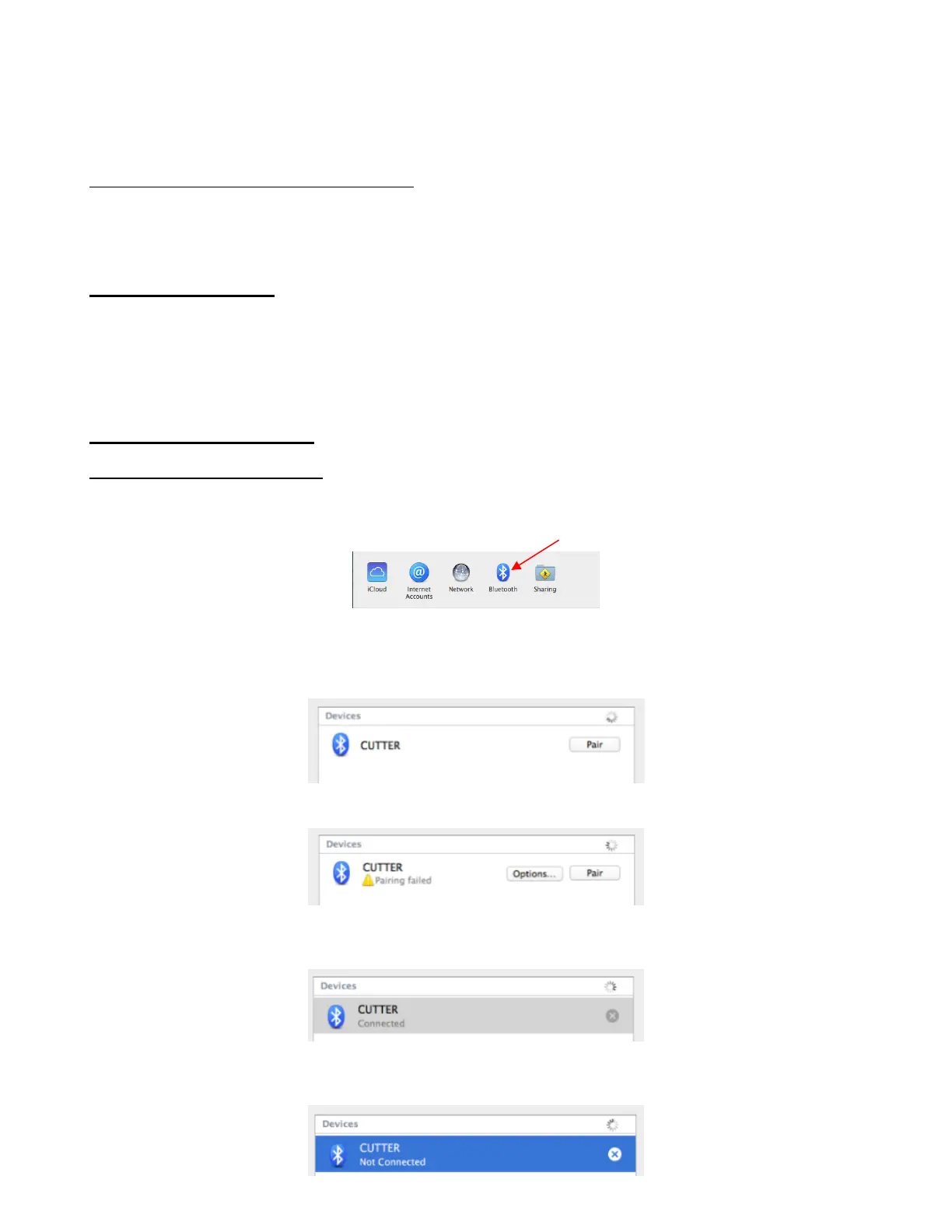
(3) Click on the Bluetooth icon and the following should appear:
(4) Click on Pair and you should get the following:
(5) Click on Options and enter the “1234” code. Click on Pair. Then the Zing Air should be connected:
(6) If you happen to get the following window, click on the “X” and select Remove. Restart your Mac and follow
the previous instructions again.



 To Next Page