5.13 Fill & Stroke: Fill
The Fill & Stroke Panel provides options for changing how a shape or open path appears on the screen
and, in the case of Line Style (solid versus dashed), how it cuts. This can be helpful in designing a project
and also in print and cut applications.
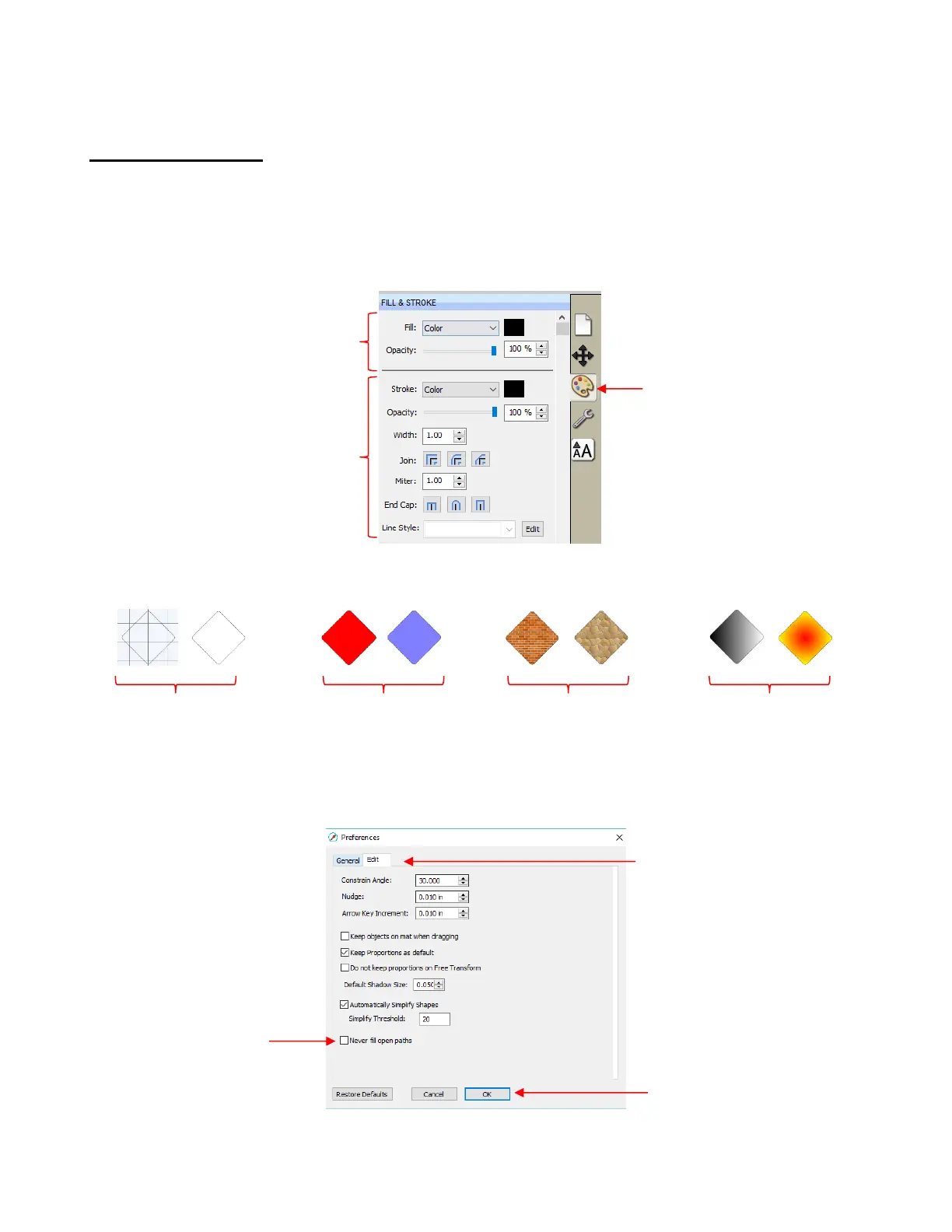
To open this panel, click on the Fill & Stroke icon on the Properties Panel:
Shapes can be filled with nothing, a solid color, a pattern or a gradient:
By default, only closed shapes can display a fill. However, you can opt to have open shapes filled by going
to Edit>Preferences, clicking on the Edit tab, and then unchecking the box next to Never fill open paths.



 To Next Page