8.05 Path Offset
Path Offset creates an outline or inline of a shape and will delete the original upon clicking on OK. Note that
if you want the original, either make a backup copy or use the Shadow Layer function presented in Section
9.04.
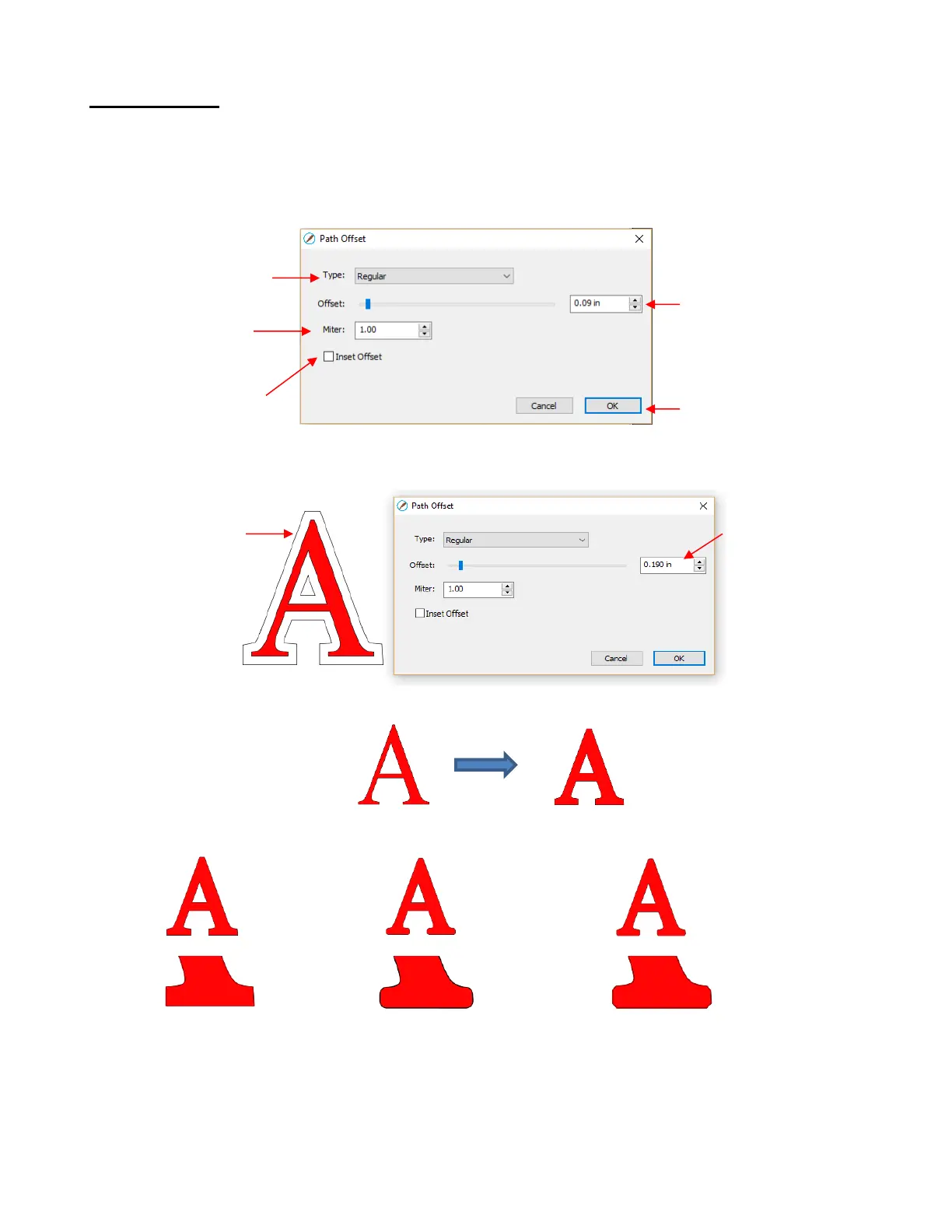
To access Path Offset, select the shape and go to Path>Path Offset:
As you increase the Offset, you will begin to see the outline form on your selected shape:
After clicking on OK, the Offset will fill with the same color and the original will be deleted:
Type controls the style or shape of the offset at the corners. There are three choices:
Note that the first choice, Regular, also has a Miter setting which should work in the same way as Miter
affects the Stroke (refer to Section 5.14). However, at this time, it appears that the Miter setting is not
working.
Checking the Inset Offset box creates an inline instead of an outline:



 To Next Page