7.04.3 Brush Drawing
The Brush tool is accessed by clicking on the 7
th
icon on the Tools Panel. It is used to freehand draw
thick lines. As with the Freehand tool, using a stylus with a graphics tablet will provide the most control.
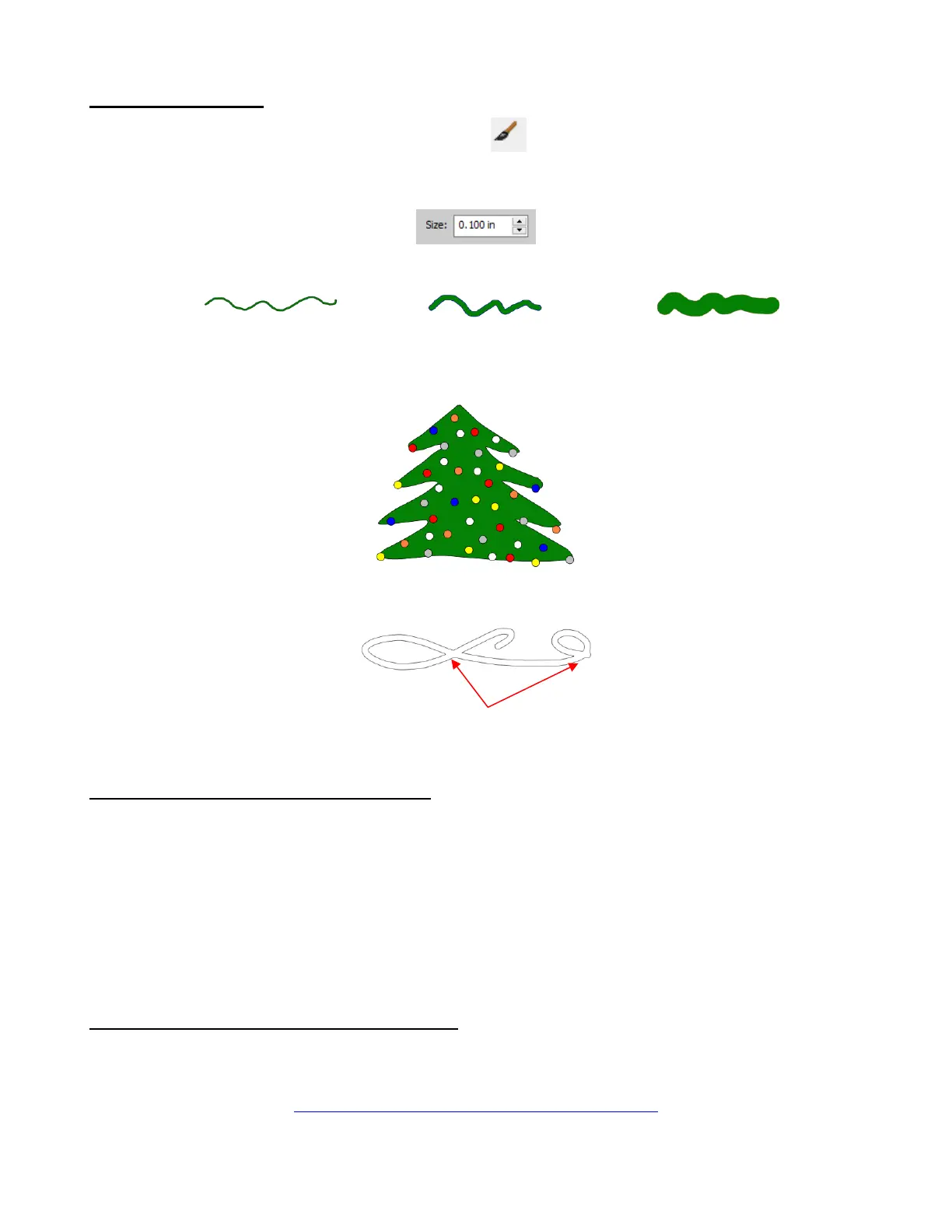
In the Tool Options is a Size setting for the thickness of the Brush tool:
Select the Size you desire and freehand draw:
One fun application is to use the Brush tool to easily add circles to a design. Select the Size and then just
left-click without dragging the mouse. For example, the tree drawn with the Freehand tool in the prior
section is now decorated:
Note that if a path drawn with the Brush tool crosses itself, the overlap will be removed:
7.05 Manual Tracing of an Imported Image
Sometimes the quality of an image will fail to yield a good autotrace. It could be that the image is too small
or too detailed. If the image is important to you, then manually tracing offers another option for conversion to
a vector cut line.
The easiest way to manually trace a raster graphic is using the Draw Tool presented in Section 7.04.1.
However, instead of trying to create the Bézier curves as you go, it’s faster and easier to simply and quickly
click, click, click around the image placing a node wherever the path changes directions. Then you can go
back and manually move nodes and drag curves to fit the original image. This process is presented in the
next few subsections.
7.05.1 Importing an Image for Manual Tracing
Since you won’t be trying to autotrace the raster image, use File>Place Image to import it onto the Cutting
Mat. In this tutorial, the dress image from this web site will be used:
http://houseofstirfry.com/chia/templates/dress01.html
While this dress could easily be autotraced, it provides a great example of how the Draw Tool can be used
to fit a shape such as this. So, it will be used for the manual tracing example.
In order to see the image, make sure Show Outlines Only is not checked on the Document Panel:



 To Next Page