File>Place Image: will import JPG, BMP, GIF, and PNG files for the purpose of printing or manually
tracing in the event the auto-tracing function doesn’t adequately perform due to the image quality. It’s
also another way to load an image for the Trace Image window. Refer to Section 7.03.
Trace: will import and auto-trace JPG, BMP, GIF and PNG files. Various options and settings can be
applied to obtain the desired results. Refer to Section 7.03.
4.06.3 Importing Fonts
SCAL will display and utilize all fonts currently installed on your computer. You can also open non-installed
fonts for temporary use. The formats supported include TTF, OTF, and OPF (open path / single line fonts).
For more details, refer to Section 6.02.
4.07 Exporting in Other File Formats
Besides saving as a .SCUT4 file, you can also export in the following formats: SVG, JPG, BMP, PNG, TIFF,
FCM, and PLT. Only SVG, FCM and PLT are vector formats. The others are raster.
If there are only certain shapes in the file that you want to export, you have two options:
Select those particular shapes before exporting and then mark a box called Selection only in the export
window.
Place those shapes on one or more separate layers and hide them on the Layers Panel. Refer to
Sections 4.04.2 and 5.09.
To export a file, use either of the following options:
Go to File>Export
Press Ctrl+Shift+E
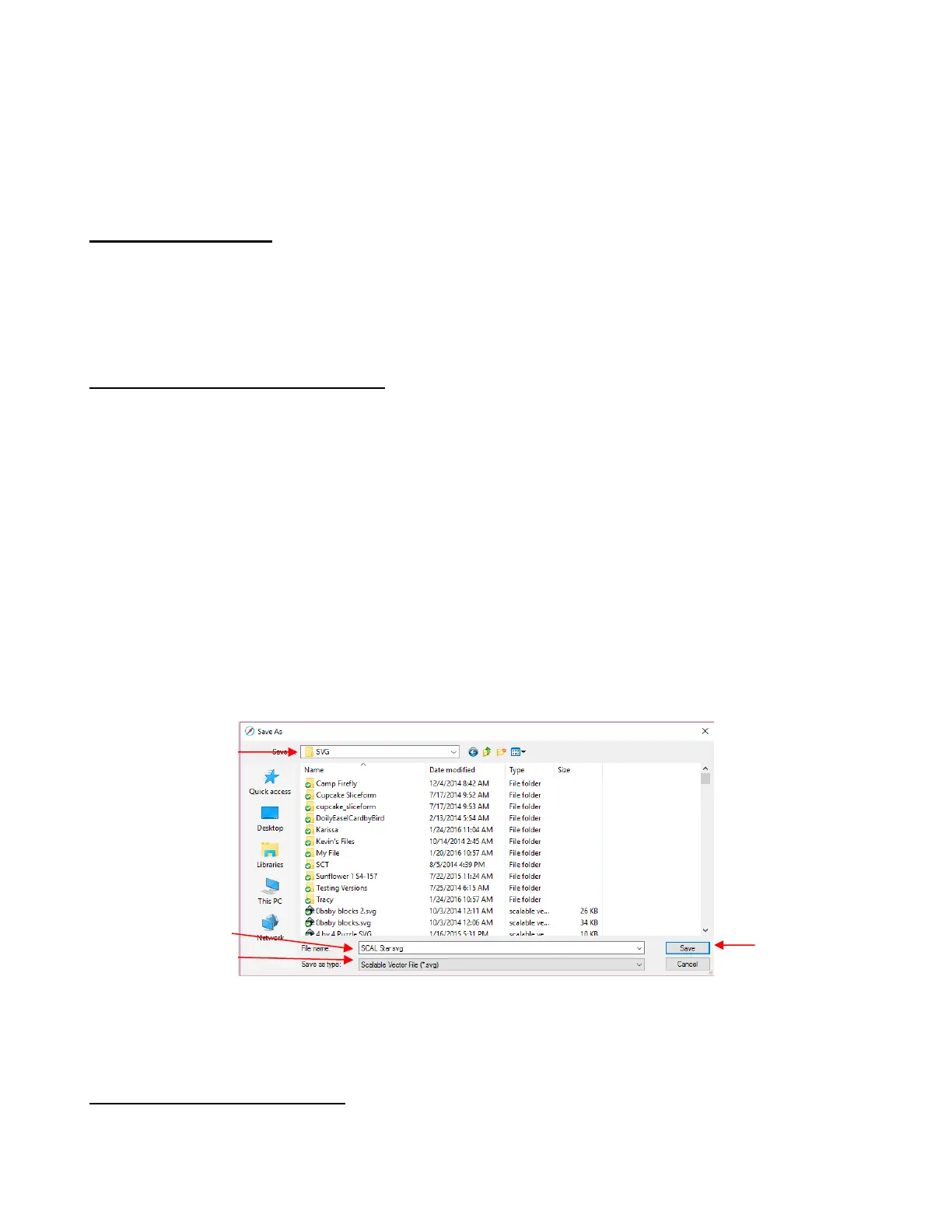
The following window will open where you can name the file, select the file format, and the location for
saving:
Depending on the type of file selected, an export window will open. The following subsections will cover
these types in more detail.
4.07.1 Exporting in SVG Format
The SVG Export Options are shown in the following screenshot:



 To Next Page