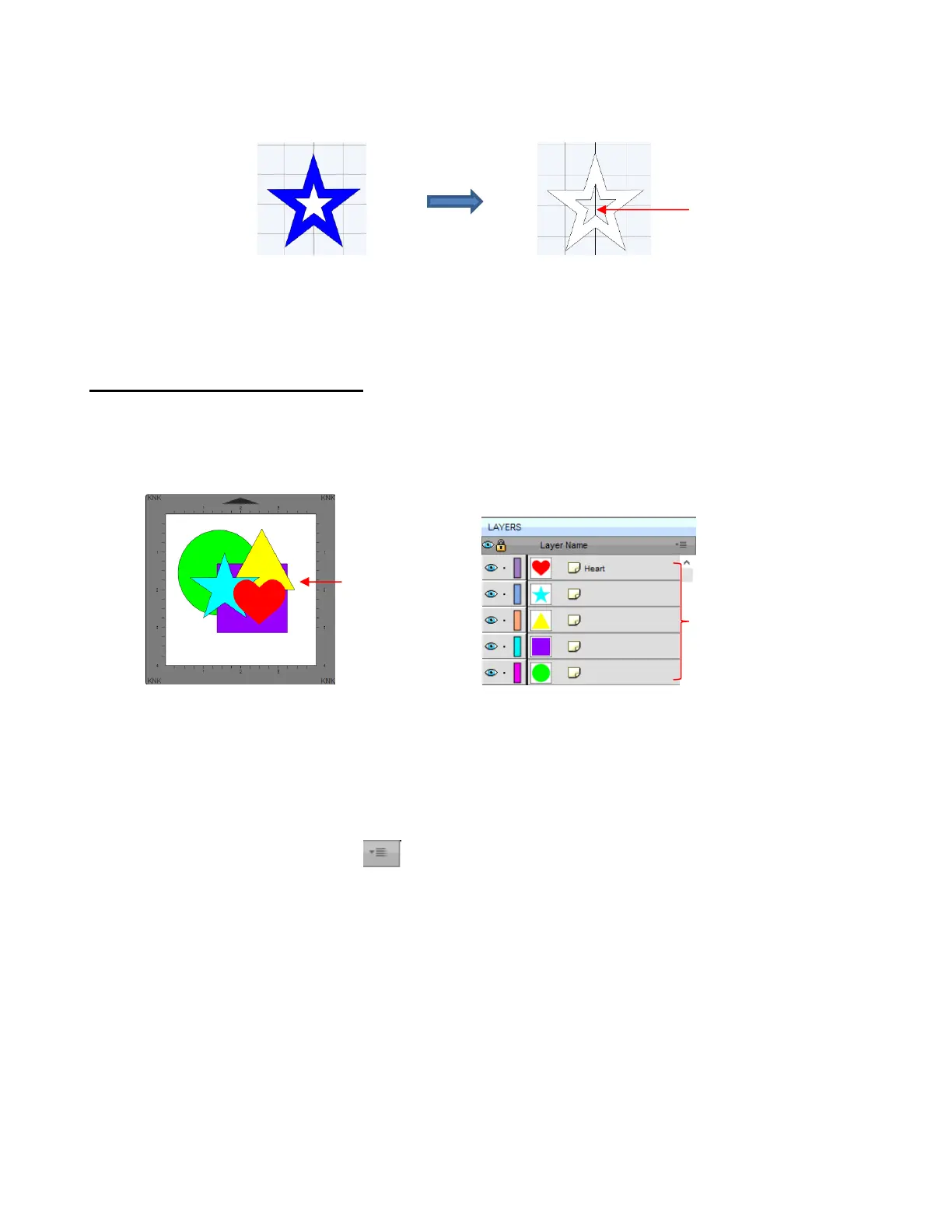
A child shape that is merged with a parent shape essentially becomes a hole in that shape. This can be
proven by having the grid showing when merging:
5.12 Arranging (Ordering) Shapes
The shape order affects the visual appearance on the Cutting Mat. A shape that is above or on top of
another shape will appear above it on the Layers Panel.
The following example shows four overlapping shapes and how they appear on the Layers Panel:
In Section 4.04.3, moving layers was presented and could be used here to change the order of the shapes.
However, another way to reorder these shapes is to select one and then access the Arrange functions
using one of the following:
Go to Object>Arrange
Right-click and select Arrange from the popup menu
Click on the Layers Menu icon and select Arrange
Four options will then appear:
Bring to Front (or Layer to Top): Move selection to the very top
Bring Forward (or Raise Layer): Move selection up one level
Send Backward (or Lower Layer): Move selection down one level
Send to Back (or Layer to Bottom): Move selection to the very bottom
In the above example, the yellow triangle is selected and each option shows what would have changed if it
had been applied:



 To Next Page