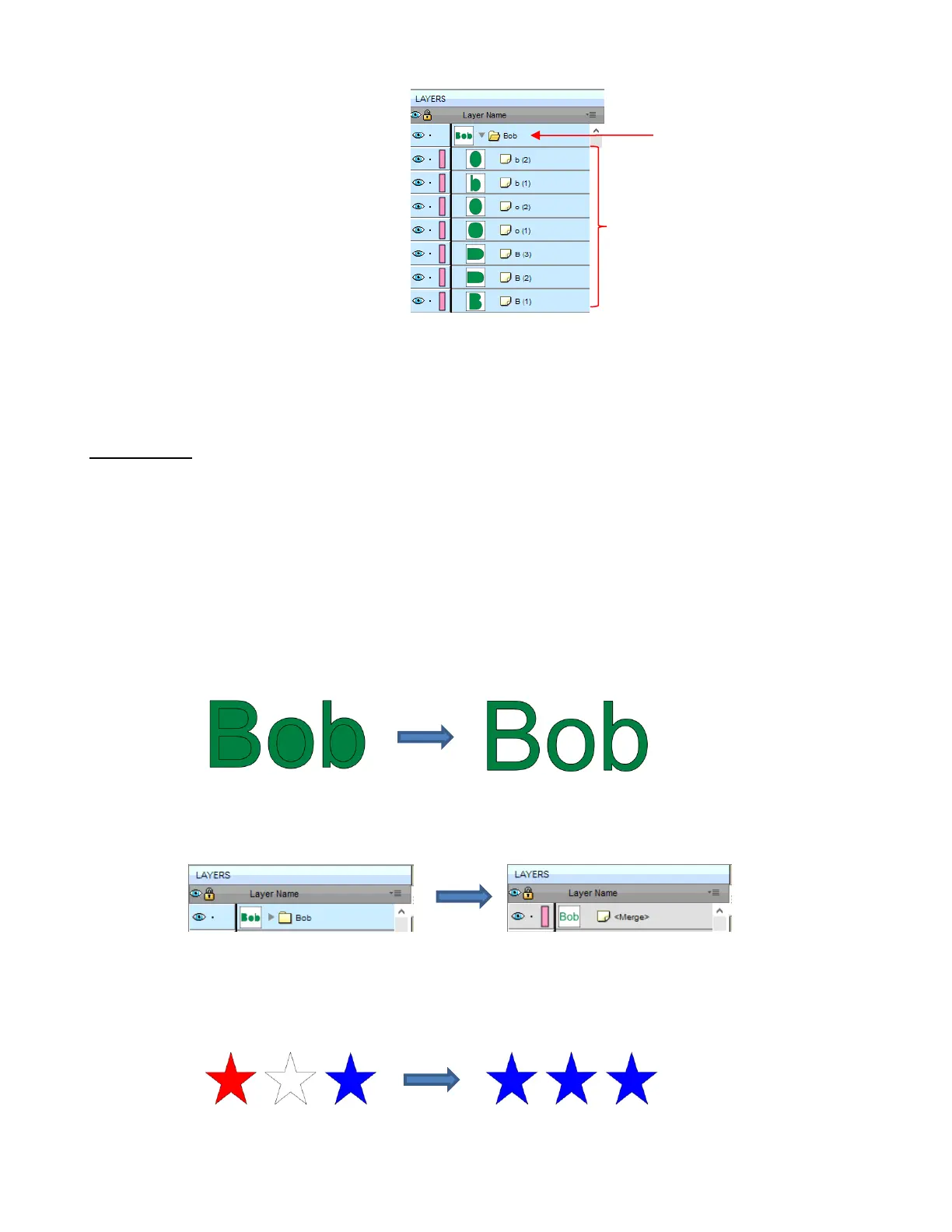
Once you apply Break Apart, you have complete editing control over each individual shape within a design.
But be careful! It’s also easy to inadvertently move an individual shape (especially the tiny ones) and you
can risk messing up the design. Thus, only use Break Apart when needed and then, more importantly,
know how to rejoin your shapes, which is covered in the next section.
5.11.2 Merge
The Merge function is used to combine individual paths, curves, and lines into a single shape. This is
basically the opposite function to Break Apart.
After selecting two or more shapes, the Merge function can be accessed in either of the following ways:
Go to Object>Merge
Press Ctrl+Shift+B
If the Merge function is applied to the prior “Bob” example, after having Break Apart applied, the word will
now become all one shape again. Separated child paths no longer exist and even the individual letters can
no longer be selected:
On the Layers Panel, this is what will appear:
Note that if you apply Merge to shapes of different colors, they will all become one color because a merged
shape is regarded as a single shape, even if the parts being merged do not touch:



 To Next Page