5.04 Resizing, Scaling, Autofit
5.04.1 Resizing
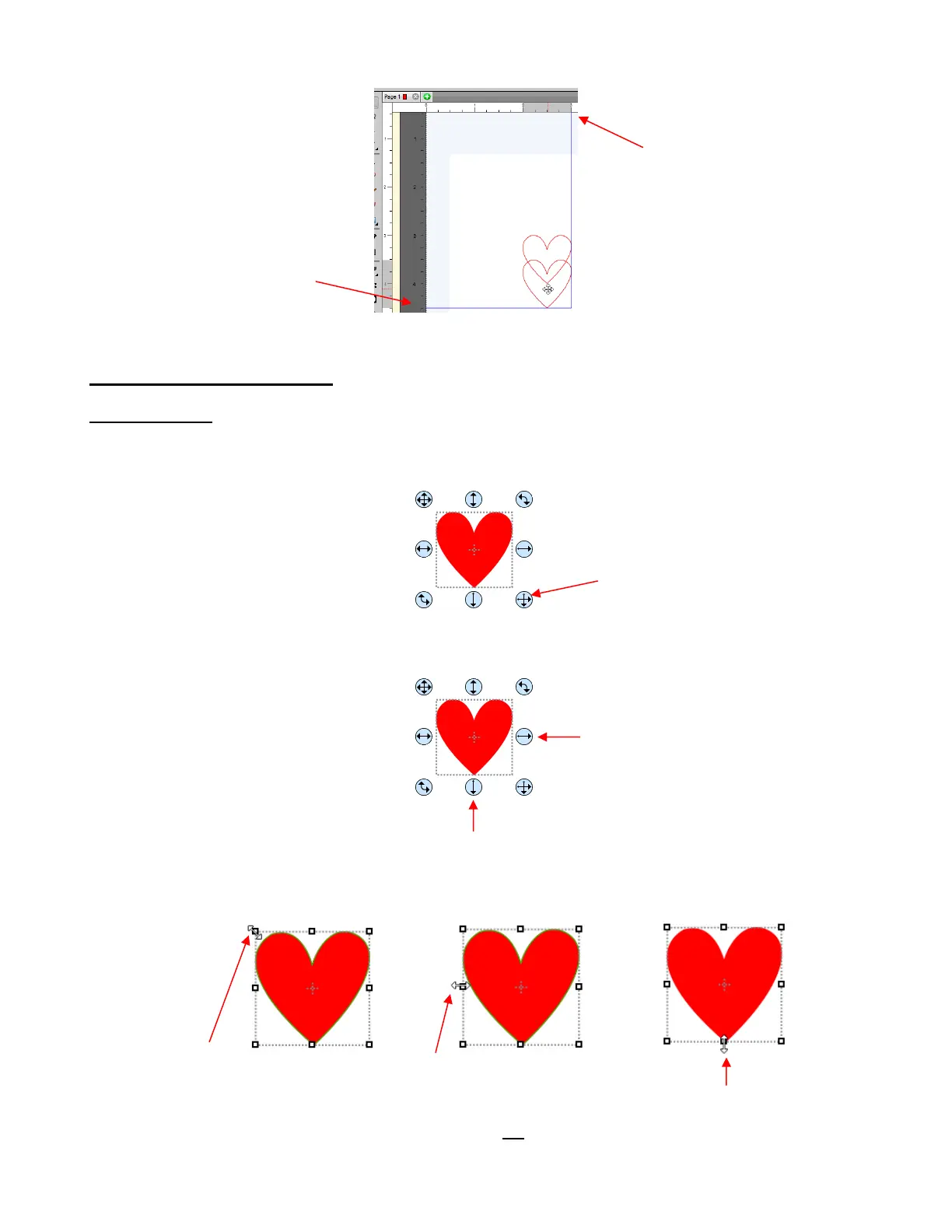
With the shape selected, use your mouse to drag the lower right corner of the shape to freely resize. If you
want to keep the width and height proportional, hold the Shift key down before dragging that icon:
To resize only the width or the height, drag the middle right or the middle bottom icons, respectively:
If the Handles are in Advance mode, then drag a corner or a side when the cursor is directly over the
handle. Again, holding the Shift key will resize height and width proportionately:
If you prefer that proportional sizing be the default, thus not requiring the pressing of the Shift key, go to
Edit>Preferences and click on the Edit tab. Uncheck the box shown below:



 To Next Page