If you need to activate your Serial Number on both a PC and a Mac, go to Help>Support>Technical
Support and click on Contact Support Team.
3.01.3 Installing the USB Driver
If the cutter you are using connects via a USB cable, download and install the correct driver by going to
Help>Install Driver. If you own a Klic-N-Kut, please go the following link to dowload the appropriate driver
for your model:
http://knkusa.com/resources/
3.01.4 Installing Your Cutter
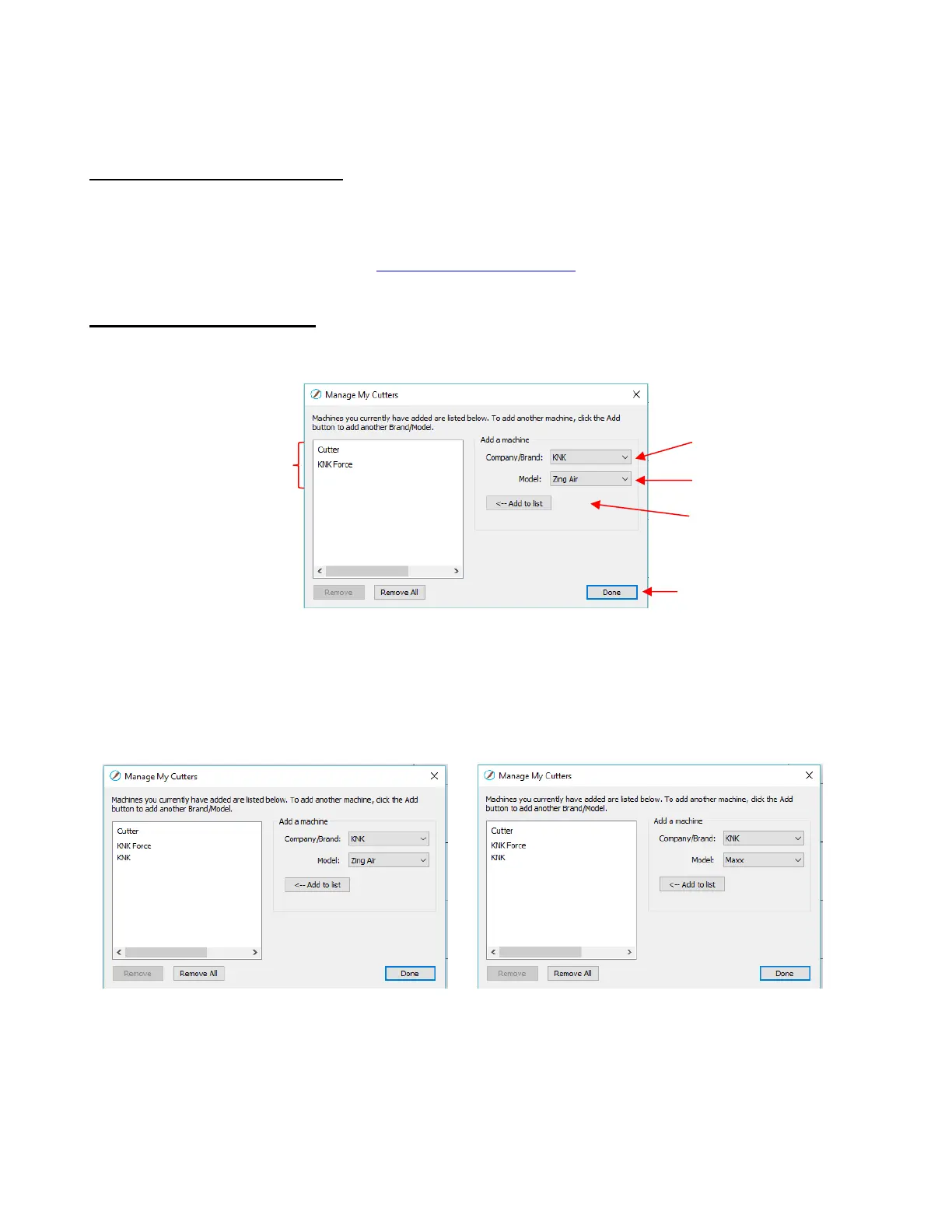
Go to Cutter>My Cutter>Manage Cutters and the following window will open:
As shown in the prior screenshot, select your cutter Brand and Model from the drop-down menus. Then
click on Add to list. The cutter will then be added to the menu on the left side. Add all cutters you plan to
use with SCAL.
Note that with some brands, such as KNK, adding multiple models may not give separate listings. While
KNK Force does show up separately, selecting both Maxx and Zing Air from the model menu only displays
once as KNK. The model needed will be selectable later in the Cut Settings window.
Click on Done to save and close the window. Now, when you are ready to cut, the cutter you use will be
selected by going to Cutter>My Cutter and picking which cutter you which to use:



 To Next Page