5.02 Deleting
To delete a selected shape, use any of the following options:
Press the Delete key on the keyboard
Right-click on the screen and choose Delete from the menu
If the shape is on its own layer, click on the Delete Layer icon:
To delete all of the shapes in the current project:
Use one of the methods from Section 5.01 to select all shapes
Then delete using any of the prior options listed for deleting a selected shape
You can also delete a layer of shapes at one time from the Layers Panel. Refer to Section 4.04.2.
5.03 Moving
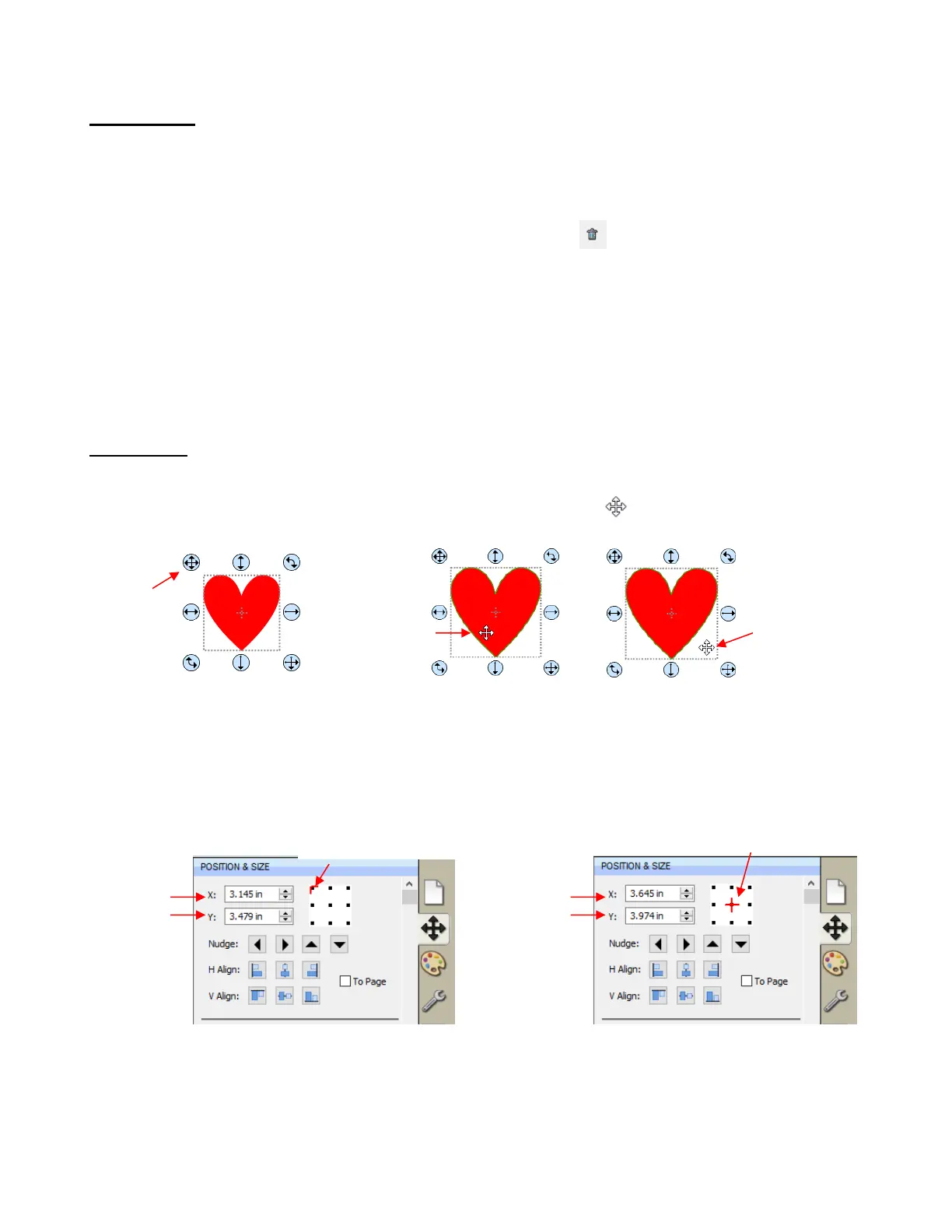
To move a selected shape, hold down the left mouse button on the upper left corner icon or anywhere within
the shape and drag to another location. Note that if you see this cursor , the shape can be moved:
You can also move a selected shape in small increments by pressing the arrow keys on the keyboard.
With a shape selected, the Position & Size Settings on the Properties Panel indicate the exact location of
the bounding box around a selected shape. Note that this location is how far the shape is from the top left
corner of the grid on the mat and the red mark indicates which part of the bounding box is being referenced.
For example:
You can enter new values into either or both of the X: and Y: windows to move the shape to a new location:



 To Next Page