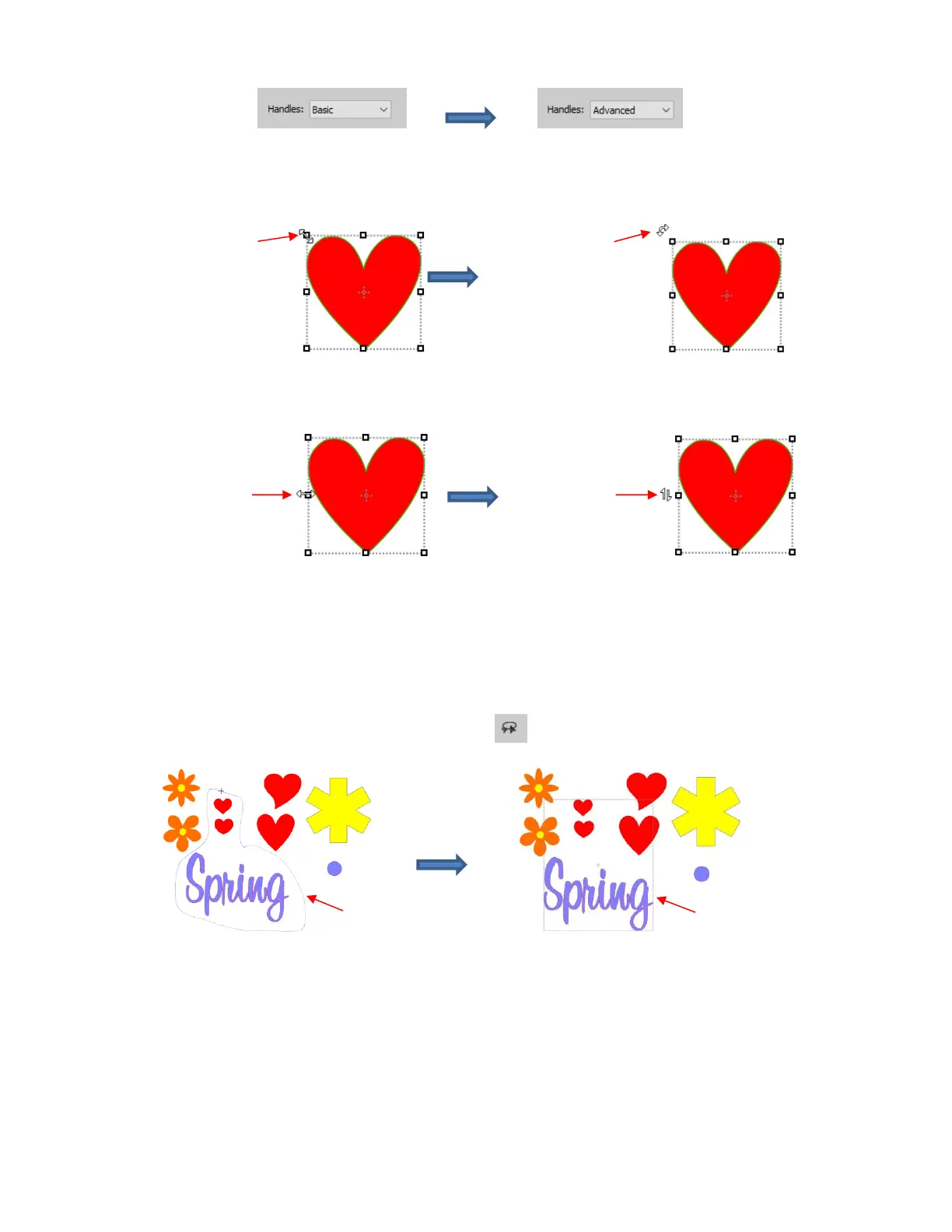
In Advanced mode, a selected shape will appear with six identical handles. However, each handle now has
two functions, depending on whether the mouse hovers directly over the handle or is moved slightly away
from the handle:
All four corner handles offer the same resizing and rotating functions. The middle handles along the four
sides offer resizing and skewing:
There are several ways to select more than one shape:
Select the first shape and hold down the Shift key while clicking on additional shapes.
Drag the mouse (marquee-select) to encompass the shapes. Always make sure you start clearly outside
the boundaries of the images you want to select.
If all of the shapes are on the same layer, click on the thumbnail for that layer. Refer to Section 4.04.2.
Use the Lasso Selection tool on the Tools Panel . Freely drag the mouse around the shapes you
want to include in the selection:
If you wish to select all of the shapes on the screen, there are several options:
Press Ctrl+A
Right-click on the screen and choose Select All from the menu
Go to Edit>Select All
To unselect all shapes, use one of the following ways:
“Click away” – click anywhere else on the screen and the shapes will be de-selected
Press Ctrl+Shift+A
Go to Edit>Deselect All



 To Next Page