5. SCAL: Manipulating and Coloring Shapes
This chapter covers all of the ways to modify shapes. Note that while the singular term “shape” will be
repeatedly used when describing various functions, it also refers to a selection of shapes. For example, resizing
a selection of three shapes uses the same menu functions or mouse movement as a single shape.
5.01 Selecting
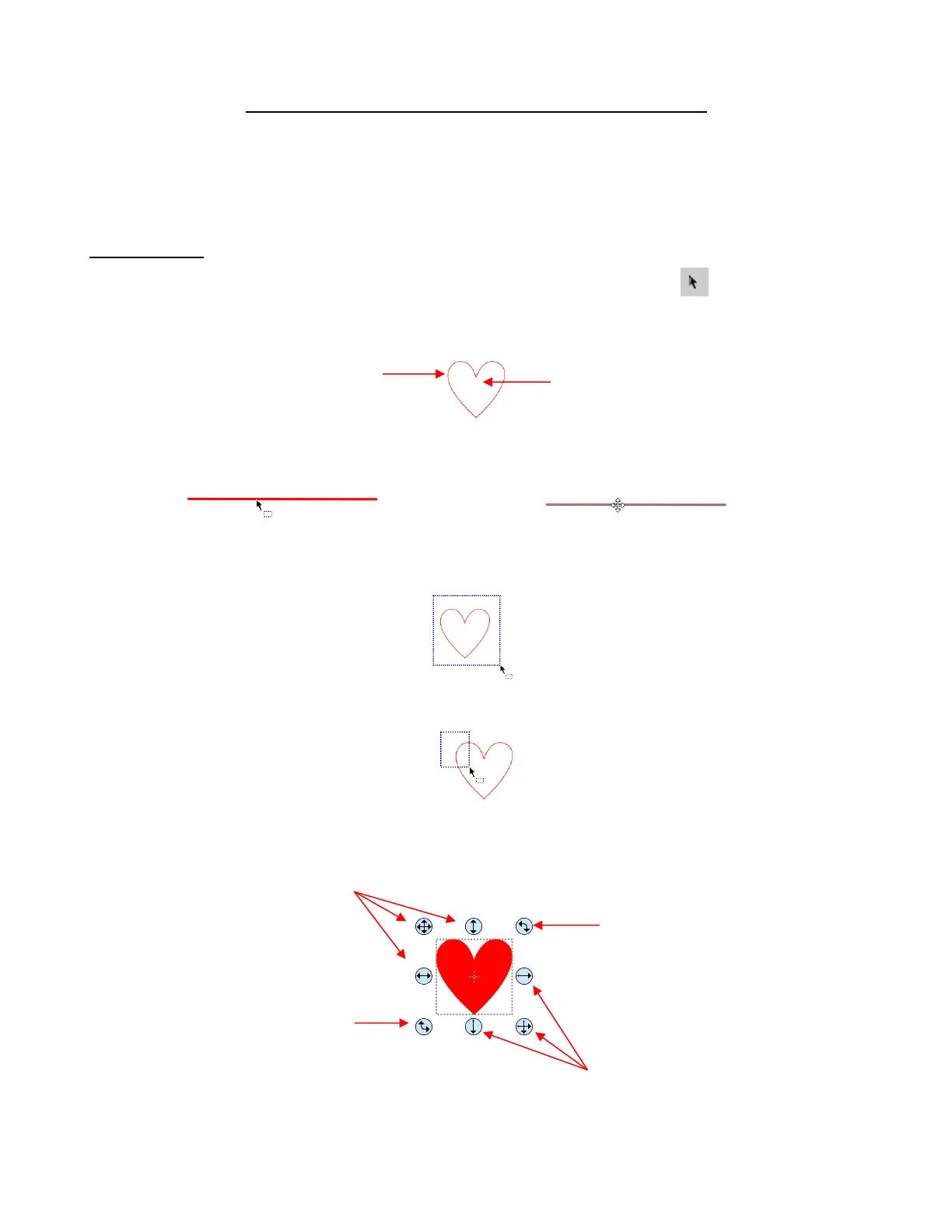
To select a shape, make sure the Selection Tool is indented on the Tools Panel . Then:
Click anywhere on the shape (along an edge or inside a closed shape):
Note that the cursor will change once the shape can be selected. For example, when selecting a line,
wait for the cursor to change before clicking:
Another way to select: drag the mouse to enclose the entire shape (aka marquee-select).
And a third way: hold the Shift key and marquee-select just a portion of the shape.
Once selected, a shape will have 8 handles surrounding it. The functions of these handles are covered in
other sections as indicated:
While in the Selection Tool mode, the Tool Options bar indicates a setting called Handles. The drop-down
menu offers another option called Advanced:



 To Next Page