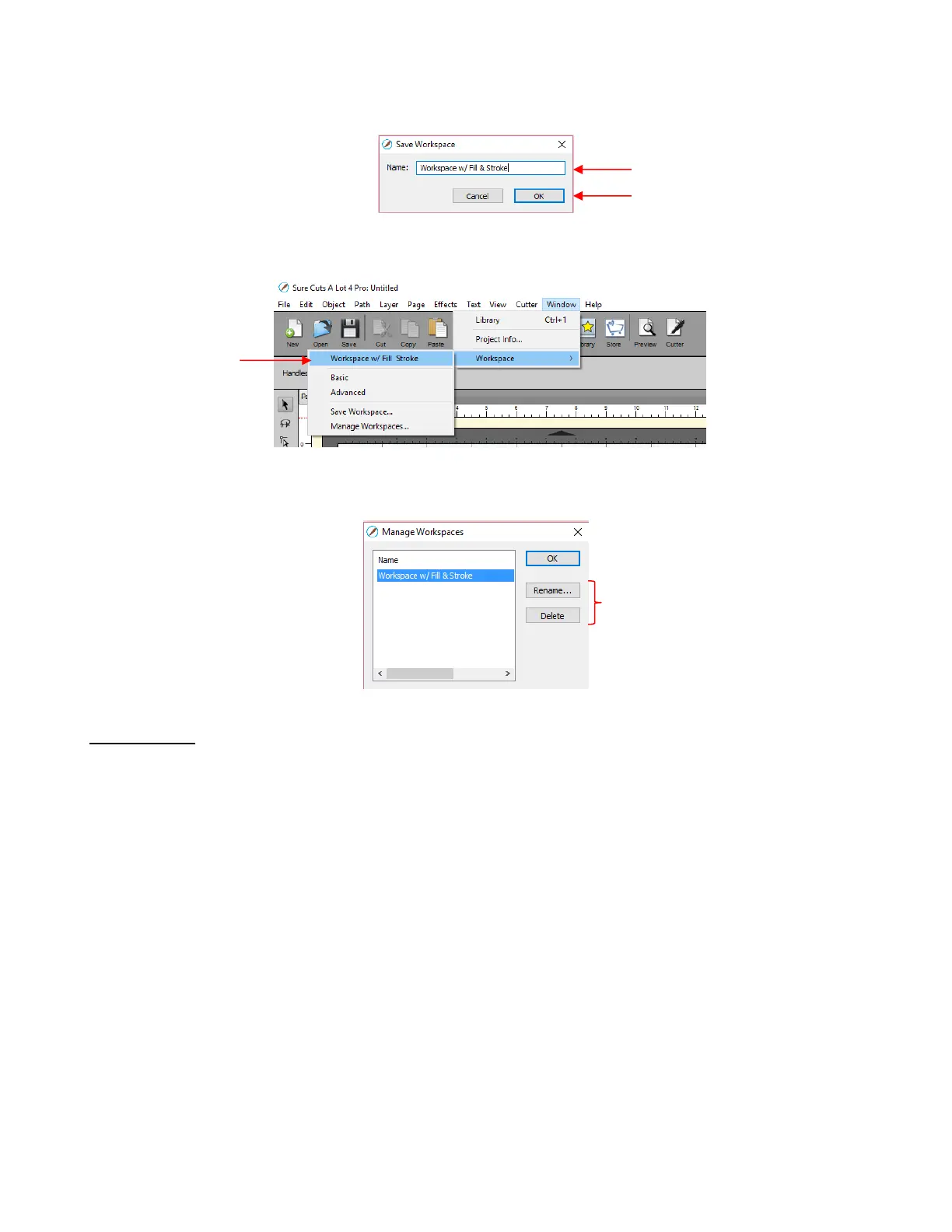
To save workspace changes, go to Window>Workspace>Save Workspace. A window will open and you
can name this new configuration:
When you now go to Window>Workspace, the new workspace will appear at the top:
To rename or delete a custom workspace, go to Window>Workspace>Manage Workspaces and a
window will open with Delete and Rename options:
3.07 Snap To
The Snap To option allows you to choose how shapes behave as they are being moved. Being able to snap
to other objects or to the grid can help align shapes more easily when designing or editing a project.
To access the Snap To options, go to View>Snap To and mark your preferences based on the following
options:
Grid: selected shape will snap to the grid lines
Objects (Bounds): selected shape will snap to other shapes’ boundaries
Objects (Centers): selected shape will snap to other shapes’ centers
Object (Sublayers): selected shape will also snap to shapes inside other shapes (child shapes)
When you first access the Snap To menu, you will most likely see the last two grayed out. In order to
access those options, make sure Objects (Bounds) is checked. Then you will able to go back to the menu
and change any of the options.
When snapping to the grid, the grid can be showing or hidden.
When a shape snaps to either the grid or to another shape, blue lines appear indicating the shape is aligned
at that point. Here are two examples:



 To Next Page