o Select the folder and do either of the following:
Click on the Add File icon
Right-click and select Add File from the popup menu
o A window will open where you can then browse to find the SVG file to be added. You also have the
option of selecting multiple files at once to import into that folder.
To delete a file from a folder, right-click and select Delete File from the popup menu.
o Note that it only removes it from the Library, not from your computer.
o After deleting files, you will need to click on the Refresh icon to update the thumbnail images.
To delete a folder, select it and then do one of the following:
o Click on the Delete Folder icon
o Right-click and select Delete Folder from the popup menu
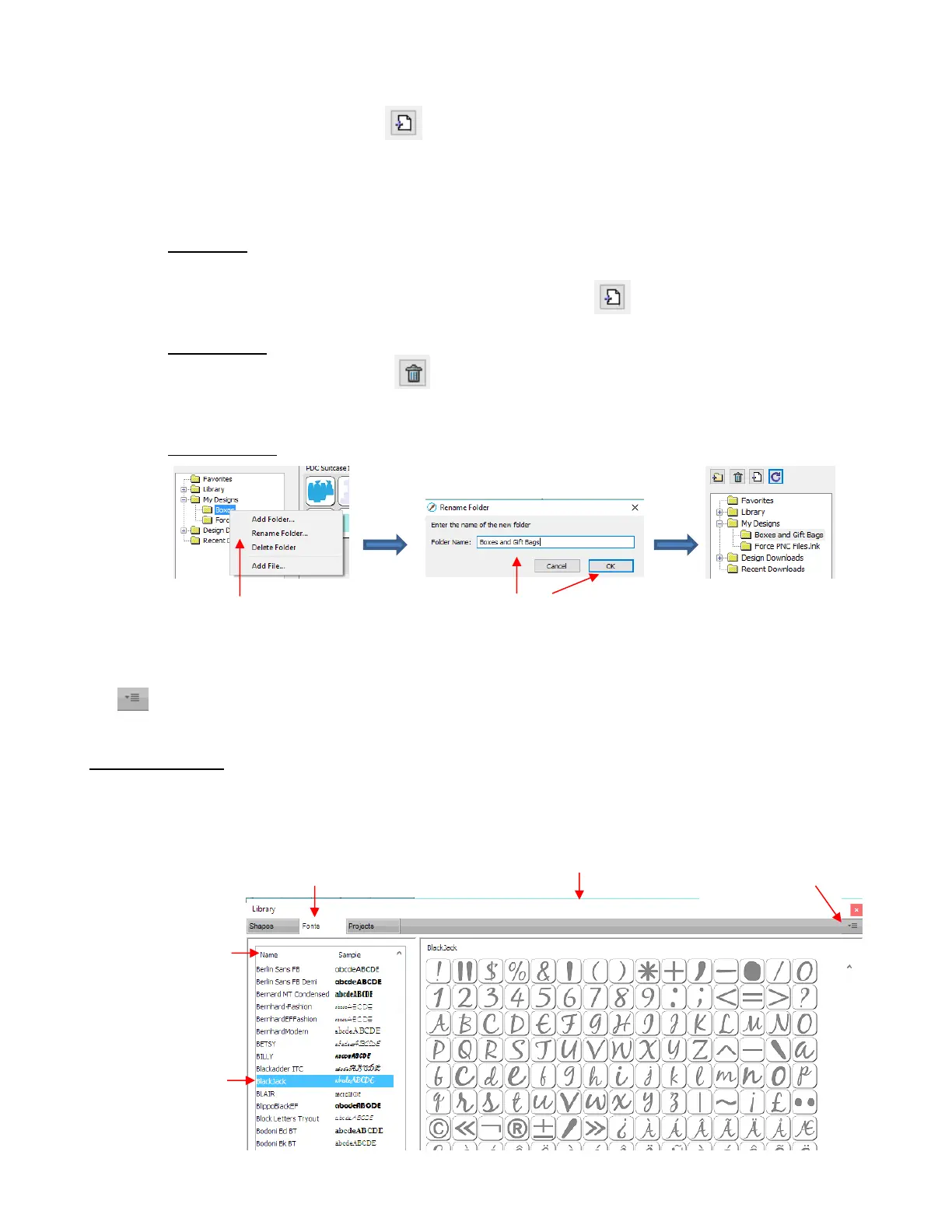
To rename a folder, right-click and select Rename Folder from the popup menu.
Design Downloads and Recent Downloads: These two folders, along with the menu icon at the top right
are part of the eshape Store functions. These will be covered in Section 4.05.1.
4.03.2 Fonts Tab
The Fonts tab lists all of the currently installed fonts on your computer. Selecting any font in the list will
show the entire character set on the right side of the window. It will also then make it the default font that will
be used when adding text with any of the methods available in SCAL. Refer to Section 6.03.



 To Next Page