Fit to Window: (same as zoom to Cutting Mat)
Actual Size: Set zoom at 100%
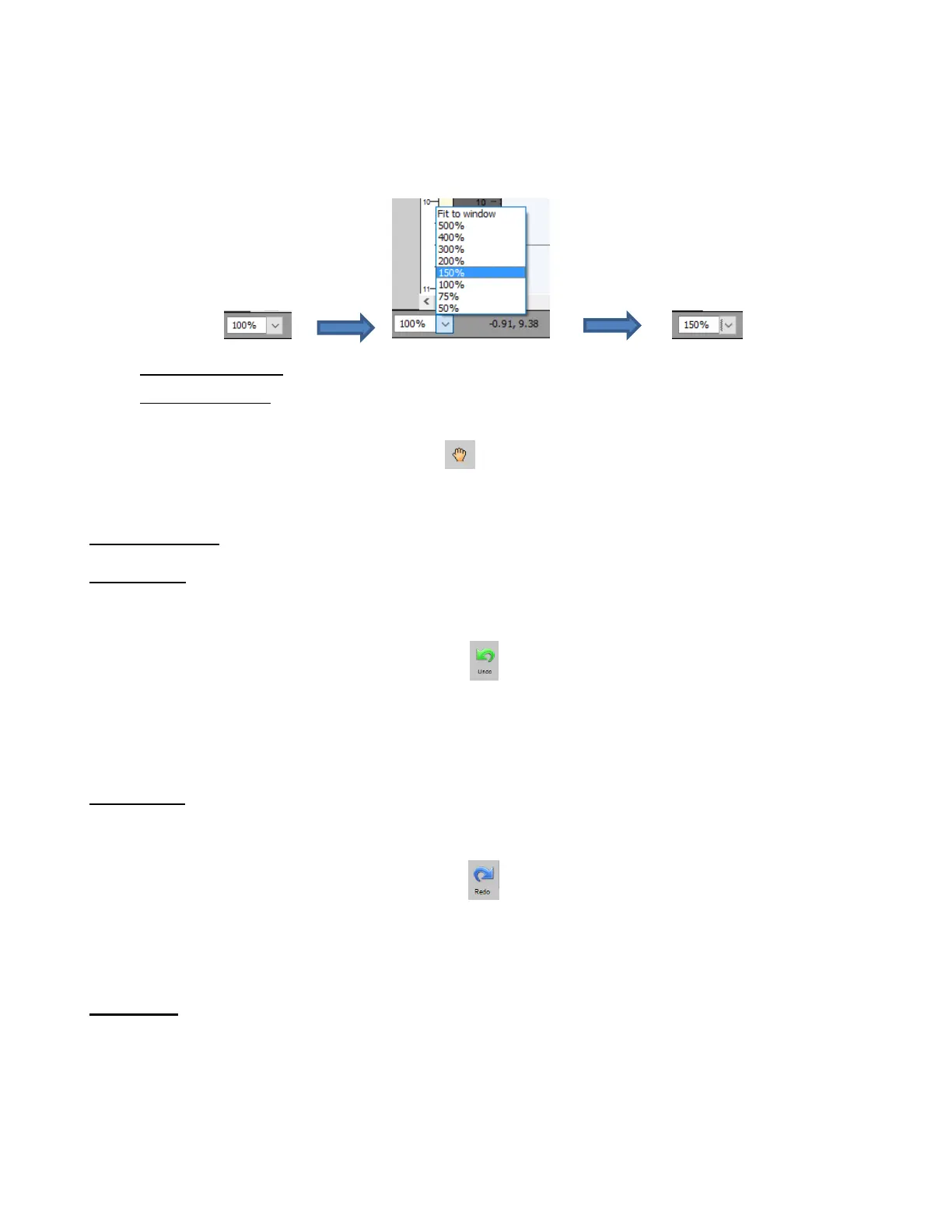
Yet another way to change the zoom level is to select from the drop-down menu on the Status Bar in the
bottom left corner of the screen:
To move the workspace up and down, roll the mouse wheel.
To pan the workspace, use either of these methods:
Press and hold the Spacebar while dragging the left mouse button
Click the Hand tool icon on the Tools Panel . Then drag the left mouse button.
3.10 Undo/Redo
3.10.1 Undo
As with most Windows applications, there is an Undo function to reverse the most recent steps performed.
You can use any of the following to execute the Undo function:
Click on the Undo icon on the upper Toolbar
Press Ctrl+Z
Go to Edit>Undo
3.10.2 Redo
As with most applications, there is also a Redo function in case you Undo too many steps or simply change
your mind. You can use any of the following to execute the Redo function:
Click on the Redo icon on the upper Toolbar
Press Ctrl+Shift+Z
Go to Edit>Redo
3.11 Pages
The Pages Bar allows you to add more pages to your current file/project. This can be convenient for
organizing projects with many shapes and or layers.
The Pages Bar is located just above the top Ruler and displays the current page, a color for quickly
identifying pages, and icons for adding and deleting pages:



 To Next Page