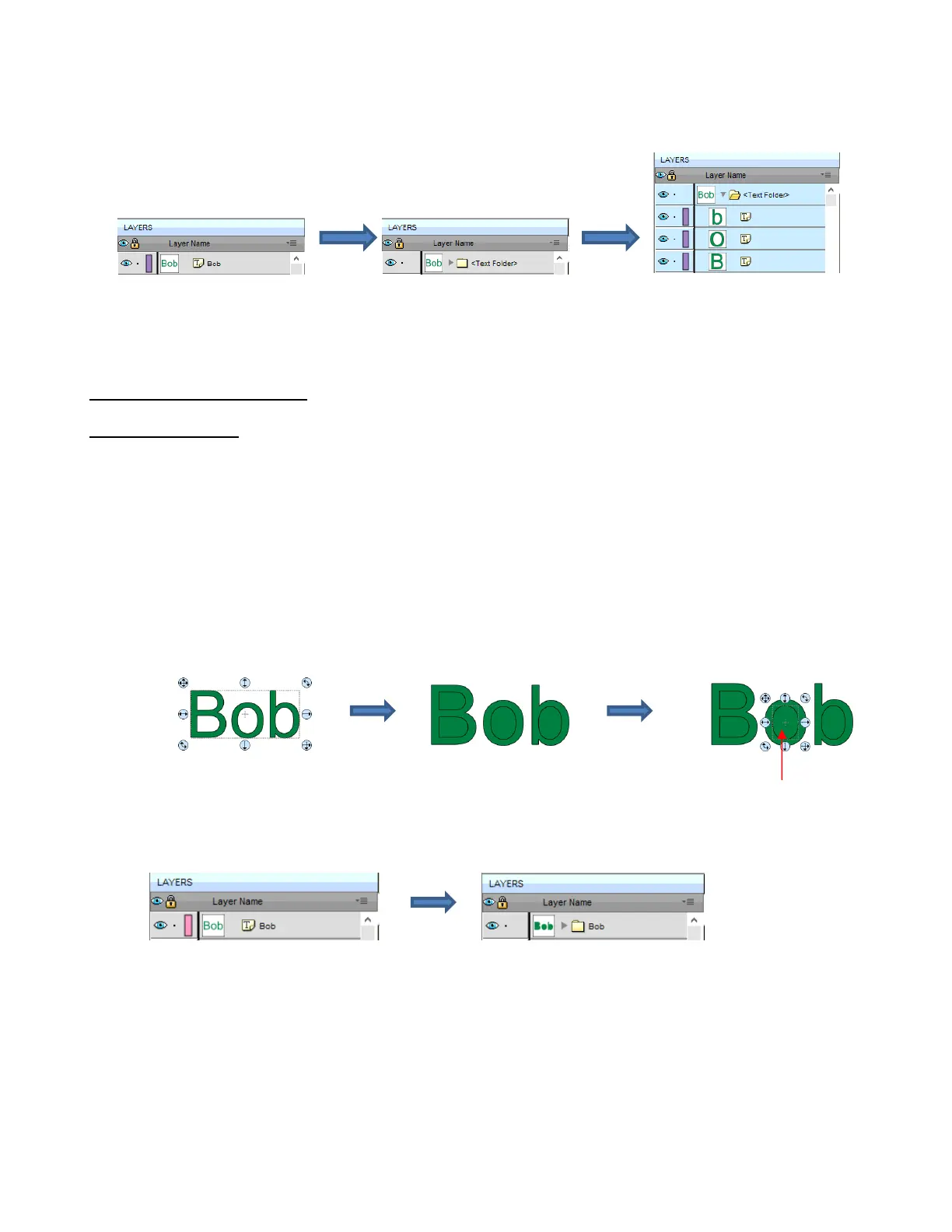
On the Layers Panel:
5.11 Breaking and Merging
5.11.1 Break Apart
The Break Apart function goes one step further than Ungrouping. It is used to separate a combined shape
into the individual parts that make up that shape.
After selecting a combined shape, the Break Apart function can be applied in any of the following ways:
Right-click and select Break Apart from the popup menu
Go to Object>Break Apart
Press Ctrl+B
The following screenshot shows Break Apart being applied to the same word “Bob” to separate the internal
closed paths (also called child shapes) from the external paths (also called parent shapes):
On the Layers Panel:
Before applying Break Apart
After applying Break Apart
Before applying Ungroup:
Layer has
indicating a single text shape
After applying Ungroup:
Layer now indicates a folder
with more than one shape
Opening folder shows the three
letters as individual text shapes
Before applying Break Apart:
clicking on any letter selects
the entire word
After applying Break Apart: child
shapes fill with color, rather than
being “holes” inside the letters
The child shapes can now
be individually selected



 To Next Page