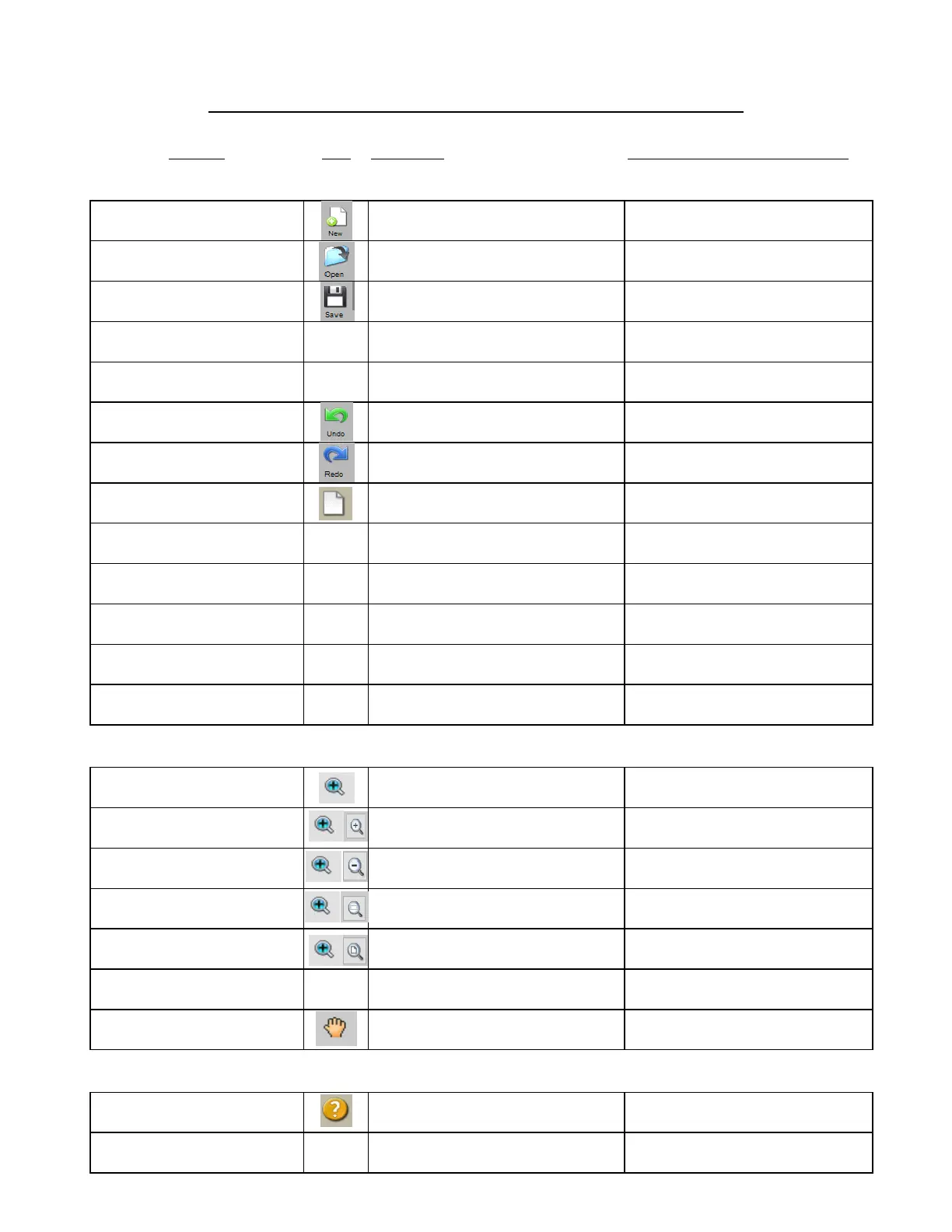
Appendix A Shortcuts and Icons in Sure Cuts a Lot
Shortcut Icon Description Menu (m:) and/or Icon (i:) Location
Main Screen and Project Functions
Ctrl+N Open a new file/project
m:File>New Project
i:Toolbar
Ctrl+O Open an existing .scut file/project
m:File>Open Project
i:Toolbar
Ctrl+S Save a file/project
m:File>Save Project
i:Toolbar
Ctrl+Shift+S Save file/project in new location m:File>Save Project As
Ctrl+P Print m:File>Print
Ctrl+Z Undo last action
m:Edit>Undo
i:Toolbar
Ctrl+Shift+Z Redo last action
m:Edit>Redo
i:Toolbar
Open Document Panel i:Properties Panel
Right click>Mat Size Change the size of the Cutting Mat m:Cutter>Mat Size
Right click>Mat Orientation Toggle between Landscape and Portrait m:Cutter>Mat Orientation
Right click>Show Rulers Toggles Rulers on and off
Right click>Ruler Units Set units for software: in, cm, mm m:View>Ruler Units
Alt+F4 Close SCAL m:File>Exit
Zooming and Panning Tools
Click icon and drag mouse Zoom in on selected area i:Tools Panel
Ctrl+ +++ (or right click>Zoom In) Zoom in
m:View>Zoom In
i:Tools Panel>Tool Options
Ctrl+ --- (or right click>Zoom Out) Zoom out
m:View>Zoom Out
i:Tools Panel>Tool Options
m:View>Zoom Selection
i:Tools Panel>Tool Options
Ctrl+F Zoom so cutting mat fits in window
m:View>Fit to Window
i:Tools Panel>Tool Options
Zoom in and out, centered on middle of
cutting mat
Spacebar+drag left mouse button Pan workspace i:Tools Panel
Open Hints window i:Properties Panel
F1 Open Help window m:Help>Help



 To Next Page