2.05 Set Origin
Every time you turn on the Zing Air, the blade carriage will be moved to the same spot. This is called the
Home Origin. Now, you can always use that spot to start your cuts and never set a new origin, however, it
limits you, somewhat, in situations where you may be performing your test cut at that location but will need
to move over to a new location to cut out your shapes. Also, you may want to cut shapes from several
scraps of material and would like to place those scraps on your mat prior to cutting.
The Set Origin window allows you to move the blade carriage to a new location and define that location as
the new origin for that cut. This was covered in Section 1.11.2. As a reminder, when using the buttons in
this window or using the keys on your keyboard:
Each click of an arrow moves a specific distance called the Normal Jog Distance
Holding Shift with each click of an arrow moves a specific distance called the Fast Jog Distance
Holding Shift + Ctrl (or, on a Mac, Shift + Command) with each click of an arrow moves the minimum
possible distance.
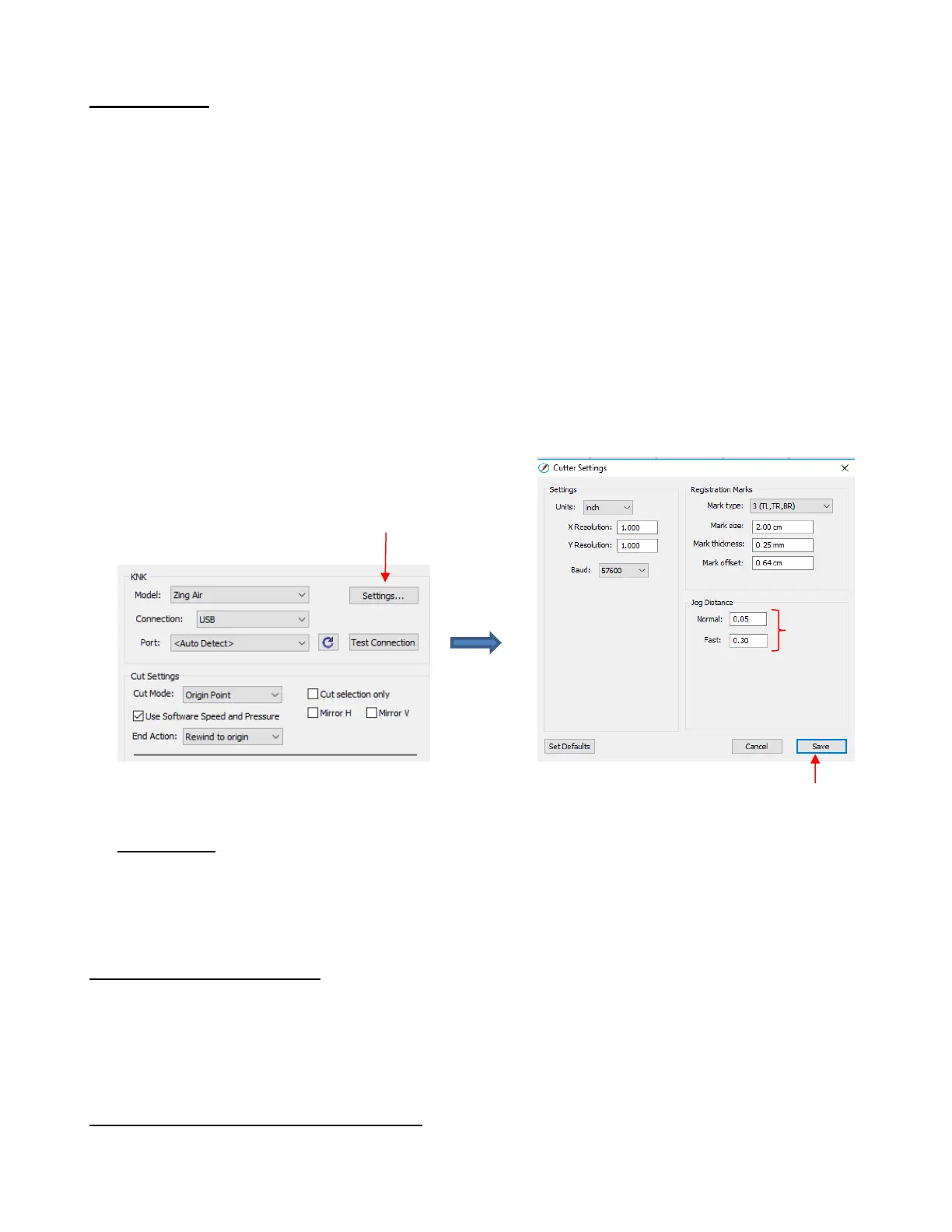
The Normal and Fast Jog Distance can be edited under Cut>Cutter Settings or by clicking on the
Settings button near the top of the Cut Settings window. These defaults can be made larger or smaller
according to your preference:
IMPORTANT: It was noted in Section 1.11.2 that the distance the head moves to the left, after you set the
origin, is based on the laser light calibration. This calibration can vary from one machine to the next and will
require tweaking, if you are doing WYSIWYG cuts and you need accuracy. This calibration is covered in
Section 11.03.
2.06 Other Output Functions
There are other functions and features in the Cut Settings window. Some of these, such as Weeding and
Tiling, are only present in the PRO version of SCAL. Refer to Section 10.06 for details on all of the
settings.
2.07 Important Checklist Before You Cut!
Do you have your material on the mat and the mat inserted into the Zing Air? (Note: materials with a backing
sheet, such as vinyl and iron-on transfer do not require a mat for cutting)



 To Next Page