Adding and Deleting Nodes
Zoom in on the curve, select it, and then click on the Draw Tool icon.
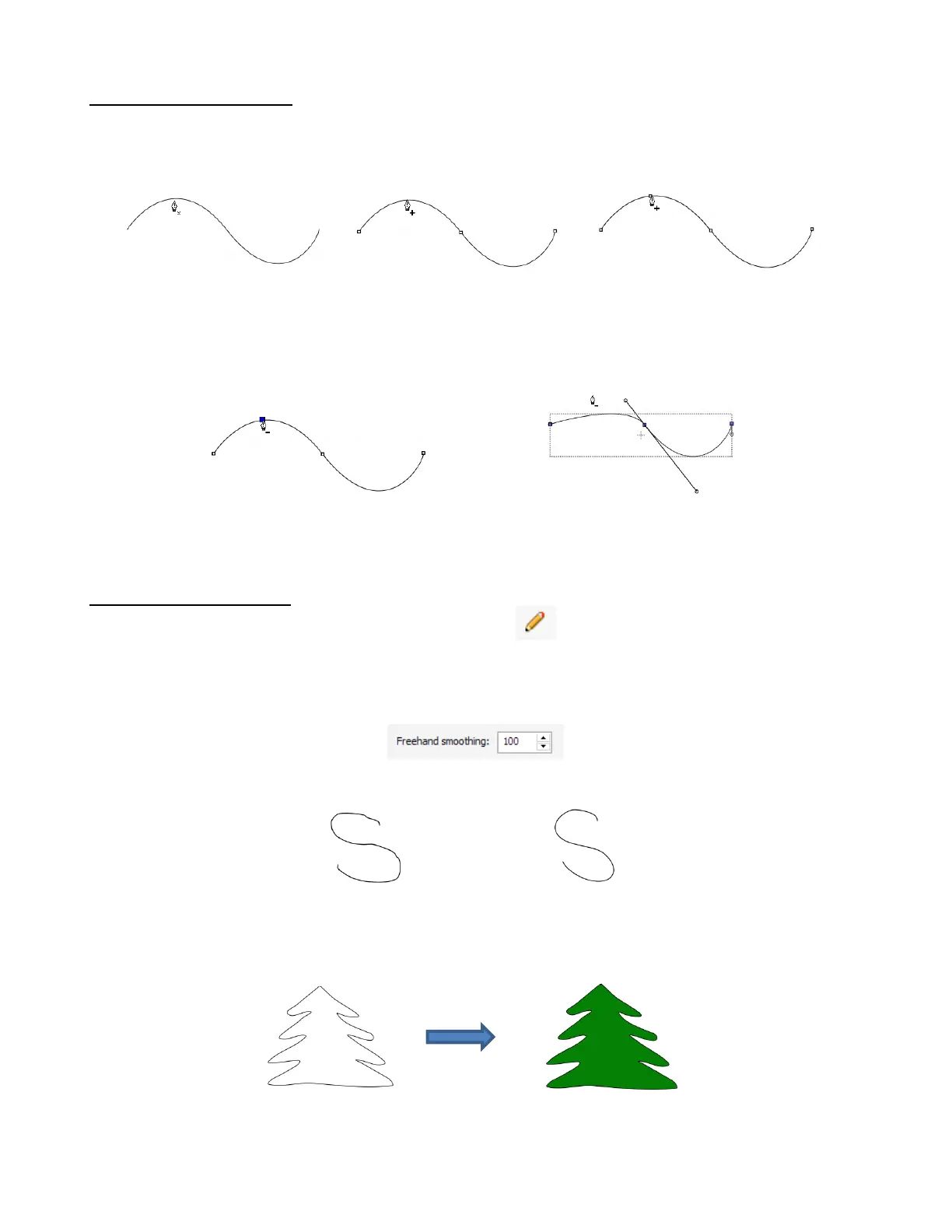
To add a node, move the cursor next to the path and watch for the cursor to change. With the cursor right
on the path, left-click to add a node:
To delete a node, move the cursor over an existing node until the cursor changes and you can see the node
turn blue. Left-click once to delete that node:
7.04.2 Freehand Drawing
The Freehand tool is accessed by clicking on the 6
th
icon on the Tools Panel. This tool is used to
freely draw thin lines with your mouse or, better yet, a graphics tablet.
In the Tool Options, there is a setting called Freehand smoothing. Increase that setting if you want the
software to reduce “shakiness” as much as possible:
The two extremes for the Freehand smoothing setting clearly demonstrate the difference:
When drawing closed shapes, the shape will remain an open path regardless of how precise you attempt to
be in returning to the start. To close the shape, select it and go to Path>Close Path:



 To Next Page