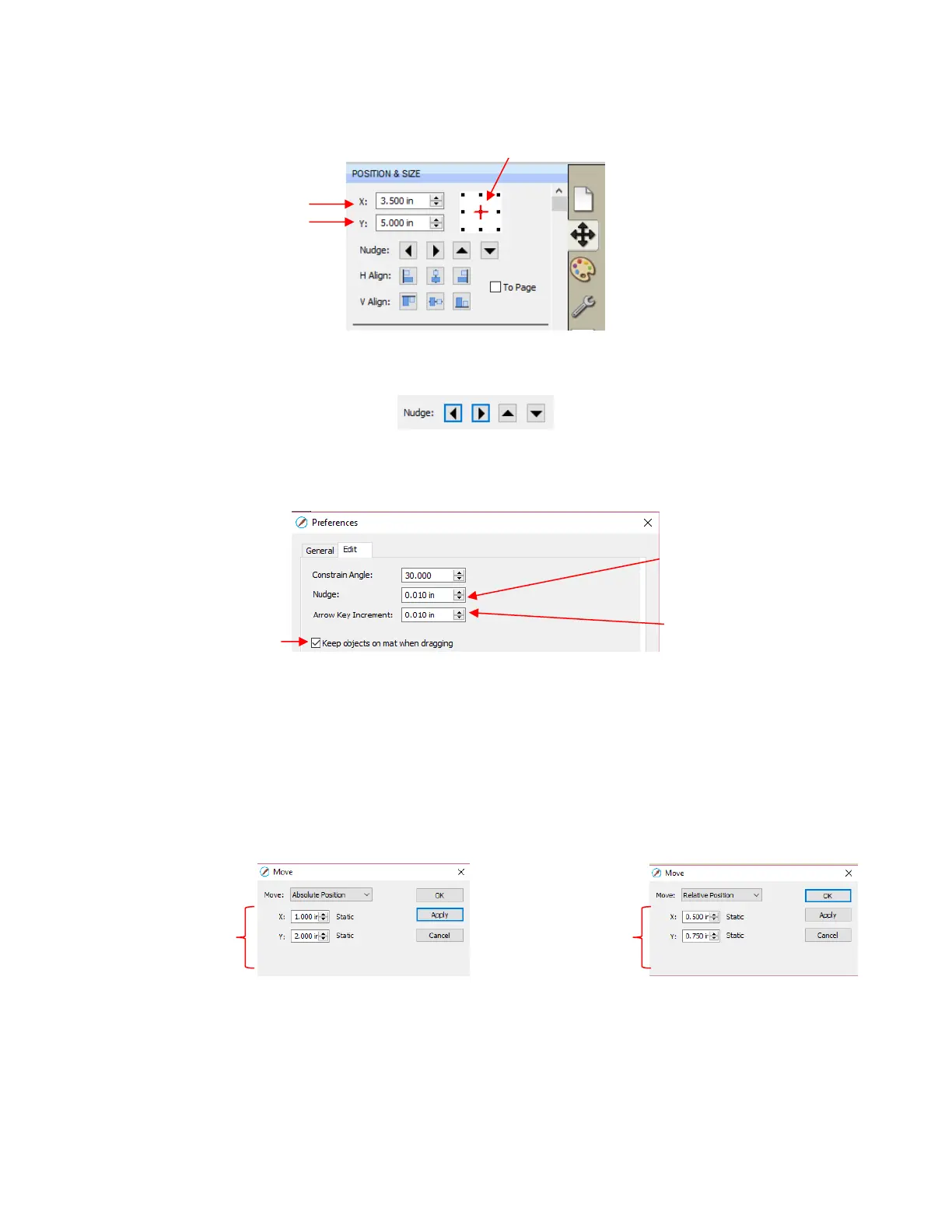
The Nudge icons, which are just below the X and Y entries, can also be used to move a selected shape.
These move in the same increments as the keyboard arrows:
The increment size for both the keyboard moves and the Nudge moves can be changed by going to
Edit>Preferences and then selecting the Edit tab. This window also offers the option to force shapes to
remain within the boundaries of the Cutting Mat while being moved with the mouse:
There is also a Move function available which can be accessed these two ways:
Right-click on a selected shape and go to Transform>Move
Go to Object>Transform>Move
This Move windows provides two moving options:
Move the shape to a specific position on the Cutting Mat (called Absolute Position)
Move the shape a certain distance from its current location (called Relative Position)
You can also use the Rulers to estimate a new location for moving shapes. Blue lines will appear when the
shape is aligned with a major marking, such as shown below:



 To Next Page