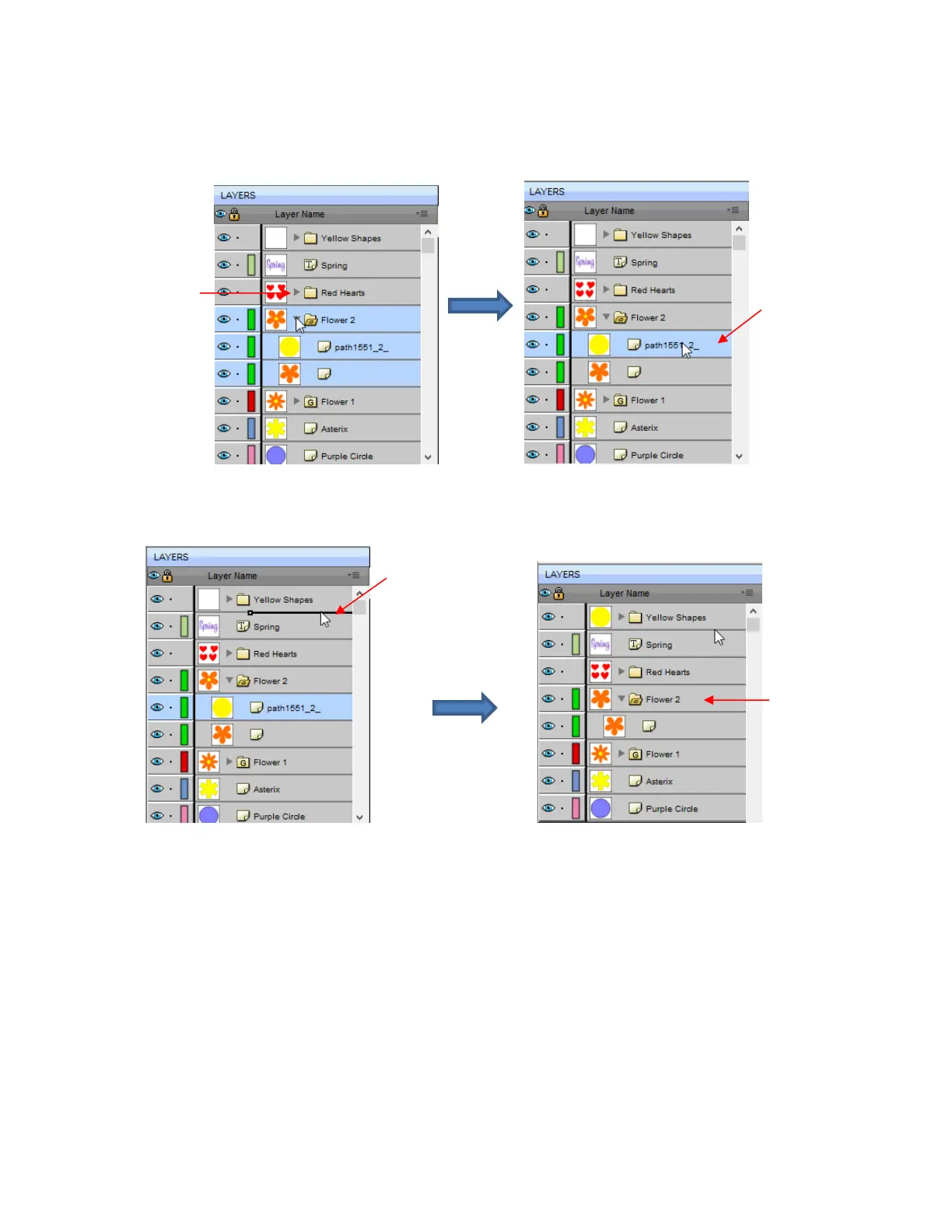
Layers can also be moved out of an existing folder into other folders. In this example, the yellow centers of
the flowers in the layers named Flower 1 and Flower 2, can be similarly dragged and dropped into the
Yellow Shapes folder:
Open the Flower 2 group folder and then make sure only the yellow layer is selected:
Then drag the yellow layer up to the Yellow Shapes, again making sure only a short line is present. The
yellow layer is then moved out of the Flower 2 group:
Repeat for the yellow shape inside the Flower1 folder.
Note: This was just one way to achieve this goal. Another way would have been to ungroup the Flower 1
and Flower 2 layers. Then to select all of the yellow shapes on the Cutting Mat and go to Object>Group.
A new group folder would be added to the Layers Panel with those shapes moved to it. Specific
instructions on Grouping and Ungrouping are covered in Section 5.10.



 To Next Page