Control Step / Description Control
Action
Display
Step 0
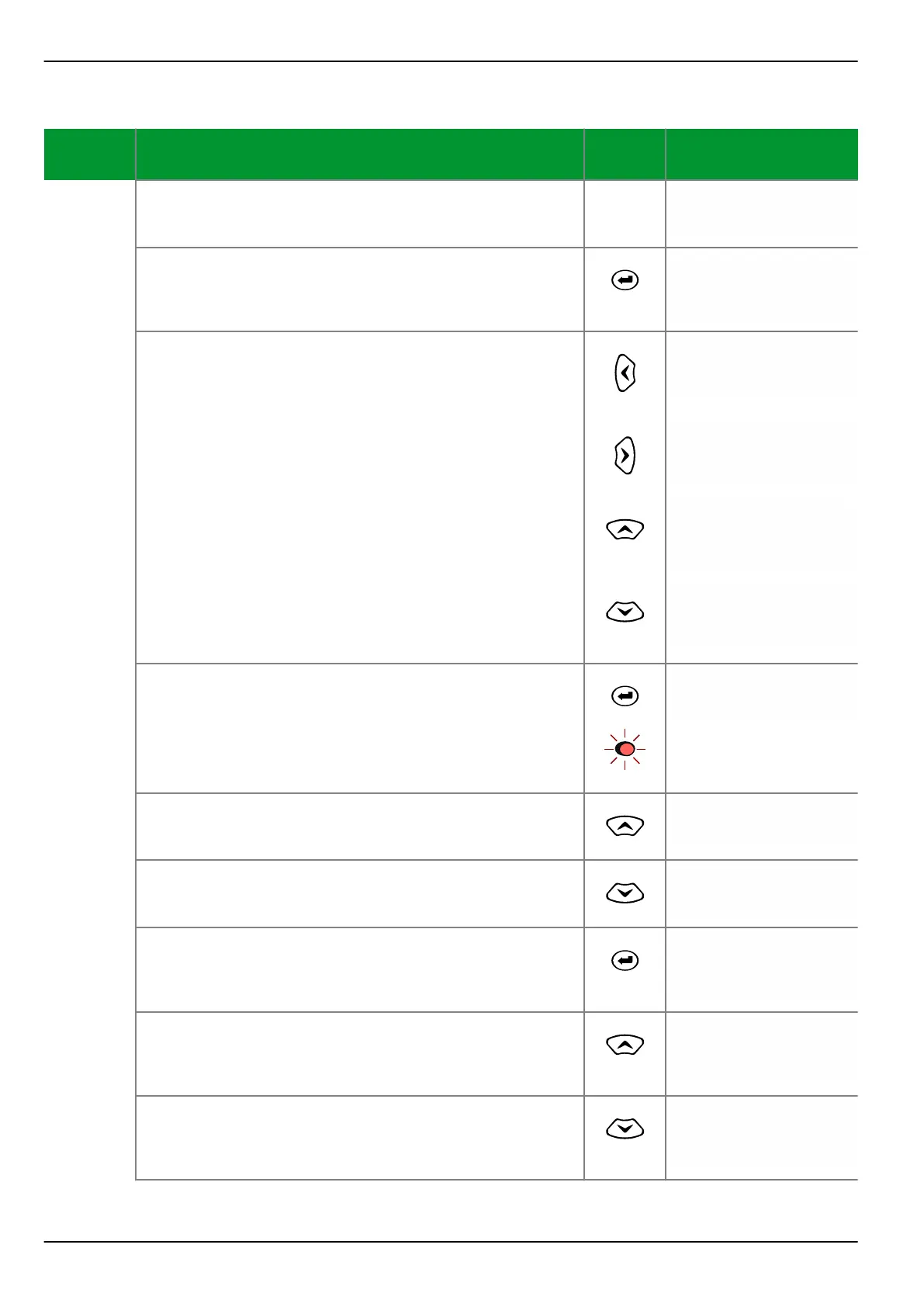
In the menu tree “Par/Conf/LOC”, select the
LOC: Password setting.
Par/Conf/LOC
Password
********
Step 1
Press the ENTER key. Eight asterisks (*) appear in the
fourth line of the display.
Par/Conf/LOC
Password
********
********
Step 2
Press the “left”, “right”, “up” and “down” keys to enter
the valid password. The display will change as shown in
the column on the right.
Par/Conf/LOC
Password
********
*
Par/Conf/LOC
Password
********
*
Par/Conf/LOC
Password
********
*
Par/Conf/LOC
Password
********
*
Step 3
Now press the enter key. The LED indicator labeled
EDIT MODE will light up. The third line shows an
underscore character ( _ ) as the prompt for entering a
new password.
Par/Conf/LOC
Password
_
Step 4
Enter the new password, which in this example is done
by pressing the “up” key followed by the “down” key.
Par/Conf/LOC
Password
*
Par/Conf/LOC
Password
**
Step 5
Press the enter key again. Asterisks appear in the third
line, and a cursor (underscore) in the fourth line
prompts the user to enter the new password again.
Par/Conf/LOC
Password
**
_
Step 6
Re-enter the password.
Par/Conf/LOC
Password
**
*
Par/Conf/LOC
Password
**
**
P634 6 Local Control (HMI)
6-32 P634/EN M/R-42-A // P634‑311‑653


 To Next Page