PCWS 2015 Setup Guide - 2nd Edition 3-35
What’s Inside?
Installing Options
Installing the Rear LCD Customer Display
This procedure describes how to attach the Integrated LCD Customer Display
to the PCWS 2015. The display is provided as a complete assembly, ready to
install.
1. Remove the AC power cable from the unit.
2. Place a towel or soft cloth on your work surface to protect the touchscreen
glass, then place the workstation face down on this surface.
3. Remove the IO Door, and remove the logo plate. Re-install the door and
return it to the closed position.
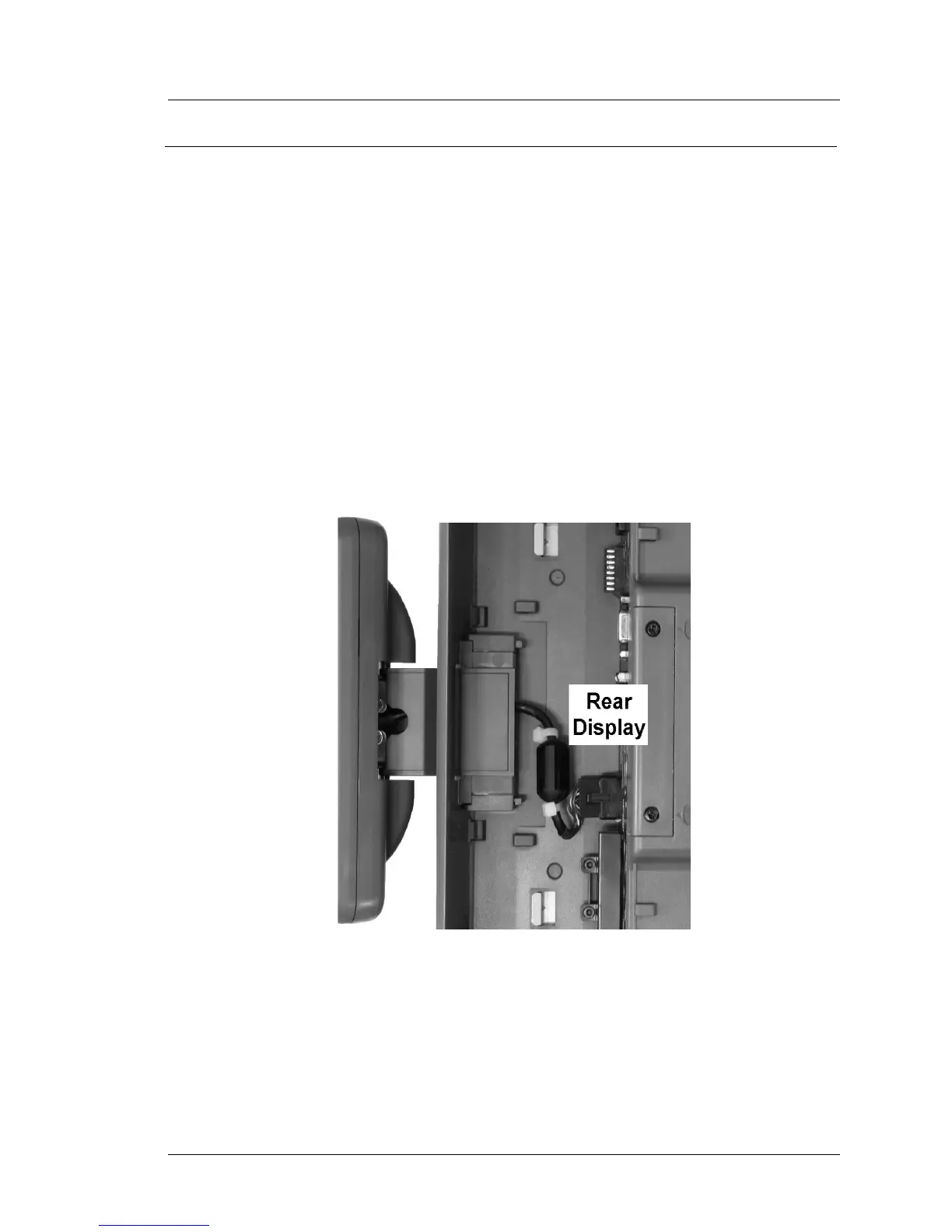
4. Feed the interface cable through the cut-out then insert the LCD customer
display bracket until the side clips snap into place as shown in Figure 3-32.
5. Connect the interface cable to the IO panel ‘Rear Display’ connector as
shown in Figure 3-32.
Figure 3-32: Installing the Rear LCD Customer Display
6. Return the unit to the normal operating position, connect the AC power
cord and press the power button. The LCD Customer Display is
automatically detected and ready for use.


 To Next Page