PCWS 2015 Setup Guide - 2nd Edition 2-7
PCWS 2015 BIOS
Advanced
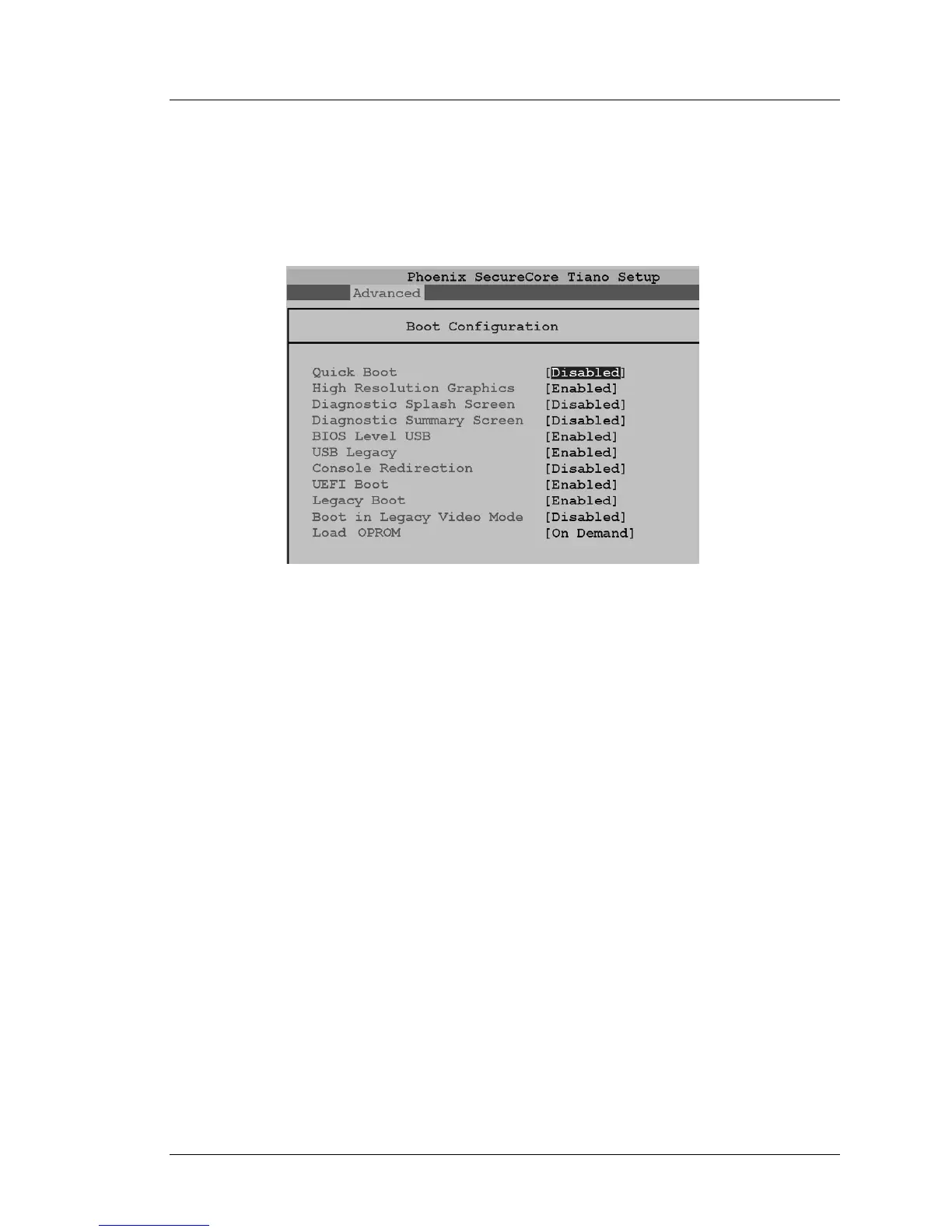
Boot Configuration
The Boot Configuration menu contains fields that determine how information
is displayed at boot time, provide support for legacy USB devices, and enables
console redirection for debugging.
Figure 2-4: Advanced - Boot Configuration
Quick Boot [Disabled]
Enables time-optimized POST, causing certain pre-configured OEM
optimizations to be made when the system boots.
High Resolution Graphics [Enabled]
Enables High Resolution Graphics BIOS Splash Screen.
Diagnostics Splash Screen [Disabled]
Enables a Graphical POST, including animation, sound, icons,
advertisements, and other multi-media objects that may be configured by
the OEM. On the PCWS 2015, this is confined to the Blue splash screen
with MICROS logo. The BIOS Version is displayed in the upper left corner
of the splash screen.
Diagnostics Summary Screen [Disabled]
Enables the diagnostic summary screen. The default setting of [Disabled]
decreases the boot time.
BIOS Level USB [Enabled]
Enables BIOS support for USB Keyboards and Mice.


 To Next Page