PCWS 2015 Setup Guide - 2nd Edition 4-17
Installing and Operating the Workstation 2015
Operation
7. Select [Disable] from the pop-up, then [Enter]. When complete, press
[F10], [Y] to save and restart. Repeat this step for each port.
• Disabling USB1 through USB4 can prevent access to BIOS Setup. If
this occurs, you can reset the USB port access by performing the
CMOS clear procedure described in Chapter 3.
• Disable only the highlighted ports 1 through 6. Disabling other ports
could cause the touchscreen to stop functioning.
• When you change the status of one or more ports, it does not take effect
until you restart the workstation.l
System Board Revision D
This method requires a Revision D System Board, BIOS Version O1301g, and
Diagnostics Utility Version 1.6 or later, included in the Windows 7 image.
Windows Embedded POSReady 2009 users with image version 1.4 should use
the BIOS method should the need arise to disable IO panel USB ports.
1. From the Windows 7 Desktop tap the Diagnostics Utility shortcut twice.
• The Diagnostics Utility System Information Screen displays. The
version must be 1.6 or later to support USB port management.
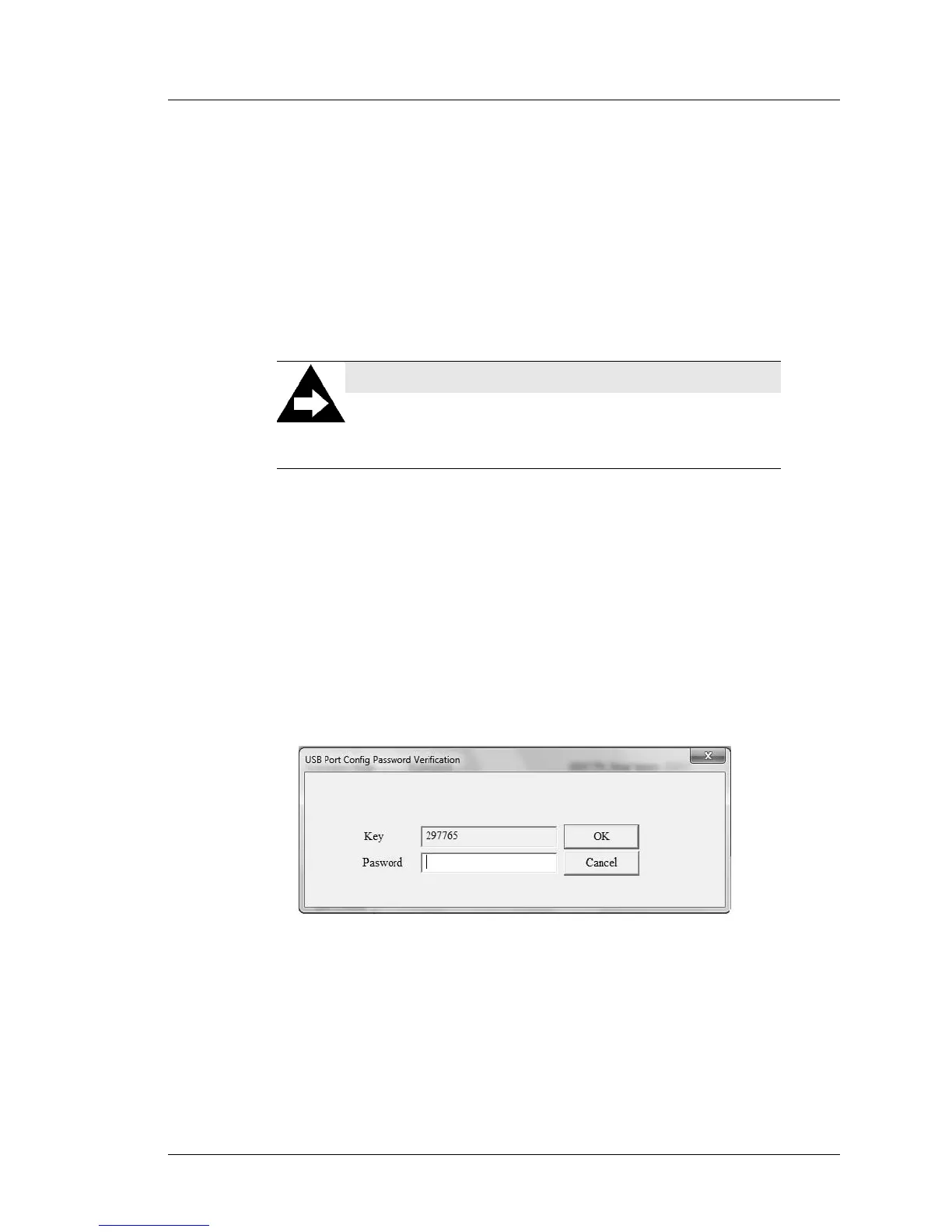
2. Tap the ‘USB Port Config’ tab, and a password dialog box appears.
Figure 4-9: USB Port Control Password Entry Dialog Box
3. Apply the formula below to the six-digit number that appears in the ‘key’
field.
Digit 1 x Digit 2 + Digit 4 + Digit 6 = Password
In the example above, the key field displays 297765 (2 x 9 + 7 + 5 = 30).
4. Enter the password with the soft keyboard and press enter.
NOTICE:
Updating the PCWS 2015 BIOS or using the ‘Load Setup
Defaults’ selection from the BIOS Exit menu re-enables
all USB ports.


 To Next Page