PCWS 2015 Setup Guide - 2nd Edition 5-9
Diagnostics
PC Workstation 2015 Diagnostic Utility
Controlling the IO Panel USB Ports
This method requires a Revision D System Board, BIOS Version 1301g, and
Diagnostics Utility Version 1.6 or later.
1. From the Windows 7 Desktop, tap the Diagnostics Utility shortcut twice.
o The Diagnostics Utility System Information Screen displays. The
Diagnostics Utility version must be 1.6 or later to support USB port
management.
2. Tap the ‘USB Port Config’ tab, and a password dialog box appears.
3. Apply the formula below to the six-digit number that appears in the ‘key’
field.
Digit 1 x Digit 2 + Digit 4 + Digit 6 = Password
For example, the key field displays 297765 (2 x 9 + 7 + 5 = 30).
4. Type the password with the soft keyboard and press enter.
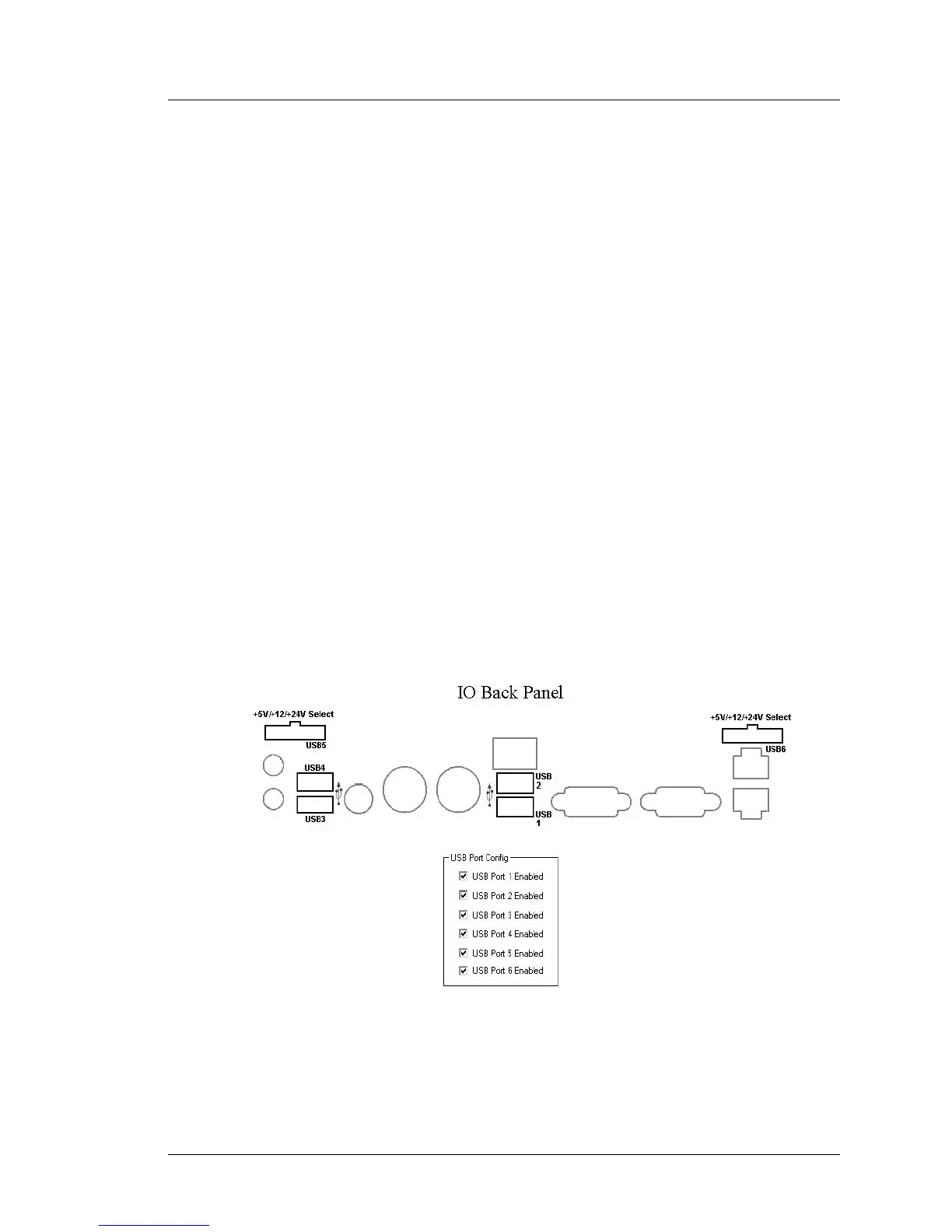
The USB Port Config tab contains six check-boxes, corresponding to a
specific IO Panel connector. This includes the standard Type A ports USB1
through USB4 and the optional powered USB ports, USB5 and USB6. The
location of each connector is shown in the ‘IO Back Panel’ illustration,
located on the next page.
All IO Panel USB ports are enabled when the workstation is shipped as
shown in the Figure below.
Figure 5-5: IO Panel USB Port Identification


 To Next Page