4-16 PCWS 2015 Setup Guide - 2nd Edition
Installing and Operating the Workstation 2015
Operation
Controlling the IO Panel USB Ports
The following procedure describes how to manage the IO Panel USB Ports
USB1 through USB6. Revision C System Boards require that you enter the
South Bridge Configuration menu in the BIOS to change the status of each
port. Revision D System Boards implement USB switches for each USB Port,
allowing these ports to be managed from within the operating system with the
Diagnostics Utility or BIOS.
System Board Revision C
1. Connect a USB Keyboard to the workstation and power-up.
2. Press [F2] to enter BIOS Setup.
3. From the Main screen select the Advanced Tab.
4. Scroll to ‘South Bridge Configuration’ then press [Enter].
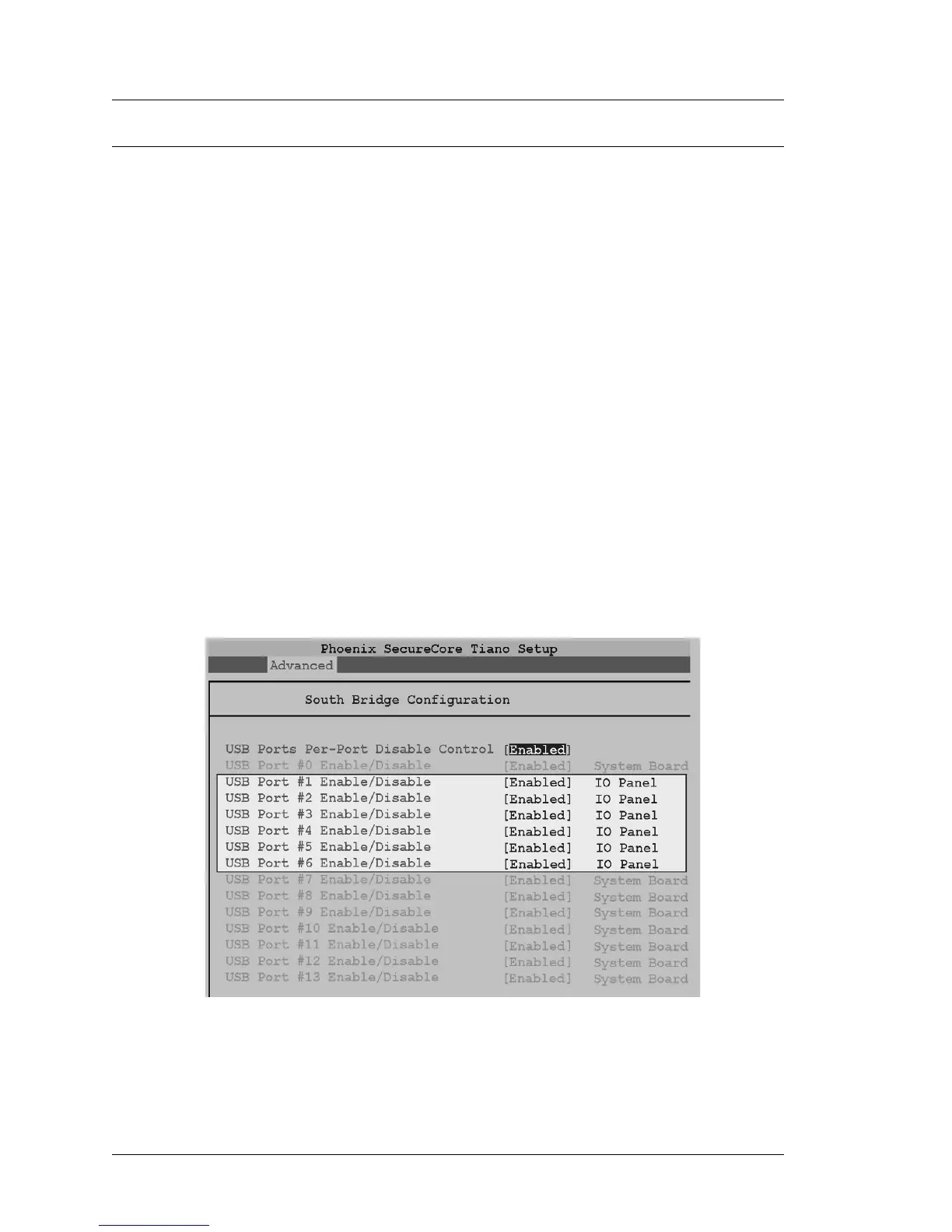
5. Scroll to the ‘USB Ports Per-Port Disable Control’ field and select [Enter].
• The screen expands to display all 14 USB ports. All ports are
[Enabled].
• The top of Figure 4-8 displays this screen with USB1 through USB6
highlighted to avoid the System Board USB ports. The lower half of the
illustration points out the location of IO Panel USB port.
Figure 4-8: USB Per Port Enable/Disable (BIOS)
6. To disable one or more IO Panel USB ports, scroll to the individual field
and press Enter.


 To Next Page