PCWS 2015 Setup Guide - 2nd Edition 2-3
PCWS 2015 BIOS
Starting BIOS Setup Utility
Starting BIOS Setup
1. Connect a USB Keyboard to one of the USB ports located on the IO panel.
2. Power-up or restart the PCWS 2015 using the power button.
3. Just as the BIOS Splash screen with MICROS logo appears, press the [F2]
key.
The current MICROS BIOS Version is displayed in the upper left hand
corner of the splash screen.
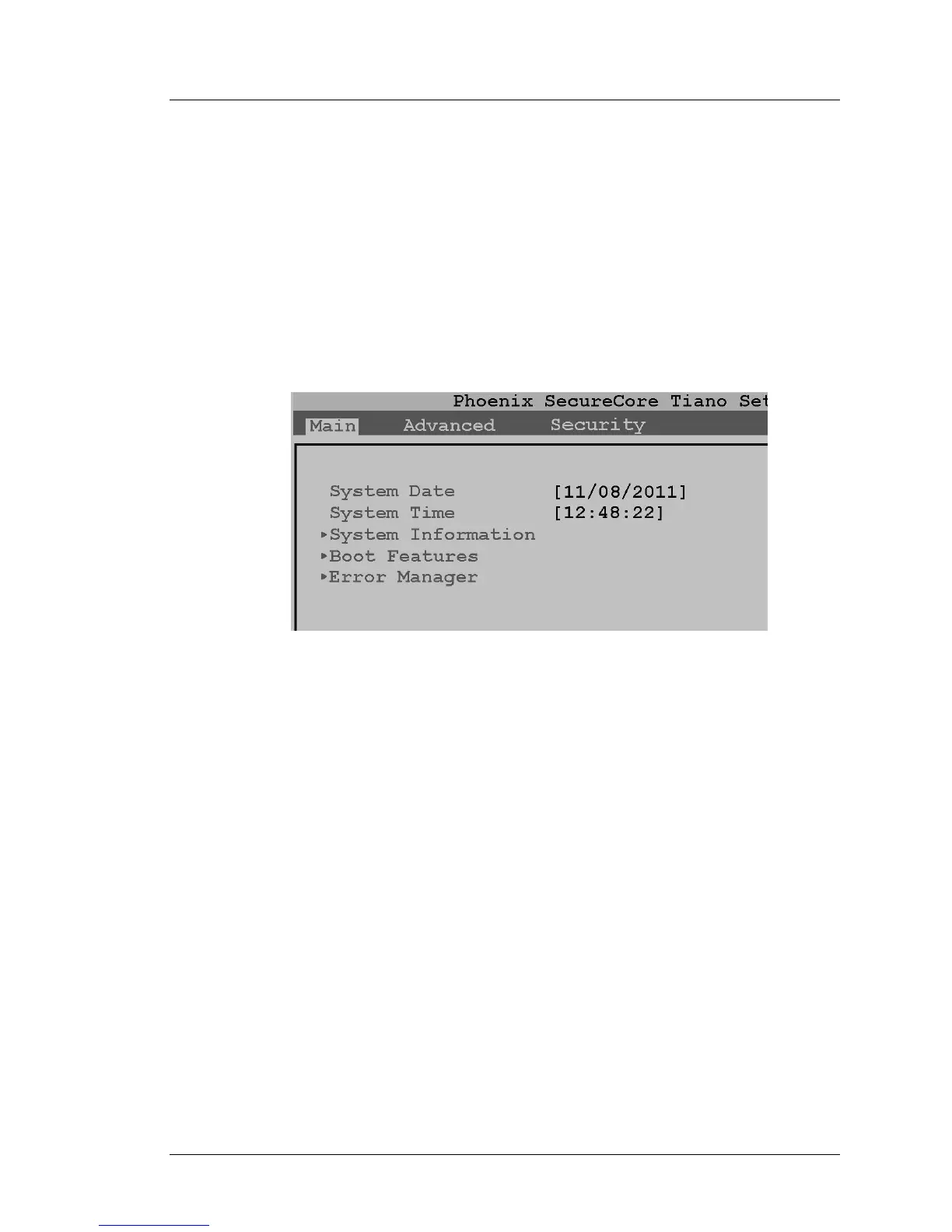
A section of the Phoenix SecureCore Tiano Setup Main screen shown
below appears.
Figure 2-1: PCWS 2015 BIOS Setup Main Screen (O1301g or later)
4. To adjust the System Date and Time, follow the help instructions shown at
the bottom of the screen.
5. To view the System Information Screen, scroll to the ‘System Information’
selection and press Enter.



 To Next Page