2-32 PCWS 2015 Setup Guide - 2nd Edition
PCWS 2015 BIOS
Security
Assigning a Supervisor Password (BIOS O1301g or later)
When shipped from the factory, the Supervisor and User Password are cleared.
To assign a Supervisor Password, see the procedure below.
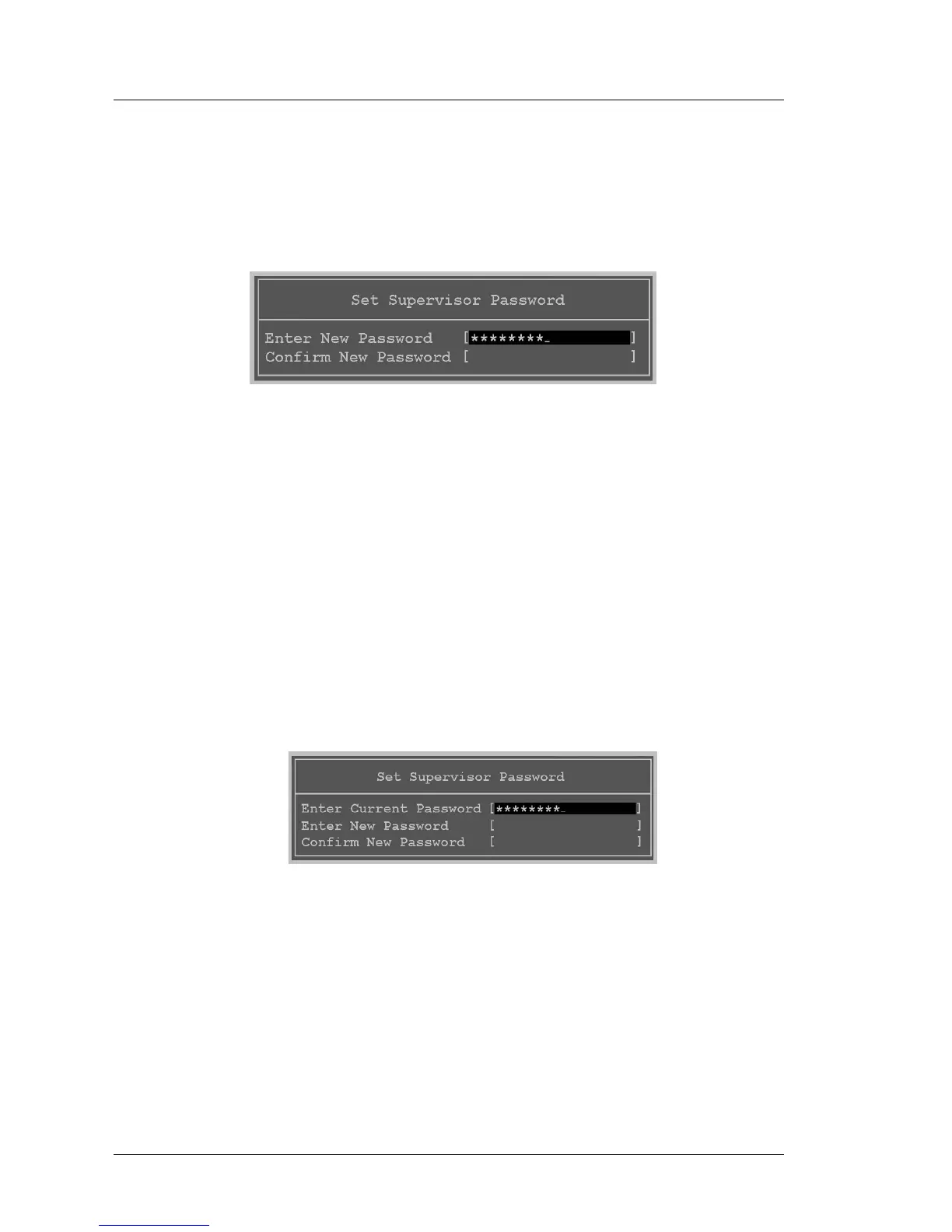
1. Scroll to the ‘Set Supervisor Password’ field and press [Enter]. The Set
Supervisor Password dialog box shown below appears.
Figure 2-17: Assigning and Confirming a Supervisor Password
2. Enter the password (maximum of twenty characters) and press enter.
MICROS recommends a ‘strong’ password using a combination of letters
and numbers. Confirm the password by typing it again and pressing enter.
• The Supervisor password will be required to enter the Phoenix
SecureCore Tiano Setup Menu and to start the optional PCWS 2015
Recovery CF.
3. Optionally, scroll to the ‘Supervisor Hint String’ field and press Enter to
type a word or phrase that can serve as a hint for the Supervisor Password.
Change or Clear the Supervisor Password
To change or remove the Supervisor Password see the procedure below.
1. Scroll to the Set Supervisor Password field and press [Enter]. The Set
Supervisor dialog box with three fields appears.
Figure 2-18: Clearing or Disabling the Supervisor Password
2. To change the Supervisor Password:
• Type the Current Password and press [Enter].
• Type the new Password and press [Enter].
• Confirm the new Password and press [Enter].
3. To clear the Supervisor Password:
• Type the current Supervisor Password and press [Enter].
• Press [Enter] twice (without typing characters) to clear the password.
Press [Enter] again to confirm.



 To Next Page