Morgana DocuMaster MFC - Service Manual 95
4. Service Procedures - Machine Adjustments and Calibration
4.5.21 Calibrate the GUI Panel
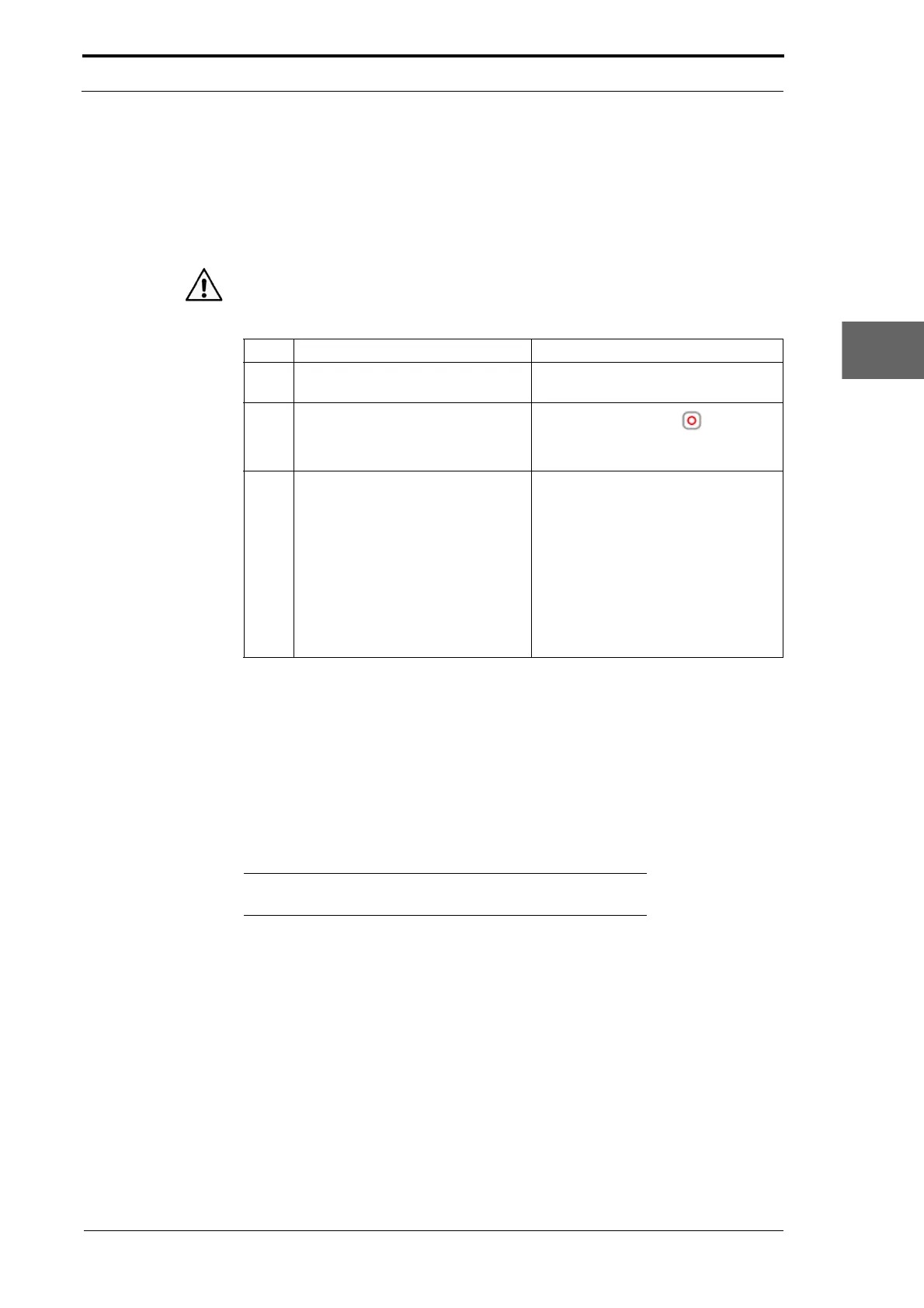
The GUI touch screen can be calibrated to make sure that it responds accurately when
touched. If the GUI is not calibrated, the screen may seem unresponsive. You must
use a suitable tool to calibrate the GUI panel. This can be the tip of a ball pen or PDA
stylus.
Caution: Always use gentle pressure and never use a sharp object to touch the GUI
screen, as this can cause damage.
Step Action Information
1 Set the main input switch to the ON
(I) position.
2 Open the screen calibration page.
Touch the stop button
above the
screen on the screen bezel five
times.
3 Calibrate the GUI panel.
• Touch the GUI screen with the
point of a blunt object in the
extreme top LH corner where
prompted.
• Touch the GUI screen with the
point of a blunt object in the
extreme bottom RH corner
where prompted.
• Touch the GUI screen in the
centre to finish.
4.5.22 Adjust the GUI Screen Display
The GUI touch screen display has two contrast settings. Choose the setting that most
suits the ambient light conditions.
(1) Set the main input switch to ON (I)
(2) Touch the MENU control button on the GUI panel
(3) Touch the LIGHTER or DARKER buttons to set the contrast.
Note: The apparent contrast of the screen can also be altered
by tilting the screen on its hinge.


 To Next Page