E Series Automated Dispensing System
43www.nordsonefd.com info@nordsonefd.com 800-556-3484 Sales and service of Nordson EFD dispensing systems are available worldwide.
Setting Up Barcode Scanning (continued)
Enabling or Disabling Barcode Scanning (continued)
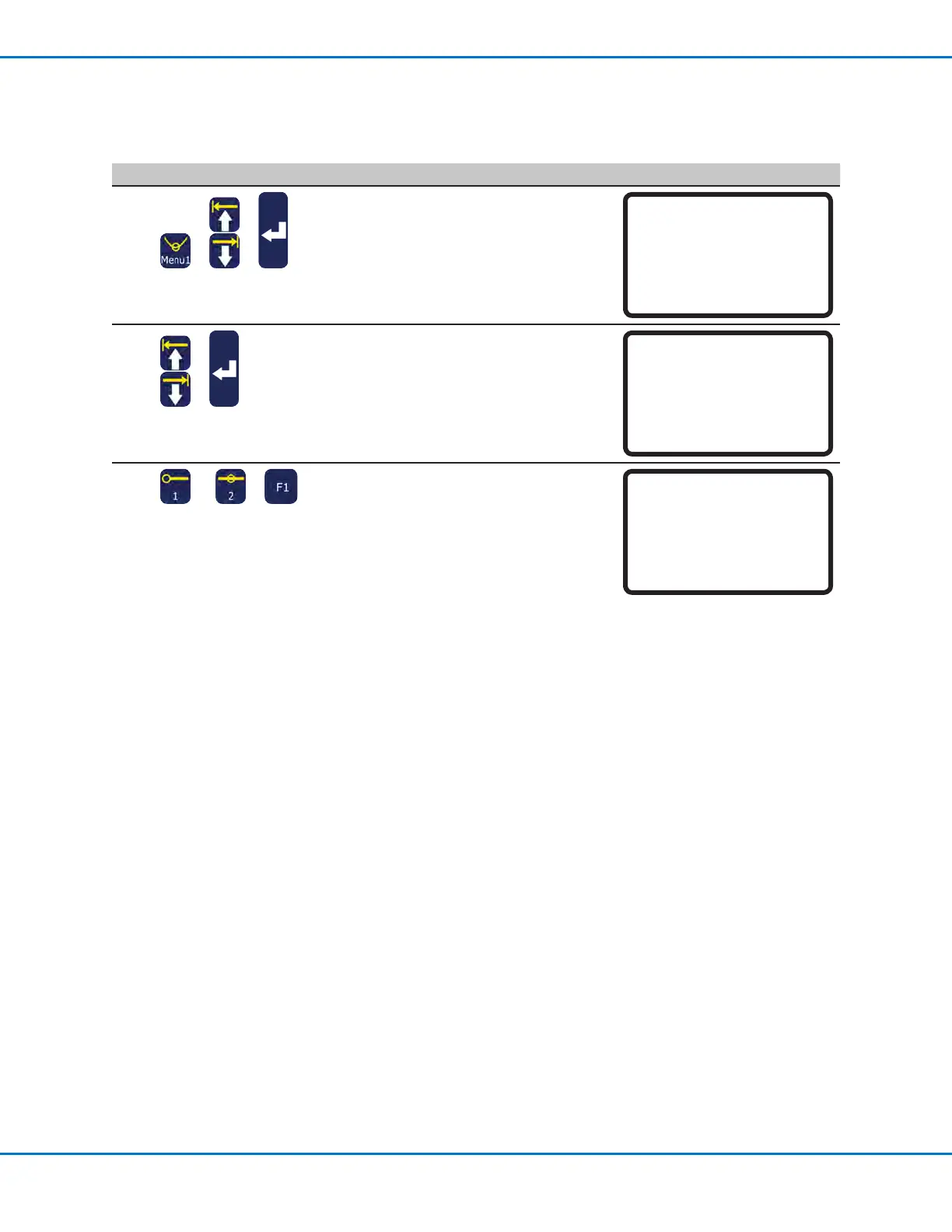
# Key Press Step Teach Pendant Display
1
> >
• Press MENU1.
• MOVE UP / DOWN to UTILITY MENU.
• Press ENTER.
[MENU 1] 2/2
08*Utility Menu
09 Diagnostic
2
>
• MOVE UP / DOWN to BARCODE
SCANNER.
• Press ENTER.
[UTILITY] 1/1
01 Program
02 Memory
03 Key Beep
04 Online Signals
05*Barcode Scanner
06 System Lockout
3
or >
• Press 1 ENABLE to enable the barcode
scanner.
• Press 2 DISABLE to Disable the barcode
scanner.
• Press F1 to save or exit.
Barcode Reader
Enable
------------------------------
1 Enable
2 Disable
Select: _
[F1] OK
Setting the Dispenser Ports
There are two ways to modify the dispenser output ports; the correct method to use depends on the number of
dispensers or valves in the system:
• For a system with a single dispenser / valve, change the Default Dispense Port setting. Refer to “Default
Dispense Port (Dispense Port Output)” on page37.
• For a system with multiple dispensers / valves, use the Dispense Port command. Refer to “15 Dispense Port”
on page102.


 To Next Page