E Series Automated Dispensing System
57www.nordsonefd.com info@nordsonefd.com 800-556-3484 Sales and service of Nordson EFD dispensing systems are available worldwide.
Working with Programs and Commands (continued)
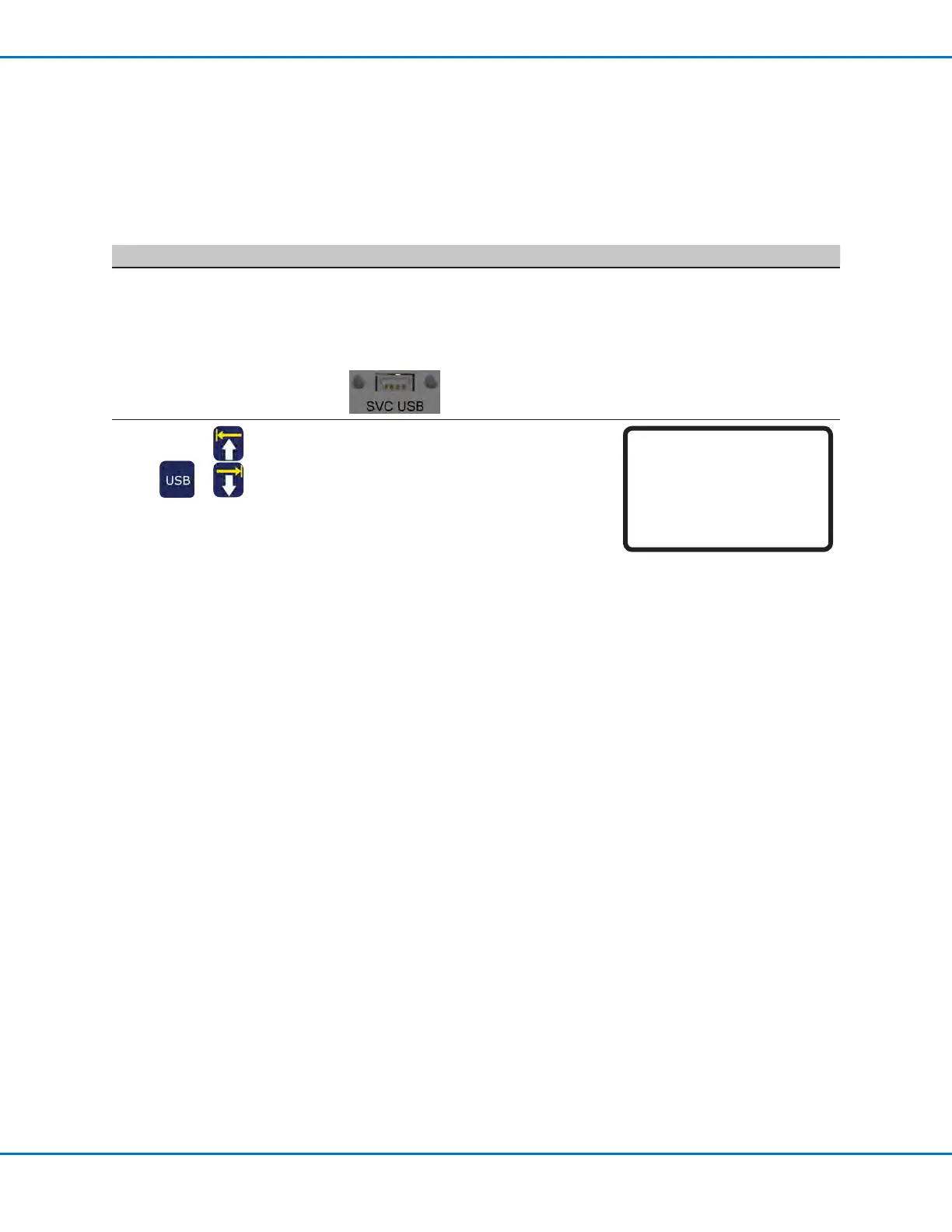
How to Upload / Download Programs Using the SVC USB Port
You can use the SVC USB port on the front of the robot to upload or download programs to or from the robot.
PREREQUISITES
The system is in the Teach Mode. Refer to “How to Switch from Run Mode to Teach Mode” on page44.
# Key Press Step Teach Pendant Display
1
• Switch OFF the robot.
• Connect the USB drive to the SVC
USB port on the front of the robot.
• Switch ON the robot.
2
> > -
• Press USB. The USB menu appears.
- Select 1 to load a *.NDN program
selected from the USB drive to the
specied program number on the
robot.
- Select 2 to save the current program
to the USB drive as a *.NDN le.
- Select 3 to load a *.PKG le from
the USB drive. Loading this le may
overwrite existing programs located
in populated program numbers.
- Select 4 to save all populated robot
programs to the USB drive as a
*.PKG le.
• Follow the instructions on the display
to complete the selected action.
[USB] 1/1
01 Load Program
02 Save Program
03 Load All Programs
04 Save All Programs


 To Next Page