Chapter 8 Backing up and restoring Norstar data 113
ICS Remote Tools User Guide
Understanding the job queue
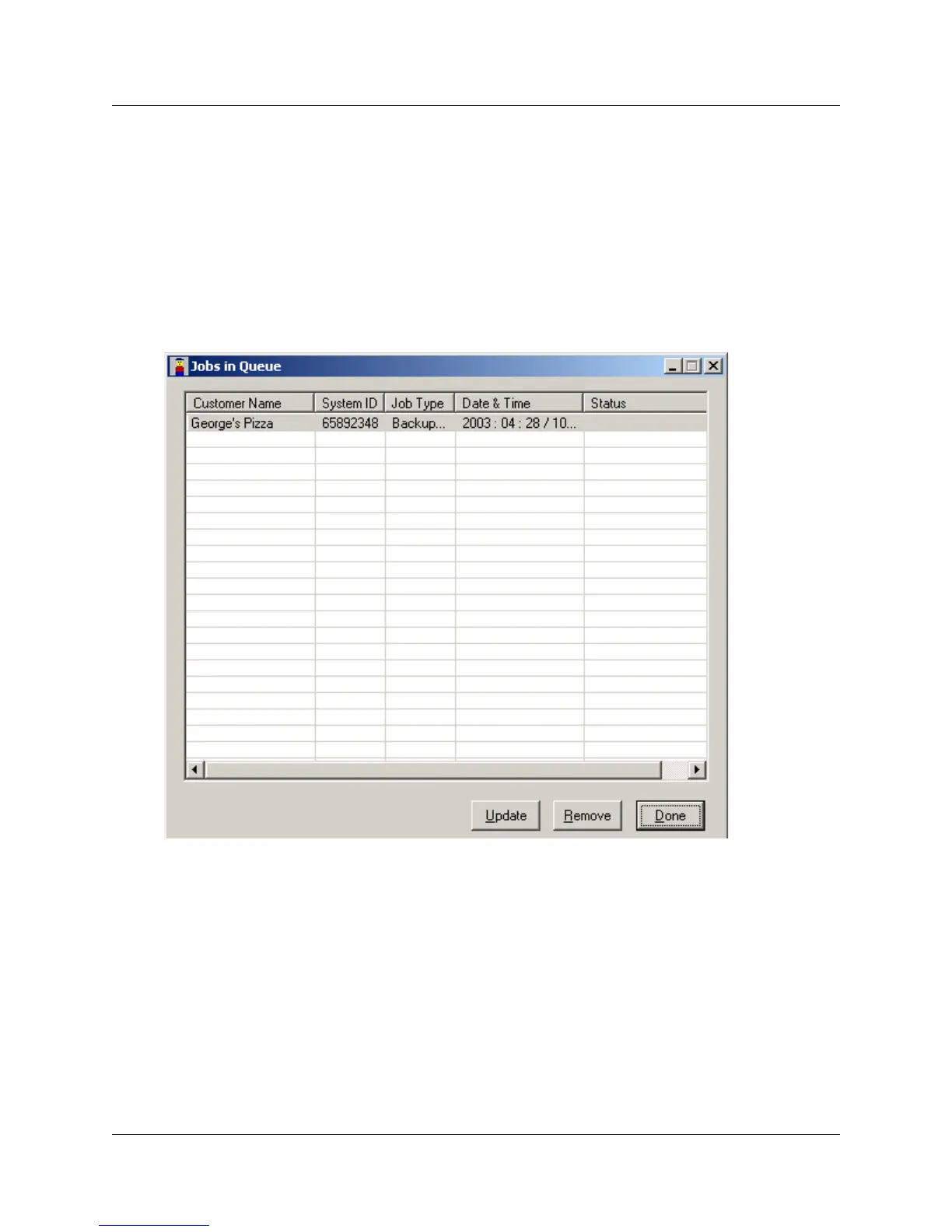
The Jobs in Queue screen lists all Norstar systems scheduled for a backup or restore. Each backup
or restore in the list is called a job.
To access the Jobs in Queue screen, either click on Scheduler, then select Job Queue or double
click on the Scheduler icon on the task bar.
Click on Done to exit the screen.
Figure 56 Jobs in Queue screen
Each job on the Job Queue is listed with its Customer Name, System ID, Job Type,
the Date & Time the job is scheduled to occur, and the current Status of the job.
The Jobs in Queue screen uses the following Status identifiers:
• Ready to Run: The job has been scheduled and is waiting to be run.
• Running: The job is currently being run.
• Completed: The Job has been completed successfully.
• Error: An error occurred during the job execution. Corresponding error message will be
updated.
• Suspended: Job was scheduled for execution but the user terminated the scheduler
application. The status of jobs that are to be scheduled are updated as Suspended in the Status
field of the Jobs in Queue dialog.



 To Next Page