60 Chapter 5 Understanding the Remote Set tool
N0004999 01
• When doing tasks such as name administration, advance or back up the cursor by pressing a
softkey after pressing each letter. (Softkeys are located directly below the display screen in the
telephone simulation window. They are also called display buttons.) After you press a letter,
you will see an arrow symbol on the telephone display. This is your prompt to press the
softkey located beneath the arrow.
For example: To enter Ann, you press A, softkey, N, softkey, N, and softkey. If you make a
mistake, press the softkey to go backward. This highlights the incorrect letter. Now you can
press the backspace softkey to delete the letter, or you can type over it. Then press the softkey
to go forward to reposition the cursor. Moving the cursor backward or forward by using
softkey in this way was designed to simulate an actual telephone.
• You can use the <TAB> key to navigate through a window.
For example, to enter Feature*3 you would press:
1 TAB until Feature is highlighted and then press ENTER.
2 TAB until * is highlighted and then press ENTER.
3 TAB until 3 is highlighted and then press ENTER.
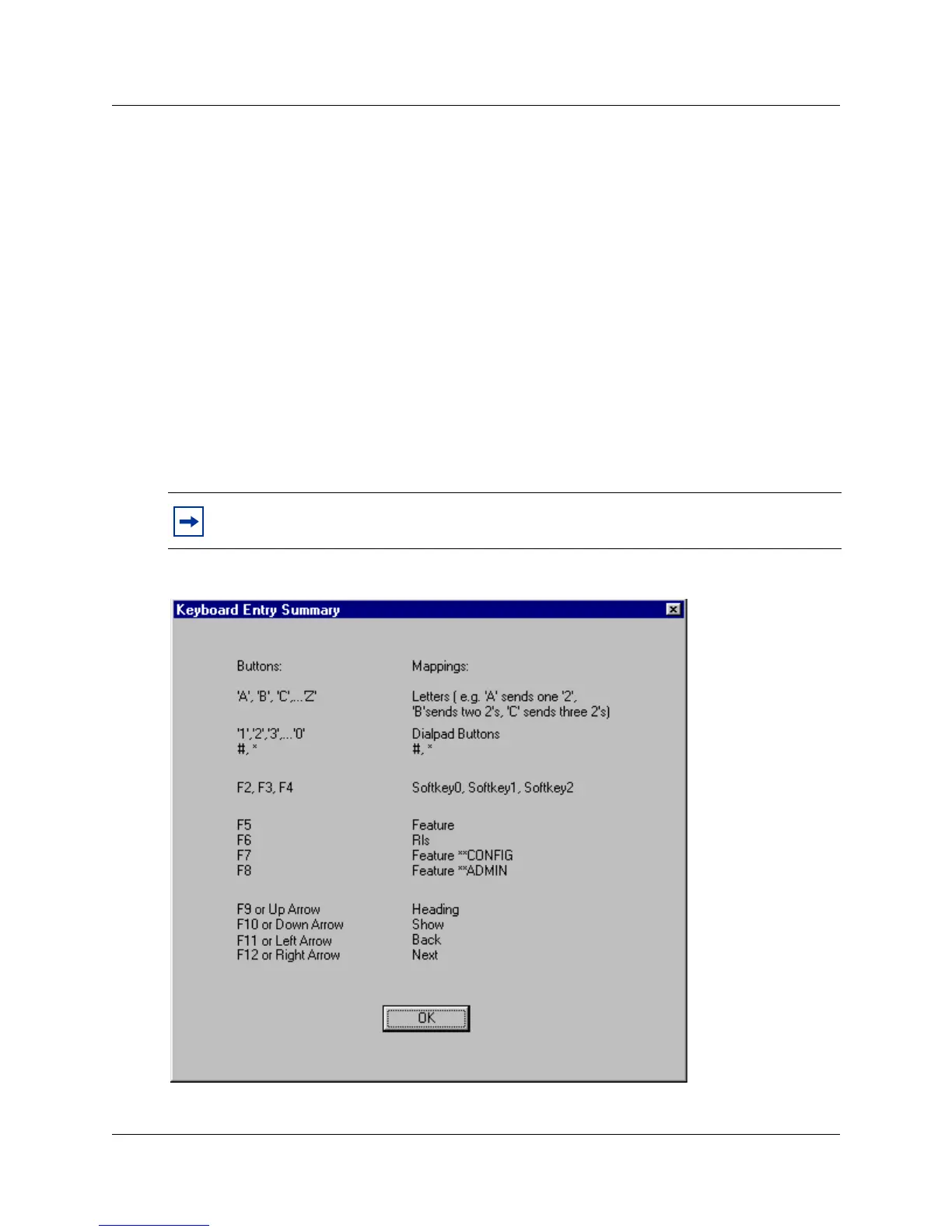
Figure 28 F1 keyboard mapping list
Note: You can also use directional arrows to navigate through a window.



 To Next Page