Chapter 6 Understanding the Browser tool 71
ICS Remote Tools User Guide
If the value box is blank, it means no value has been given for the item. For instance, if you had
only selected Restriction service in the case shown in
Figure 36, the label box would read
Schedule, but the value box would be blank.
Using the task bar buttons
The top bar also allows you to add, remove, or remove the entire list of items under headings that
have a variable list of similar items.
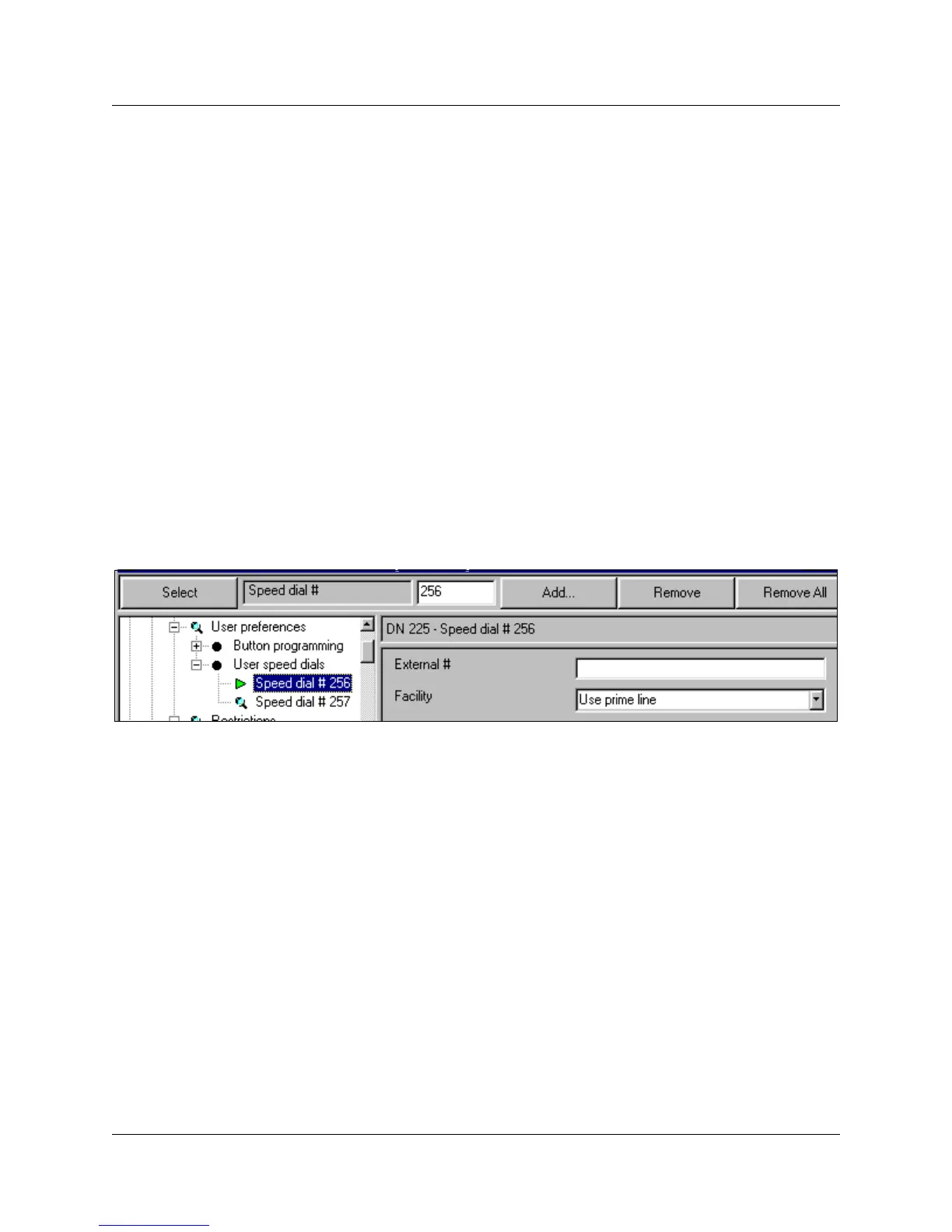
• In the example in Figure 37, where Speed dial #256 is selected, you could click on the
Remove button to erase that entry. There is no confirmation for this action, the entry is
immediately removed.
• If you click on the Remove all button, Speed dial #257 would also be removed. There is a
confirmation for this button. If you are sure you want to erase all entries under the heading
where the selection is highlighted, click on OK on the confirmation dialog box to immediately
delete all entries.
• If you enter a new value in the value field, such as 258, and click on the Add button, the listing
Speed dial #258 would appear under User speed dials on the navigation tree. You then would
be able to edit the External # and Facility fields for that speed dial.
Figure 37 Setting speed dials using the label field
Viewing recent programming changes
Programming changes you make using the Browser tool take effect immediately at the Norstar
system, but may not appear automatically in the navigation tree. Collapse and re-expand the
headings to refresh the navigation tree entries and to view your programming changes.
If you try to open an item which is no longer valid because of changes to programming, an error
message appears. For example, an error message will appear if you try to open a line assignment
which has recently been made private to another telephone. In most cases, invalid headings and
settings disappear once the Browser tool has confirmed that they cannot be expanded or opened.



 To Next Page