38 Chapter 3 Setting up customers in ICSRT
N0004999 01
7 Press OK.
If you entered a new folder name, you will be prompted to confirm that you want the system to
create a new folder at the indicated location. Click OK.
The program returns to the Create CustomerInfo Database screen.
8 Ensure that the path is correct, then click OK.
A popup dialog indicates that the new database was created.
9 Click OK.
10 To open the new database, use the Change Path menu item. Refer to “Moving between
databases” on page 38 for details.
Moving between databases
Use the Change Path option to move from one database to another.
1 On the Customer Info screen, click on Database and choose Change Path.
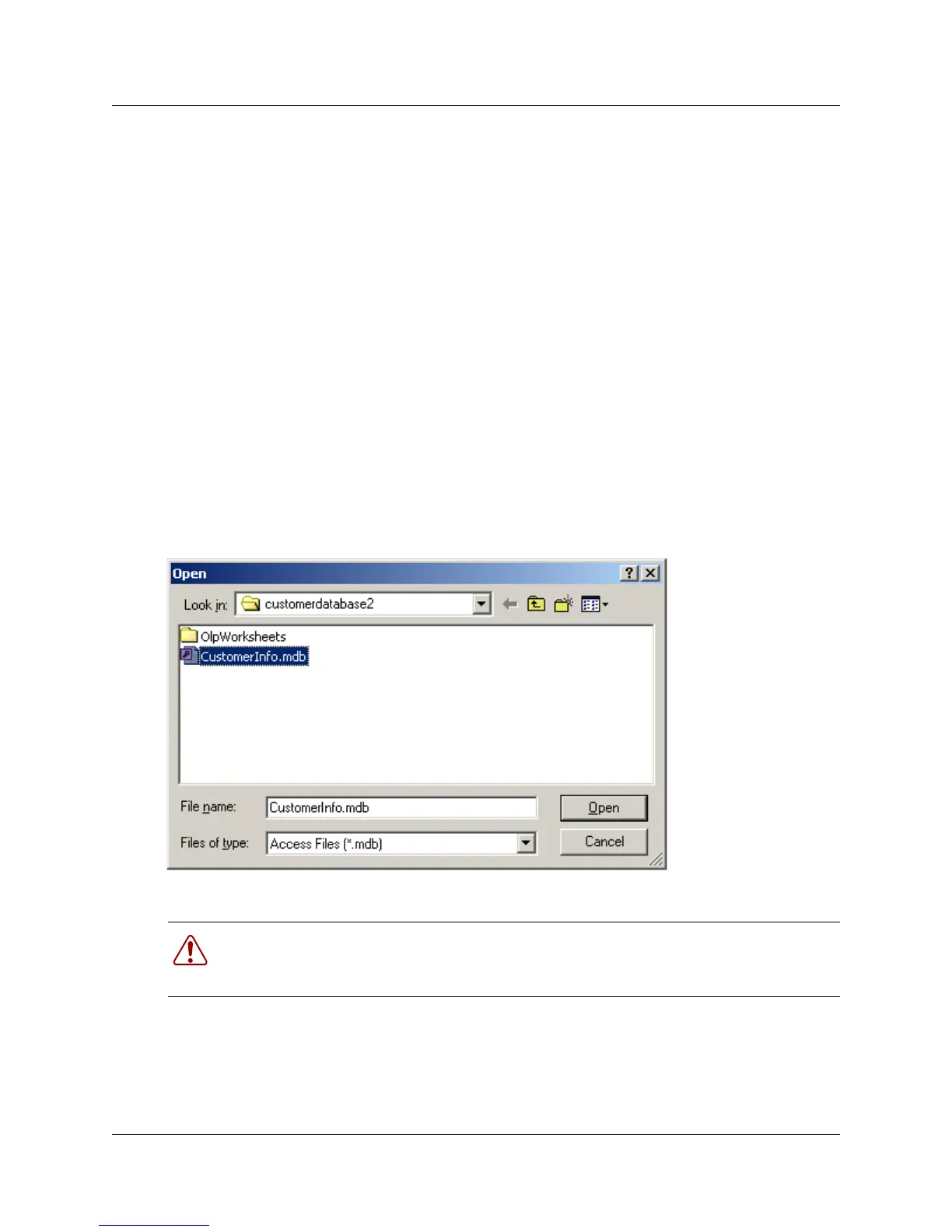
A Windows Open screen appears displaying the current database path.
Figure 15 Windows Open screen
2 Navigate to another database, then select CustomerInfo.mdb.
3 Click Open.
On the Customer Info screen, Current Path field shows the new path, and the list of customer
records that were created in that database appear on the screen.
Warning: Do not connect to <installed path>\ICSRT\Template\CustomerInfo.mdb for
any reason. If this file is accessed, it may become corrupted. In that situation, you need to
re-install the ICSRT application.



 To Next Page